
Once you have identified the right candidate for your role and decide to move him/her forward to the “Offer Stage”, you will need to ask your HR recruiter to create an offer proposal in the system and raise it for approval.
Only your HR recruiter can create and raise an offer request.
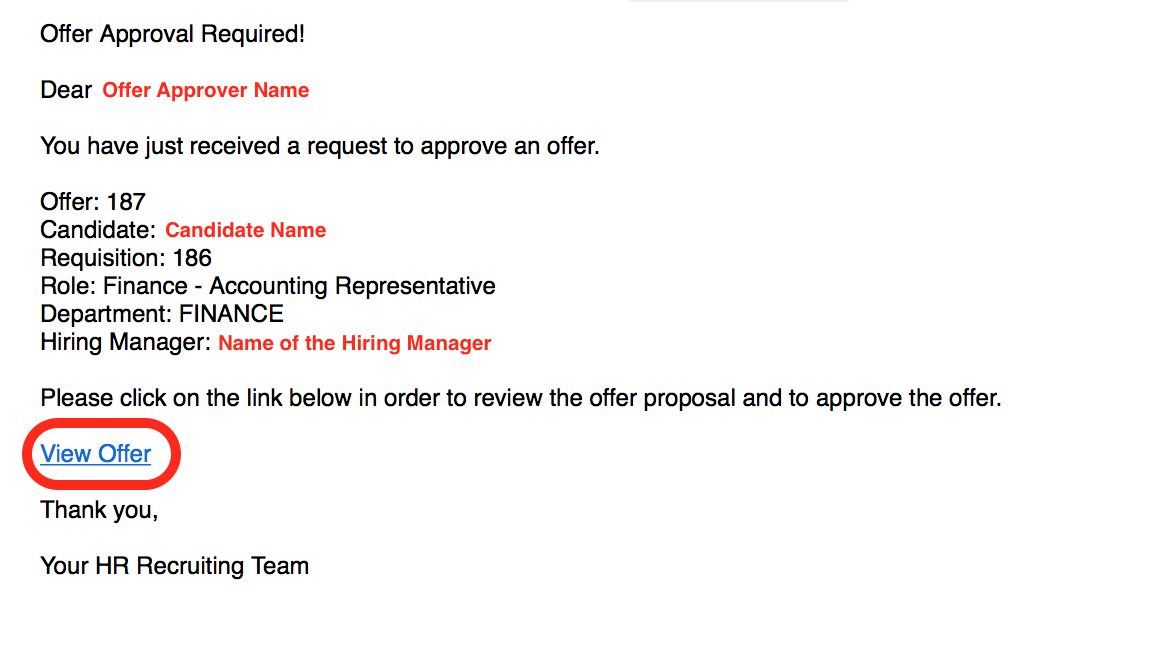
When your recruiter raises an offer proposal for the candidate you would like to hire, the approvers assigned will receive a short email notification with a link to review the offer proposal and proceed with its approval.
Note: if you are not listed as an official offer approver, you will not receive an email notification and you will not be able to access the offer details within HirePlanner.com.
OFFER APPROVAL REQUEST - EMAIL NOTIFICATION:
When a new offer approval request is raised by your HR and when you are listed as one of the approvers, you will receive an email notification similar to the one attached below. To approve or reject the offer, click on the "View Offer" link which will re-direct you to the offer details page to be approved.
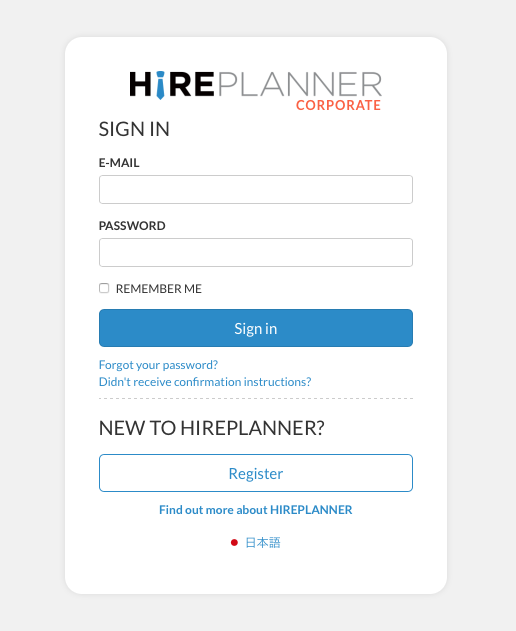
SIGN-IN:
Sign-in your HirePlanner account
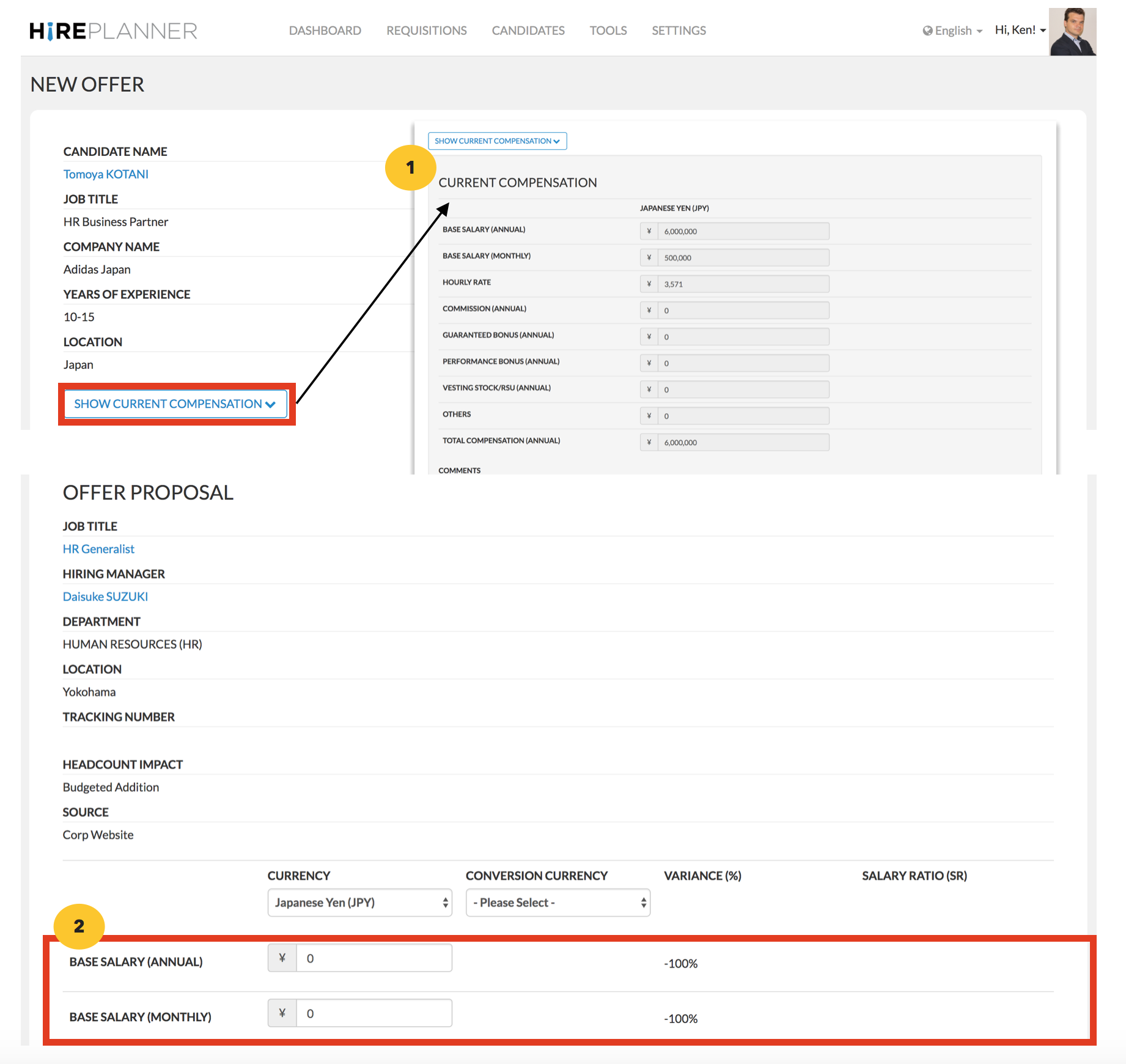
APPROVE / REJECT OFFER DETAILS:
Once you are logged back in HirePlanner, you can access the candidate offer proposal and:
- Review the candidate's current compensation details,
- Make sure all the offer proposal details are correct (base salary, commission, sign-on bonus, performance bonus and other possible benefits…)
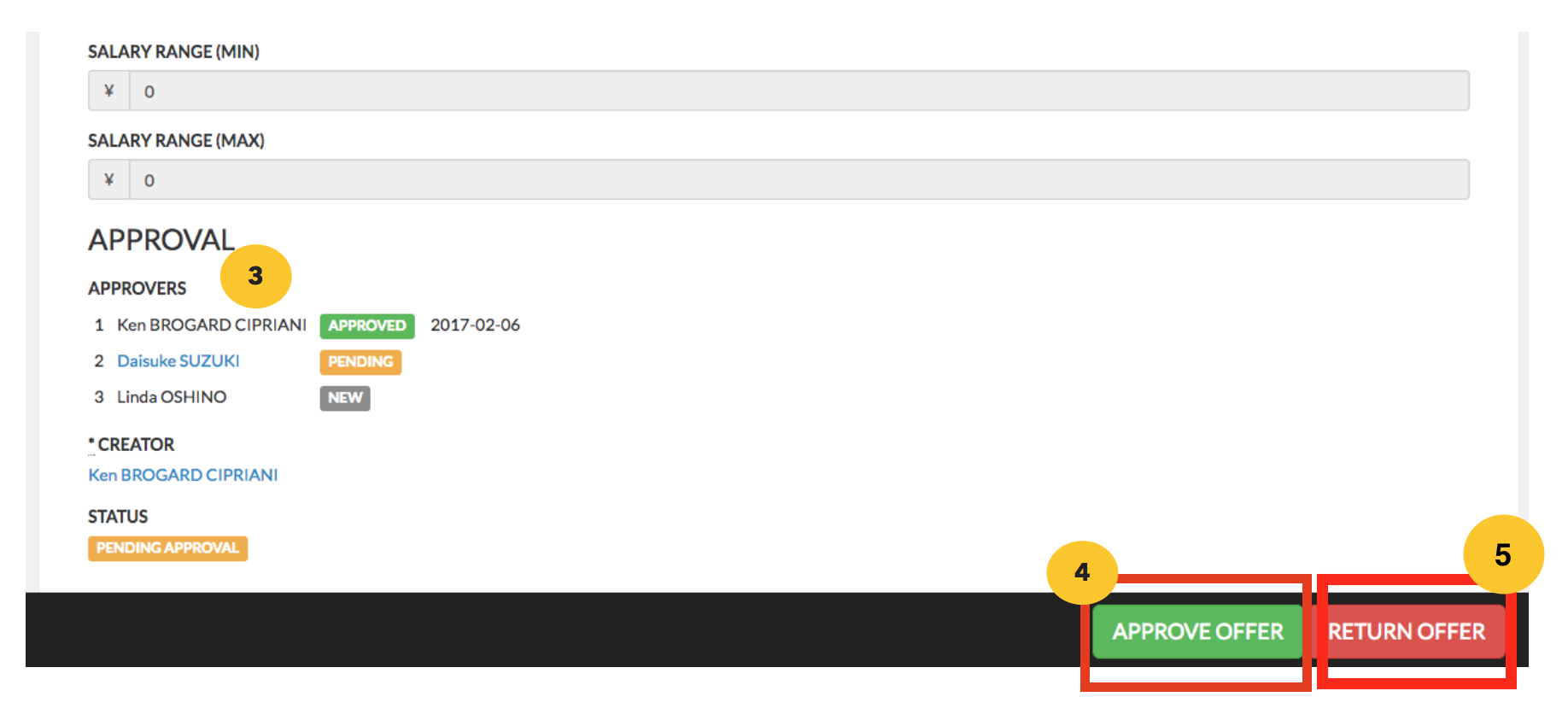
- Verify the list of approvers, and,
- Approve the offer approval request by clicking on “Approve Offer” or
- Reject the offer approval request by clicking on "Return Offer"
APPROVAL ROUTE (APPROVERS):
Located at the bottom of the offer approval form, you can verify the names of the official list of “Approvers” to validate the offer proposal. “Approvers” can vary depending on your organization but would usually include the following group of people:
- Recruiter in charge (who is raising the requisition)
- Hiring Manager,
- The next level manager (Line Manager),
- CFO and,
- Head of HR
Once you approve your offer by clicking on the “Approve” button, the next person on the approval route will receive a notification email in order to review and approve the offer after you (until it is fully approved).
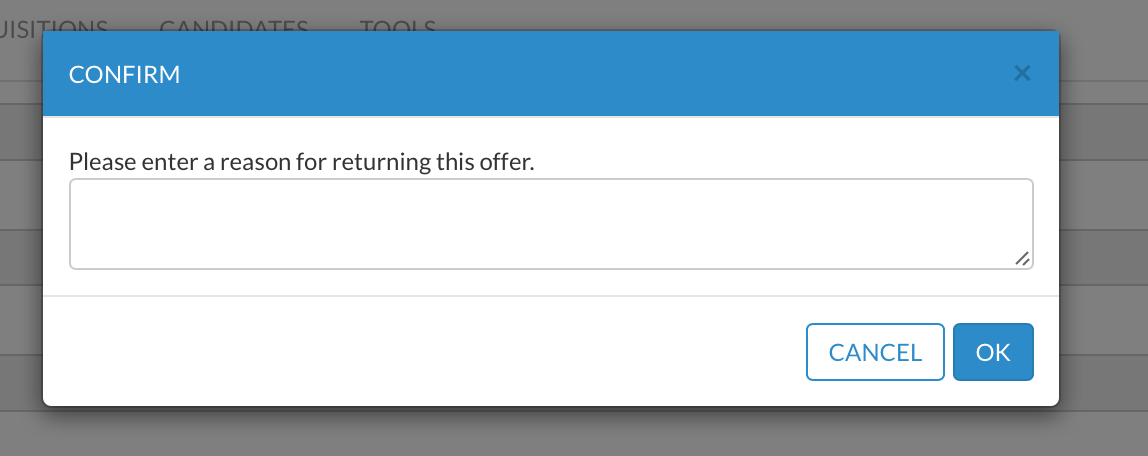
OFFER REJECTED: If for any reason, you want to "edit" or “reject” the offer proposal your recruiter has submitted, you will need to click on the “Return Offer” (Red Button) and submit an explanation on why you are not able to proceed with the approval. The Recruiter will then receive a notification via email (with a copy of your feedback). They will then be able to take the necessary steps, and either a) cancel the offer or b) make the requested adjustments for the offer to re-raised for approval.
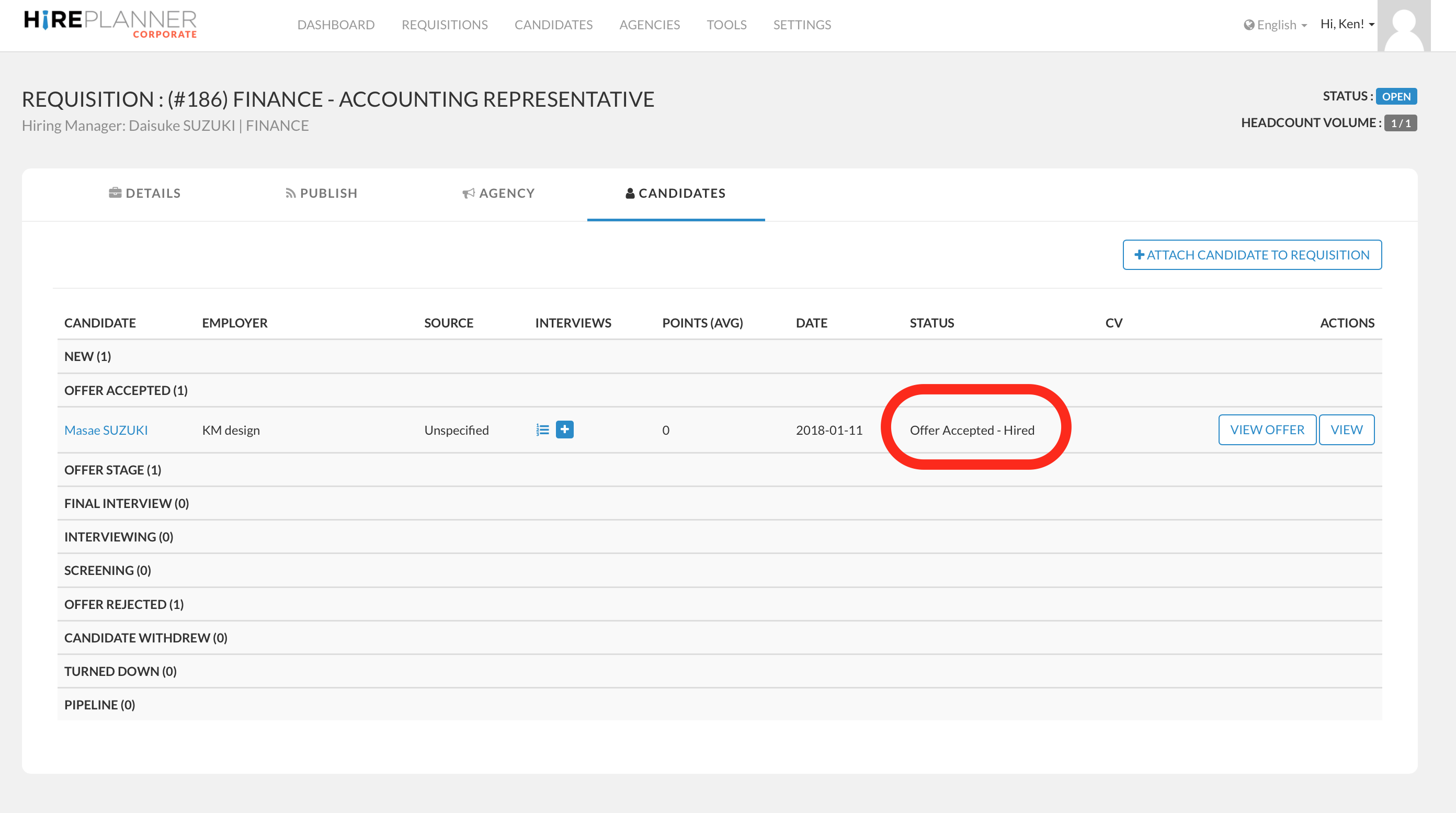
OFFER APPROVED: To approve the offer request, click on the "Approver Offer" (green button). Once the offer is completely approved by everyone on the approval route (and when the offer contract is signed by the candidate), your recruiter will be able to make your role officially “Closed”. It will then be displayed as "Offer Accepted - Hired" in your candidate pipeline (see attached below).
Comments
0 comments
Article is closed for comments.