
DEFAULT SETTINGS
Based on HirePlanner's default settings, ONLY the recruiter in charge of the requisition, the supporting recruiter and the hiring manager can access ALL interview feedback for the role they are assigned to. In other words, this means that if an interviewer is not a Hiring Manager or a Recruiter responsible for the requisition, he/she will only be able to view their own feedback so as to not get influenced by other people's feedback.
SHARE INTERVIEW FEEDBACK
When HR schedules a new interview record (on the "Schedule New Interview" Page), if/when the recruiter wants to share past/future interview feedback with a/some specific interviewer(s) for a given candidate application, he/she can now do so by following the steps below.
1) Sign-in
2) Select your Requisition
3) Click on the "CANDIDATES" tab to access all candidate applications
4) Select an application by clicking on "VIEW"
5) From the candidate application page, click on the "NEW INTERVIEW" Button to schedule a new interview record.

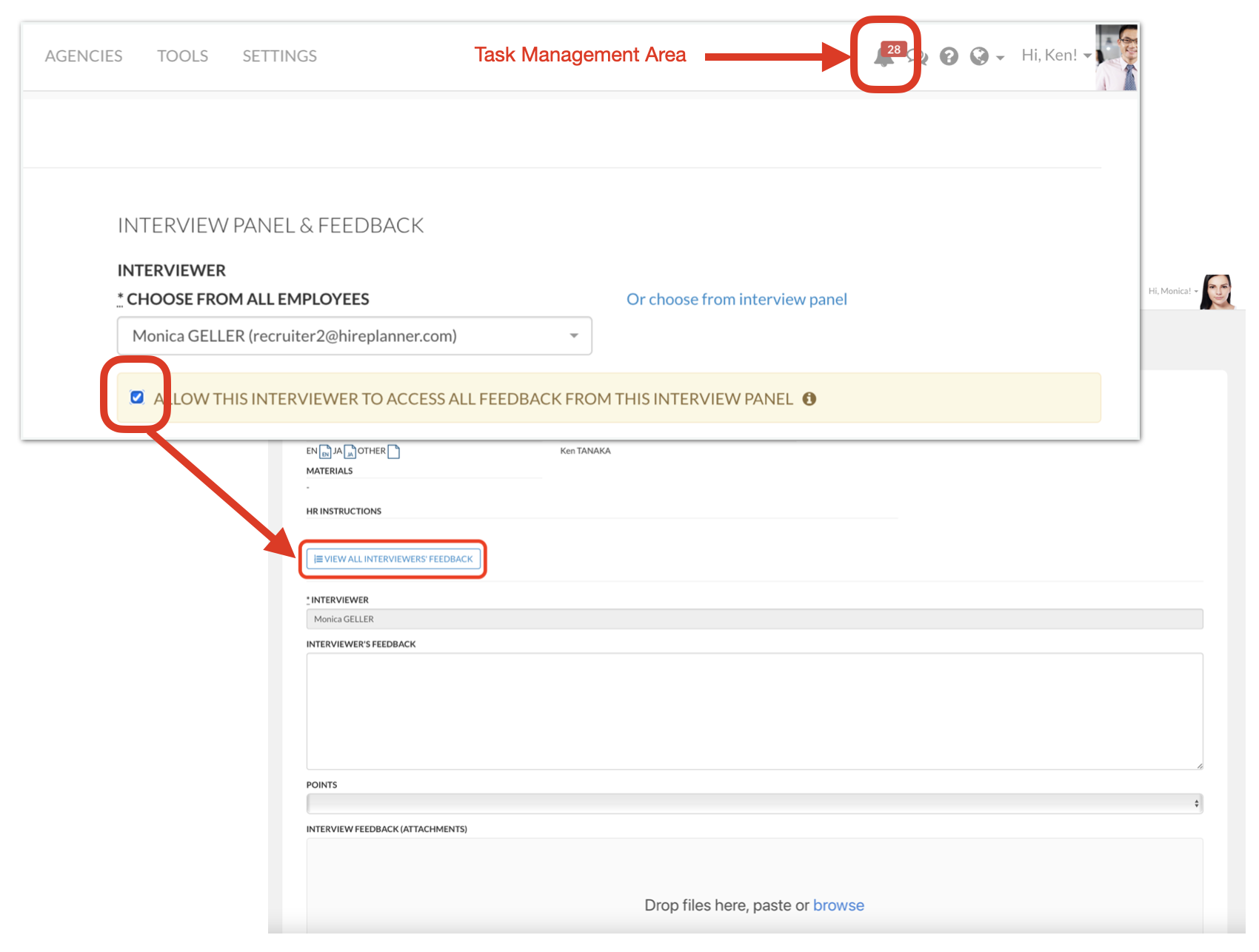
6) From the interview scheduling form, CHECK THE BOX before "ALLOW THIS INTERVIEWER TO ACCESS ALL FEEDBACK FROM THIS INTERVIEW PANEL" (See circled area on the screenshot attached below for reference).
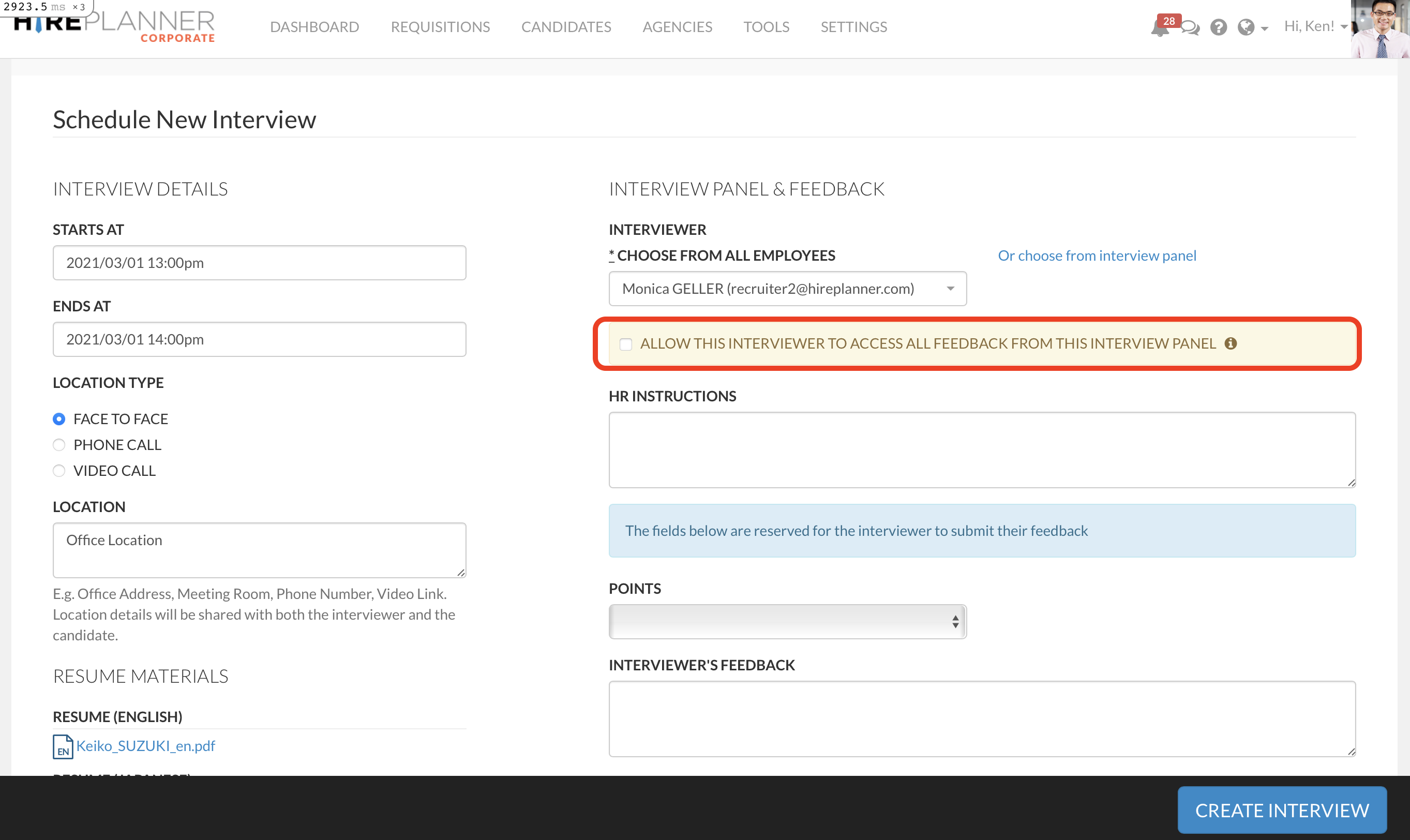

IF YOU CHECK THE BOX, the interviewer you selected WILL BE ABLE TO ACCESS ALL INTERVIEWERS' FEEDBACK for the candidate application you are scheduling the interview for. In other words, every interview feedback about the candidate application for the role will be visible to the selected interviewer.

IF YOU DO NOT CHECK THE BOX, the interviewer you selected WILL NOT BE ABLE TO ACCESS ALL INTERVIEWERS' FEEDBACK for the candidate application you are scheduling the interview for. Please leave the box unchecked if you wish the interviewer to only access his/her own feedback.
WHERE CAN THE INTERVIEWER ACCESS EVERYONE'S INTERVIEW FEEDBACK?
IF the recruiter allows the interviewer to view other people's feedback for a given application, the interviewer will be able to access other interviewers' feedback from:
1) The Interview Details Page
and,
2) The Interview Feedback Form
1) ACCESS FEEDBACK FROM THE "INTERVIEW DETAILS PAGE"

1-a) The interviewer can click on "View Details" from the email notification he/she will receive after an interview has been scheduled (see left screenshot below).
or
1-b) The interviewer can click on "View Details" from the calendar event details (see right screenshot below).
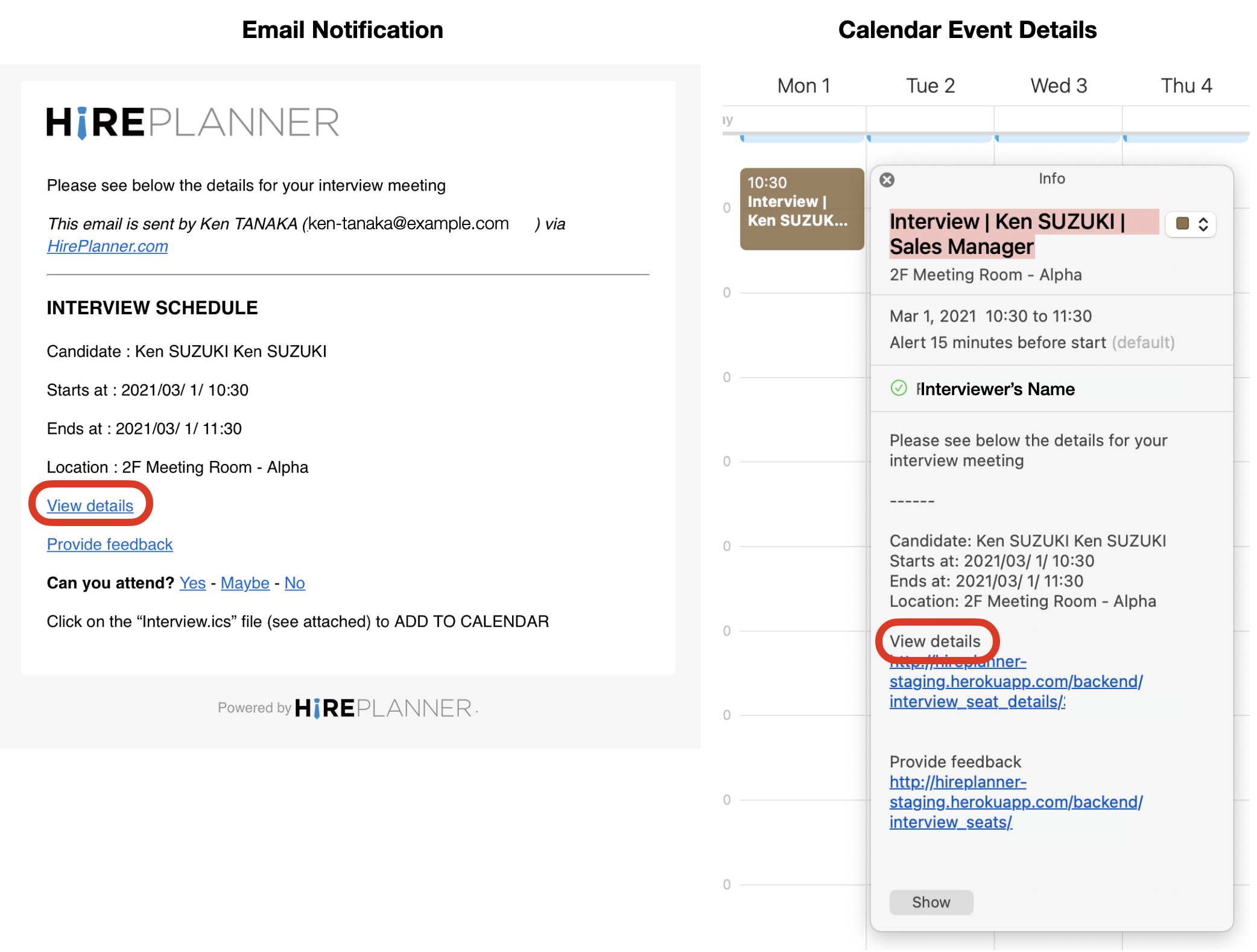
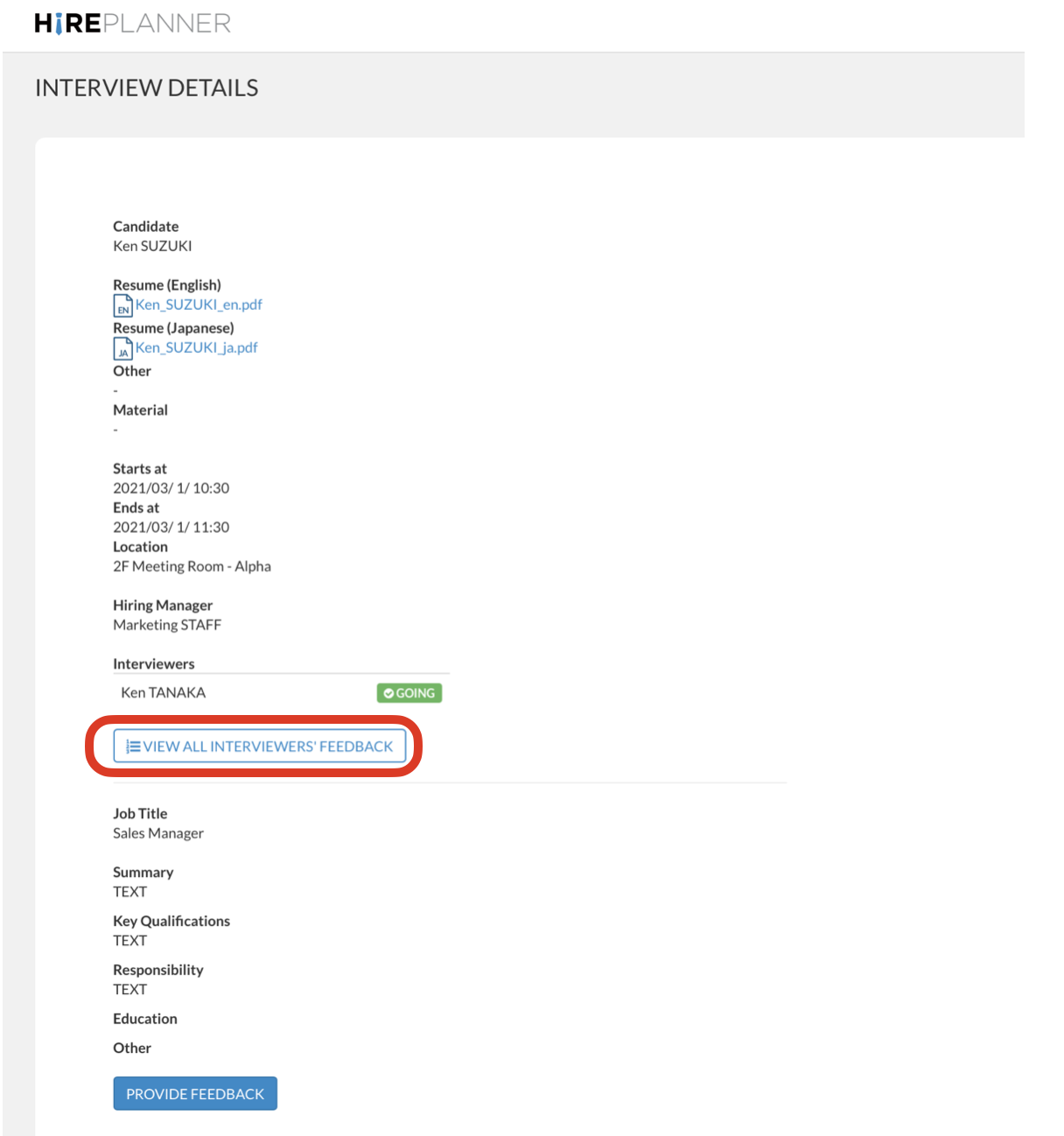
2) The interviewer will then be re-directed to their respective interview detail page where they can click on the "VIEW ALL INTERVIEWERS' FEEDBACK" button to access other people's feedback for the application (see circled in red on the screenshot below).
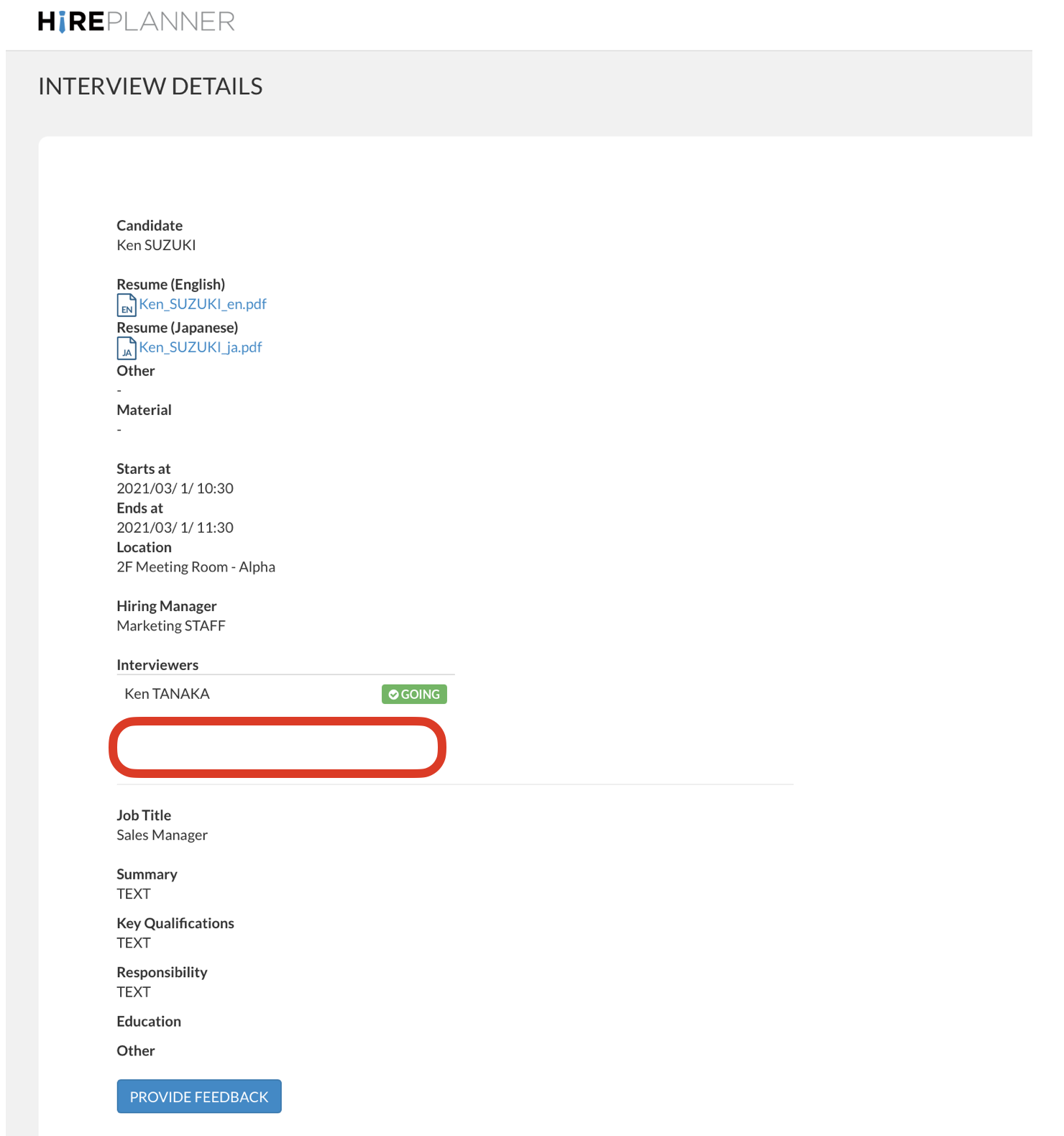
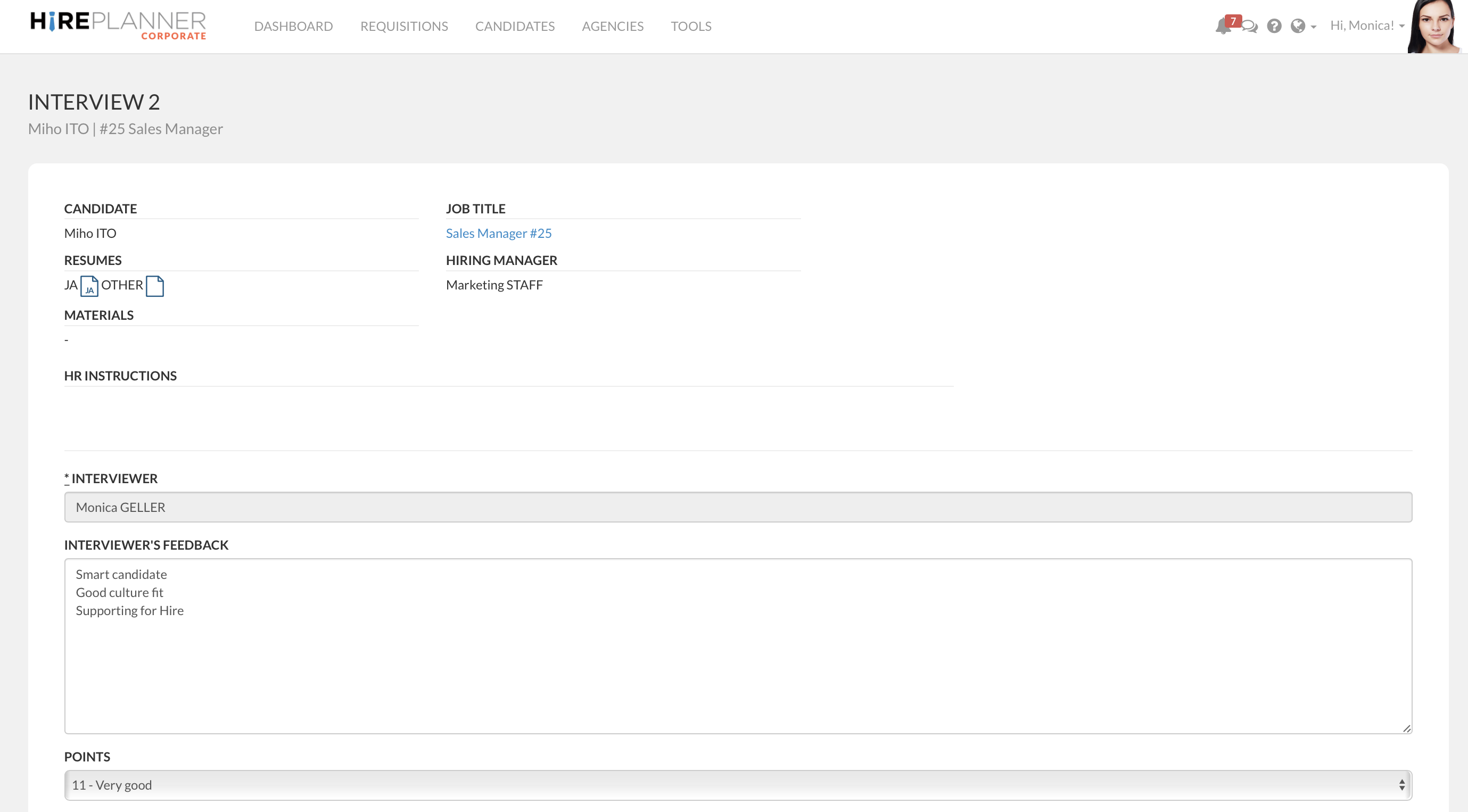
IF the recruiter DID NOT check the box described below (on the interview scheduling page), the interviewer will only be able to view and access their own feedback and the "VIEW ALL INTERVIEWERS' FEEDBACK" button WILL NOT BE ACCESSIBLE (see example attached below).
2) ACCESS FROM THE "INTERVIEW FEEDBACK FORM"
1) Click on the bell mark located on the top navigation menu to access the Task Management Area
2) Click on the "Interview" Tab
3) Select an interview record and click "Submit" to access the interview feedback form
4-a) On the "Interview Feedback Form" (IF the recruiter checked the box described above), the interviewer will be able to access all feedback by clicking on the "VIEW ALL INTERVIEWERS' FEEDBACK" button (see example attached below).
4.b) On the "Interview Feedback Form" (IF the recruiter DID NOT check the box described above), the interviewer will only be able to view and access their own feedback and the "VIEW ALL INTERVIEWERS' FEEDBACK" button WILL NOT BE ACCESSIBLE (see example attached below).
Comments
0 comments
Please sign in to leave a comment.