
Before you publish a job posting on HirePlanner, you can create and customize your own application forms. This means that you are able to select the fields (and the type of data) you would like candidates to submit when they apply for your job postings online.
You can:
1) update your default application form or
2) create new application form templates and,
3) assign them to a requisition of your choice.
1) EDIT YOUR "DEFAULT" APPLICATION FORM
For each role that you publish online, Hireplanner will automatically select your "default" application form. You can update your "Default" application form by following the steps below:
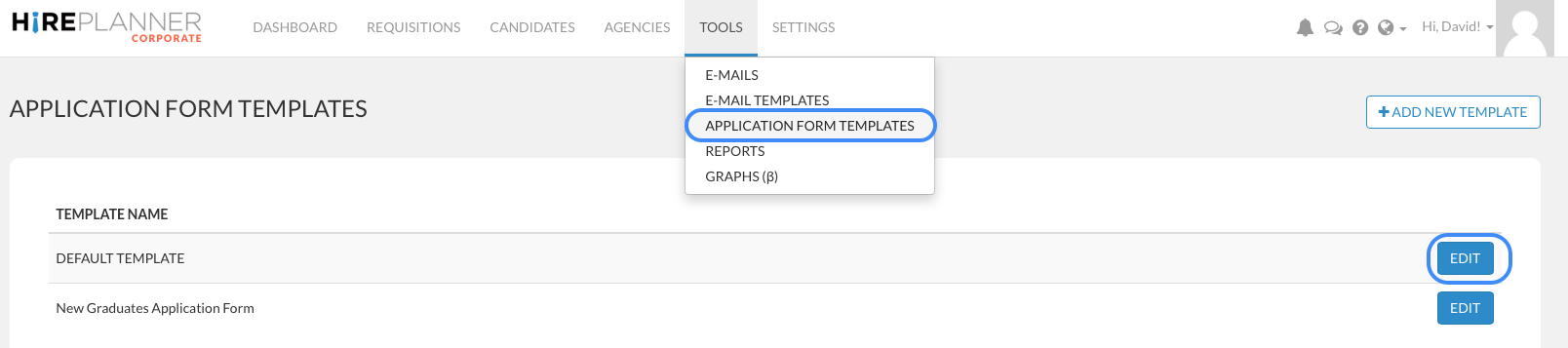
a) Click on "TOOLS" on the top menu navigation bar
b) Select "APPLICATION FORM TEMPLATES"
c) Edit the "DEFAULT TEMPLATE" by clicking on "EDIT" (Blue button)
d) From the "EDIT APPLICATION FORM TEMPLATE" section, you can select the fields (and information) you would like to collect from candidates when they apply. You can also decide if you would like those fields to be "OPTIONAL" or "REQUIRED".
IMPORTANT NOTE: All application forms must include both the "Name" and "Email" field.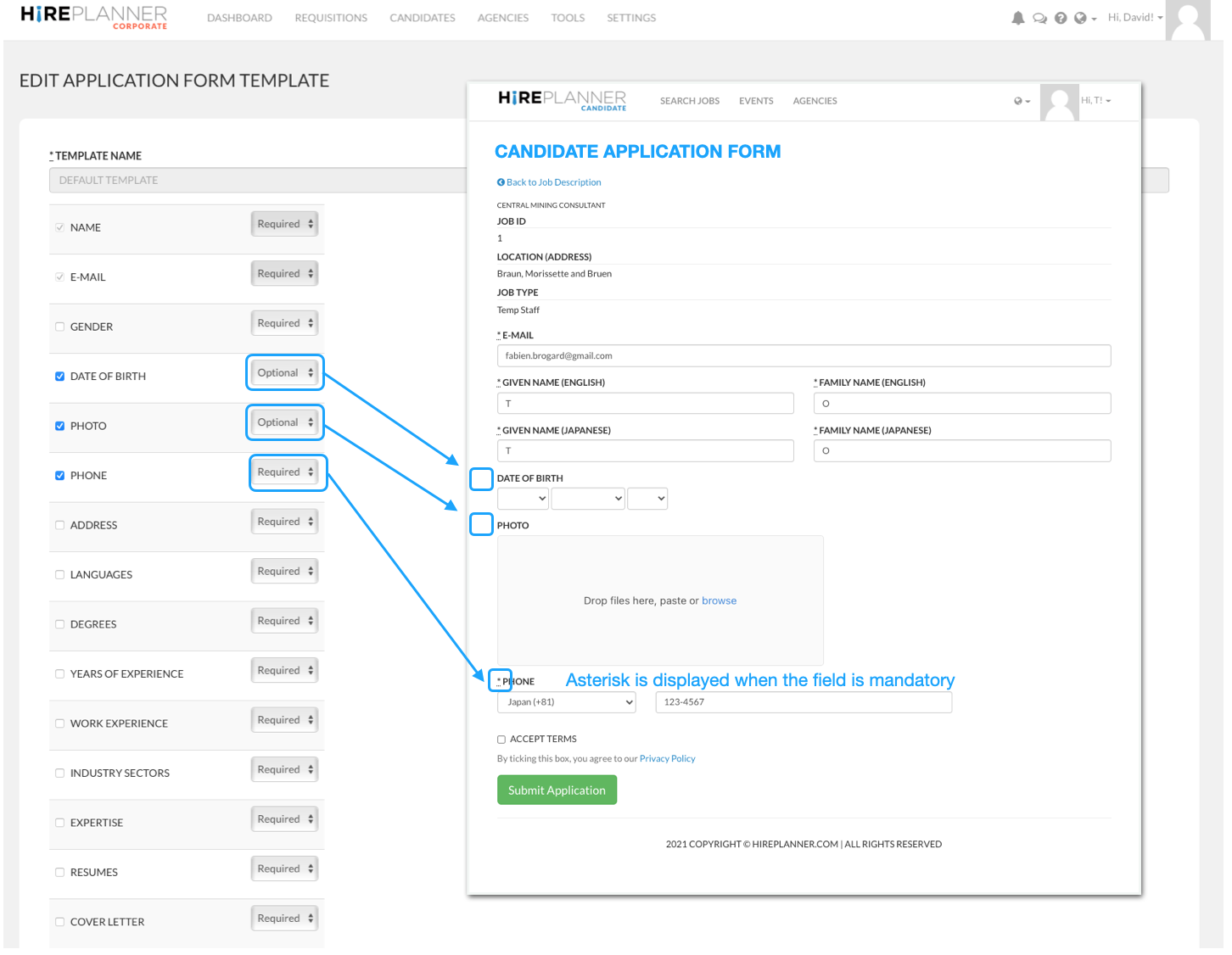
If you select a field and mark it as "REQUIRED", it will be marked with an asterisk on the candidate application form. The candidate will not be able to submit their application unless they submit the information you have set as mandatory.
If you select a field and mark it as "OPTIONAL", no asterisk will be visible and the candidate will be able to submit his/her application with or without the field you selected.
2) CREATE / EDIT A NEW APPLICATION FORM TEMPLATE
If you would like to create some new application forms (different than the "default" version) for other type of jobs, you can create new application form templates by following the steps below:
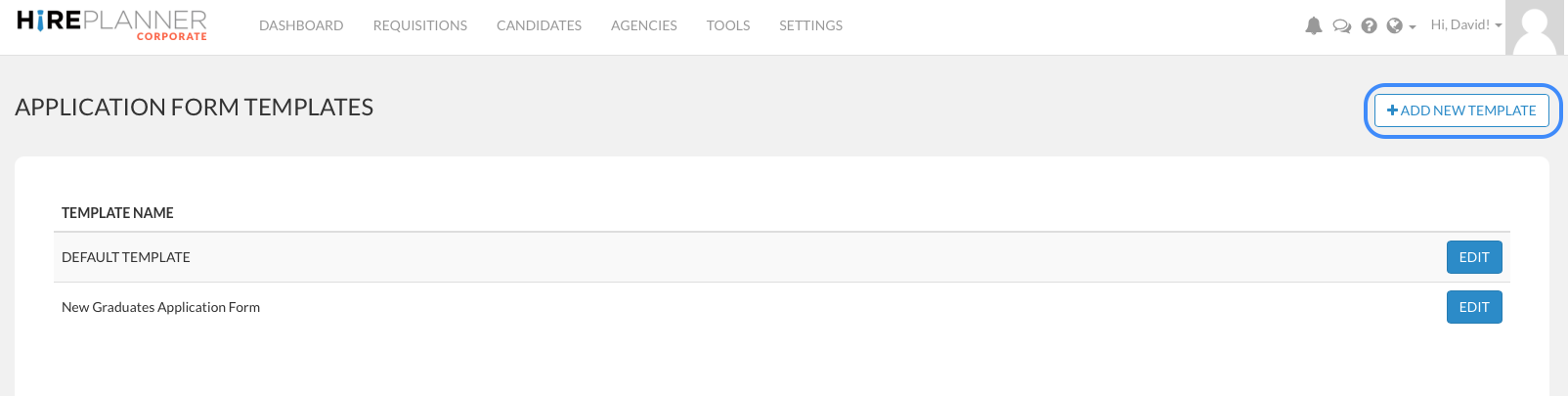
a) Click on "TOOLS" on the top menu navigation bar
b) Select "APPLICATION FORM TEMPLATES"
c) Click on the button "+ ADD NEW TEMPLATE" (on the right hand side)
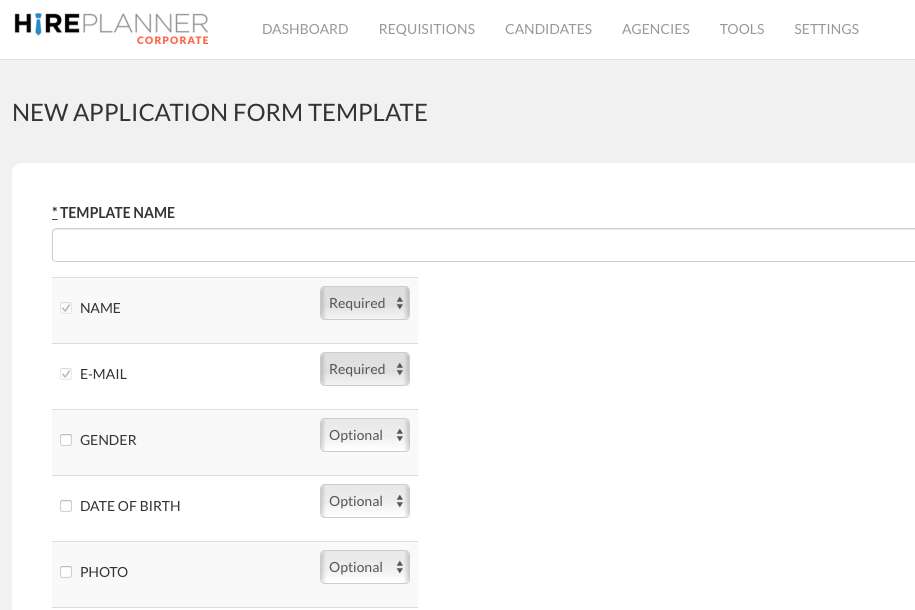
d) Give a name to your template that's easy to recognize and fill out the rest of the form
3) ASSIGN YOUR APPLICATION FORM TO A REQUISITION (JOB POSTINGS)
Once all your application form templates are ready, you can now then assign them to a requisition (job postings) of your choice.
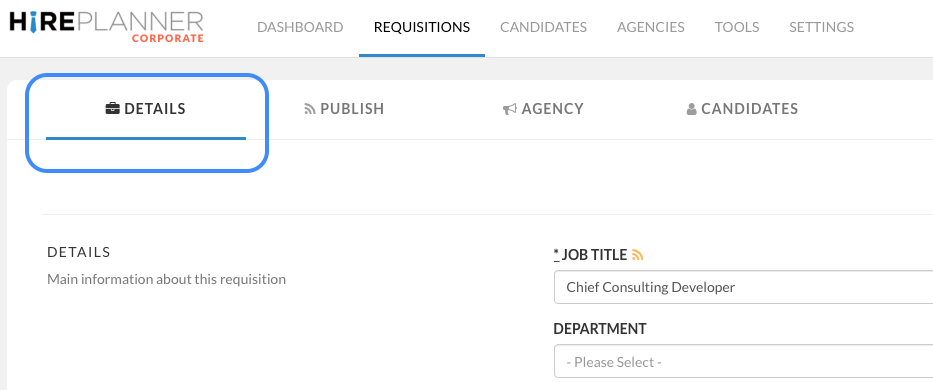
1) Click on "REQUISITIONS" on the top menu
2) Select View requisitions
3) Select a requisition of your choice and click "VIEW"
4) Under the tab "DETAILS", please scroll down to the bottom of the page (under the job description) until you reach the section called "Application Form".
5) Select the application form of your choice available on the drop down
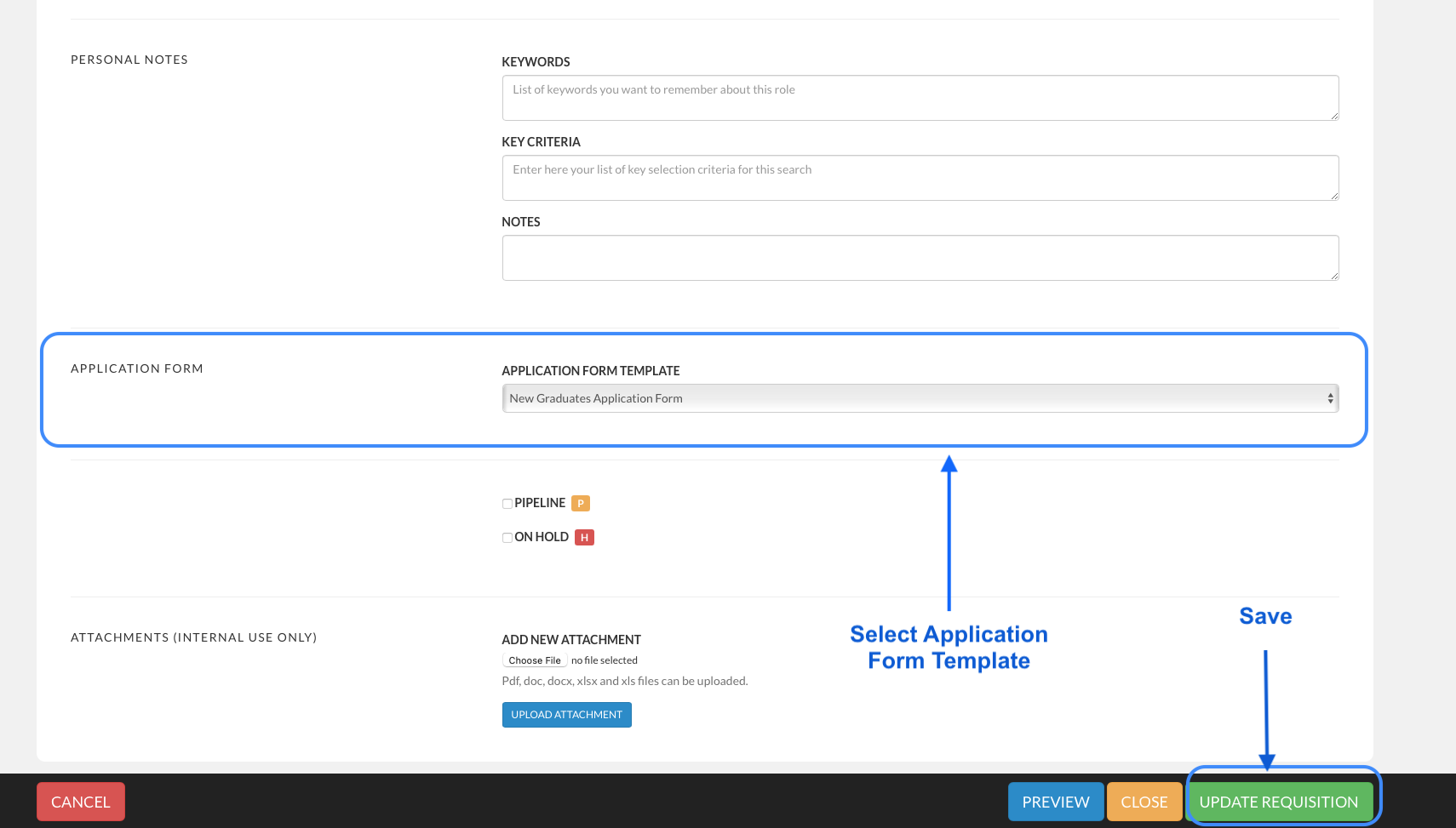
6) Remember to click on "UPDATE REQUISITION"
Comments
0 comments
Please sign in to leave a comment.