
When reviewing your candidate applications, you can create screening requests or records from either the requisition candidate pipeline area or from the actual candidate application page (see screenshot attached below).
STEP 1: From the "Requisition Candidate Pipeline" page:
1) Click on the "+" blue button under the row of the candidate you would like to create a screening record for
2) Select the "Request Screening" link that's located just above "Schedule Interview"
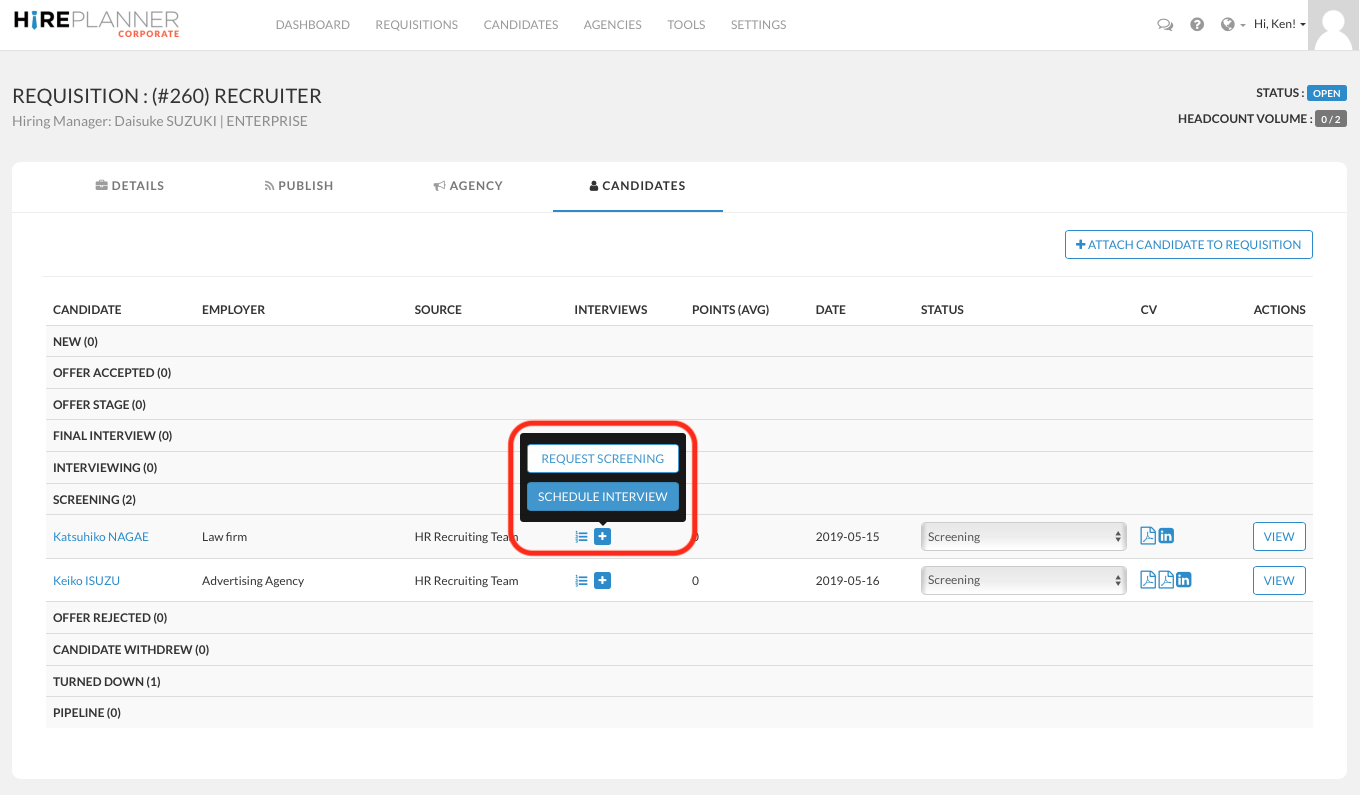
or
STEP 1: From the "Candidate Application" page:
1) Click on the "New Screening" blue button located under the "Screenings" area within the candidate application you are reviewing.
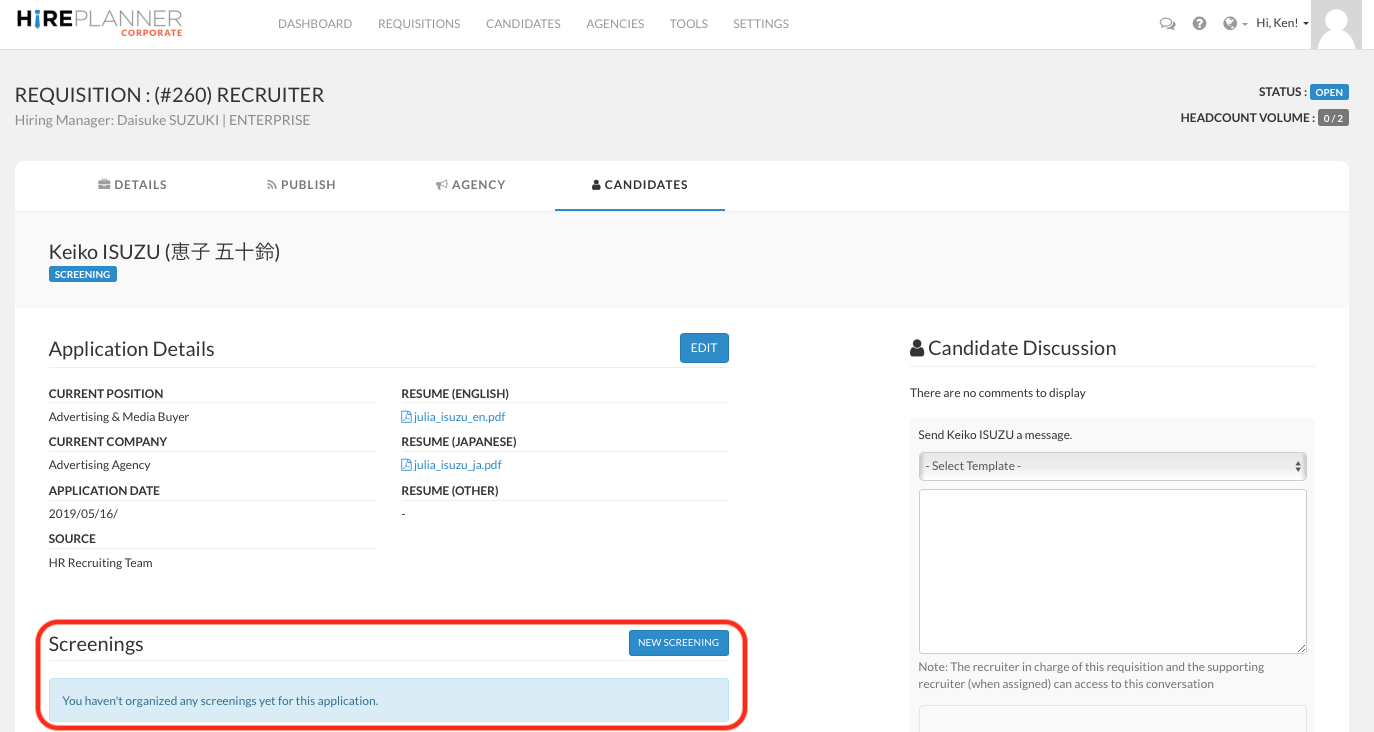
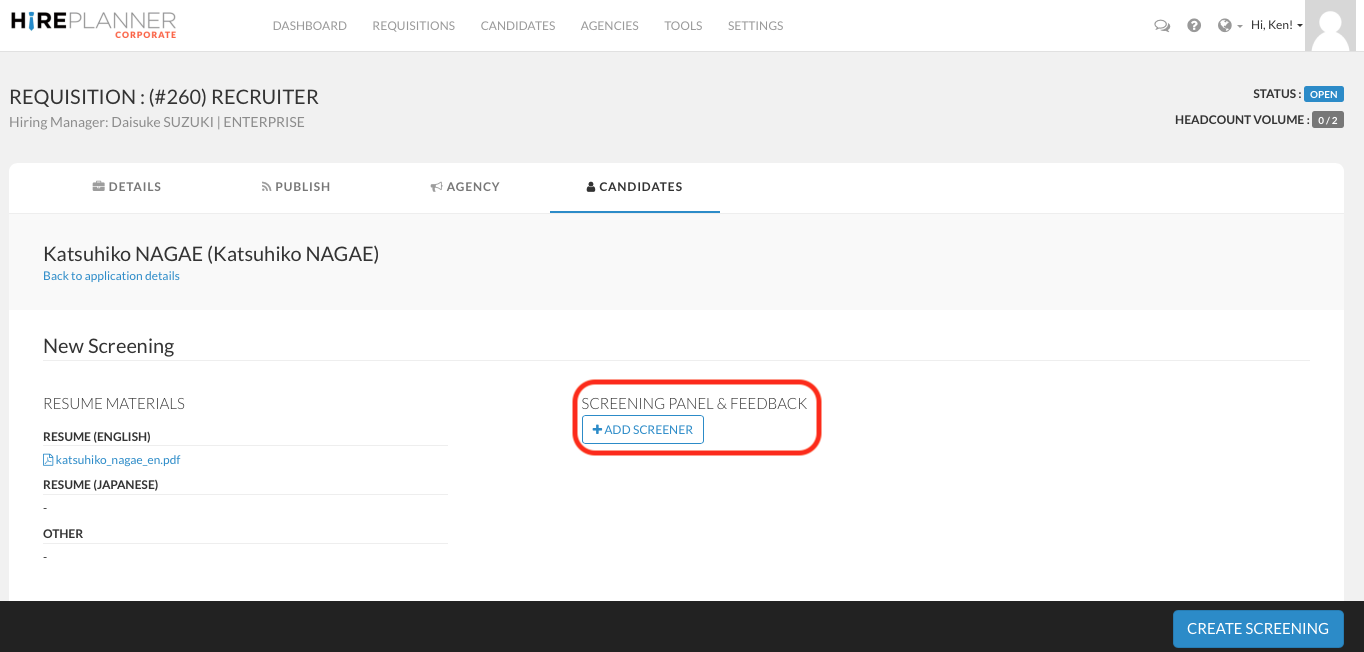
STEP 2: Click on the "+ Add Screener" button
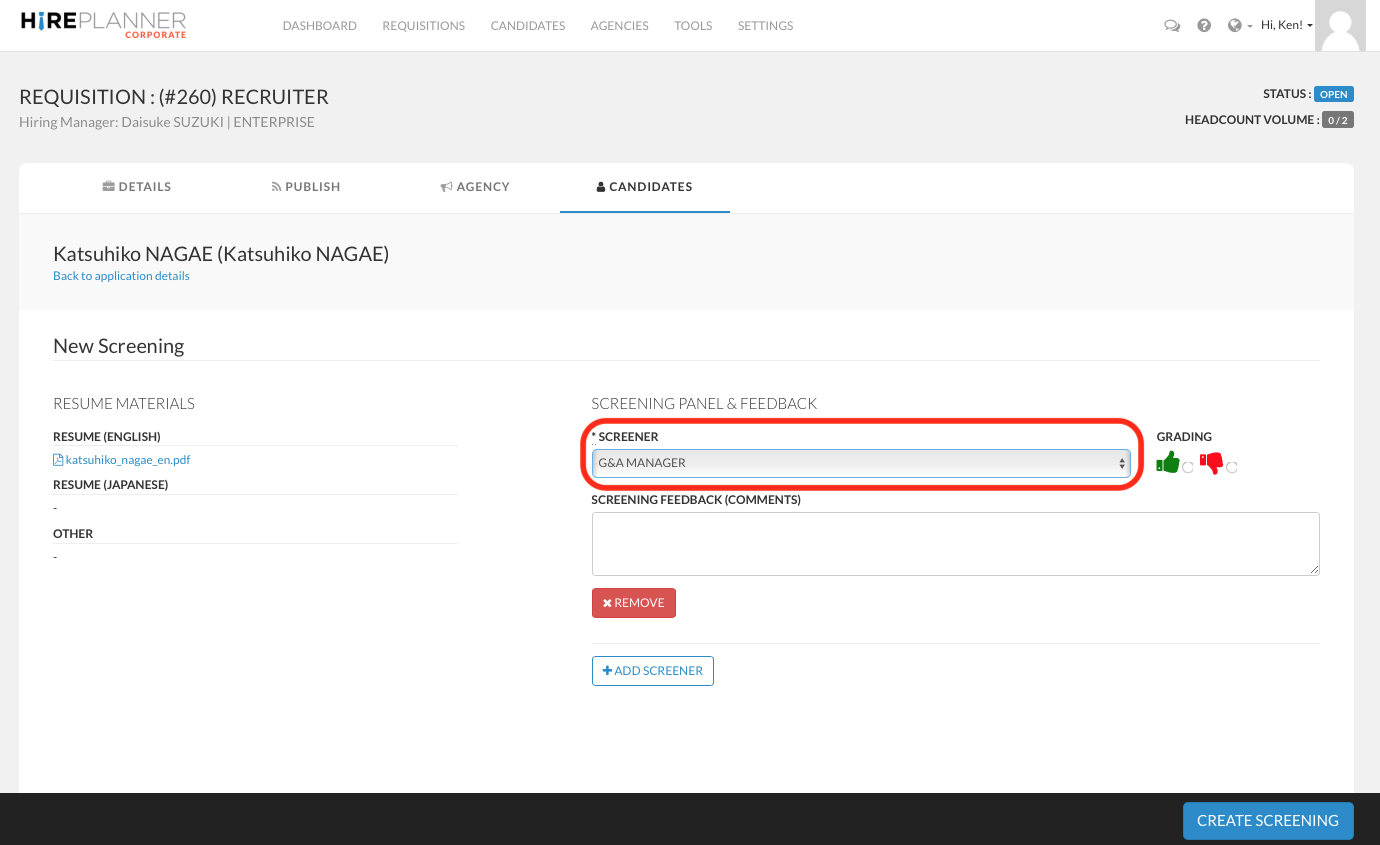
STEP 3: Select the name of the person who you would like to invite to screen a candidate application.
STEP 4: Click on the "CREATE SCREENING" blue button to save your screening record.
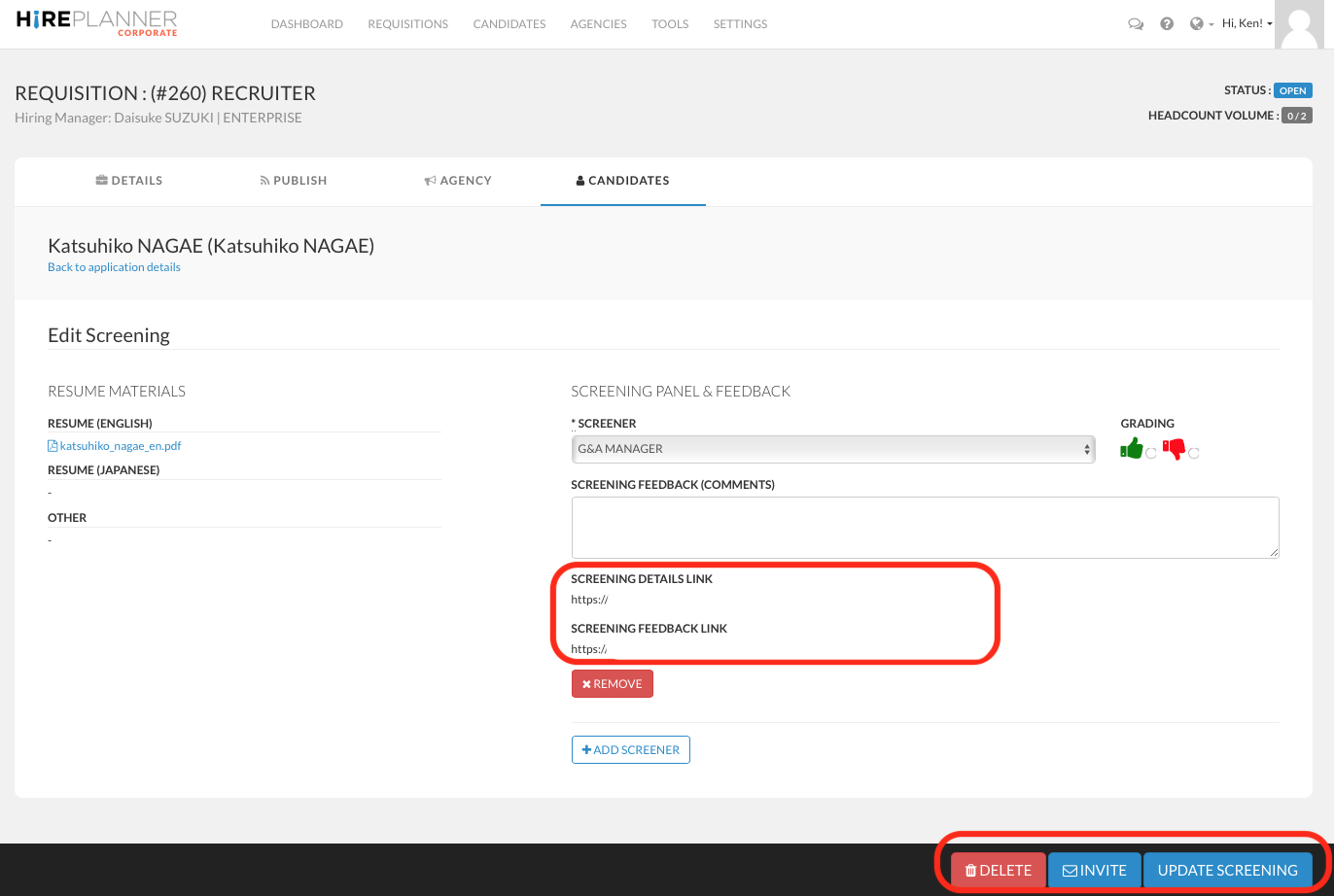
STEP 5: Once your screening record is saved, you can start sending screening requests via email through the system. To do so, please click on the "INVITE" blue button located at the button of the screen.
If, for any reason, you are not able to send an email via the Hireplanner system or if you prefer to send your screening requests via email separately, you can copy the "Screening Details Link" and/or the "Screening Feedback Link" and paste them in your calendar invites.
Please note that each link is unique and is accessible only by the screener you have assigned so please be careful not forwarding the wrong links (if you choose to share them manually).
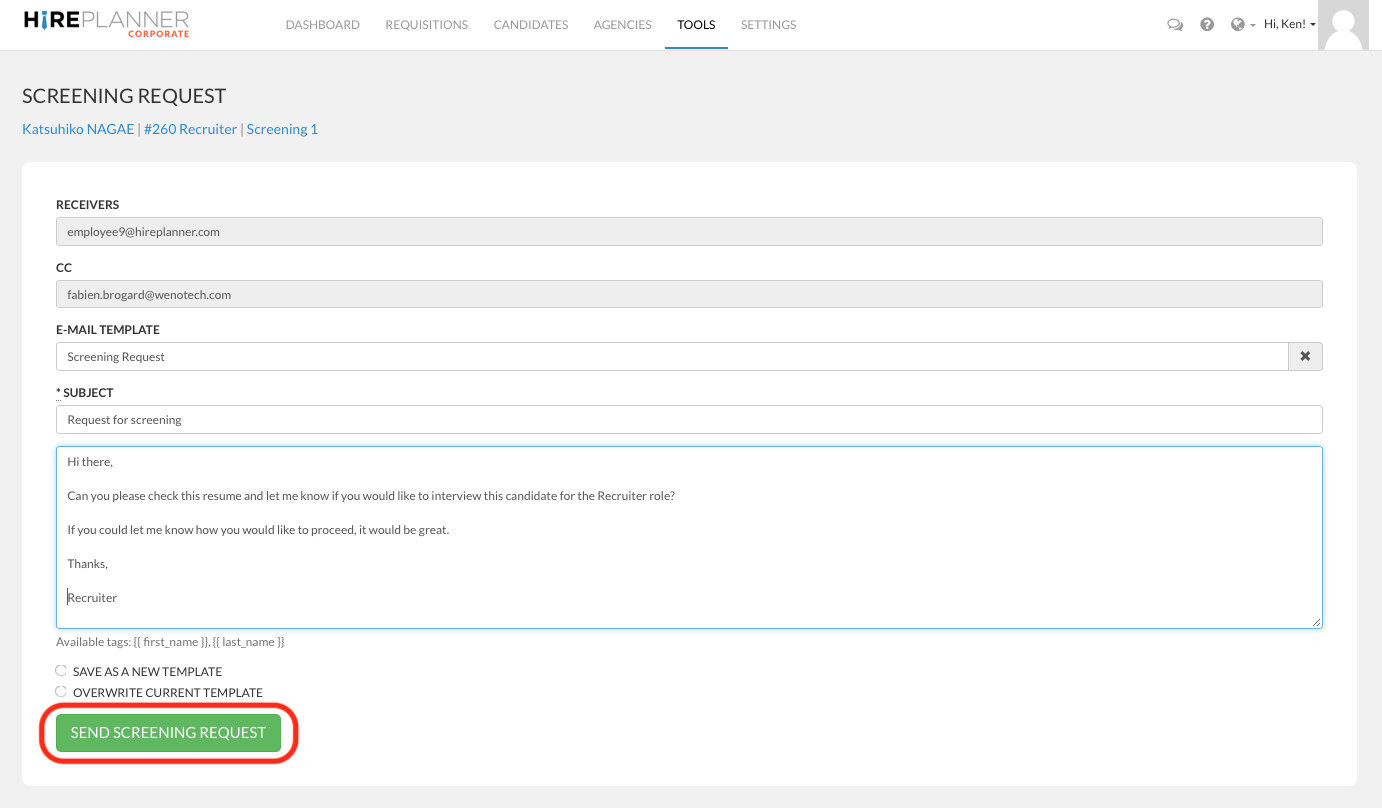
STEP 6: Please make sure the receiver's email matches the email of the screener you have selected, type in your email subject and message and then click on the "SEND SCREENING REQUEST" green button.
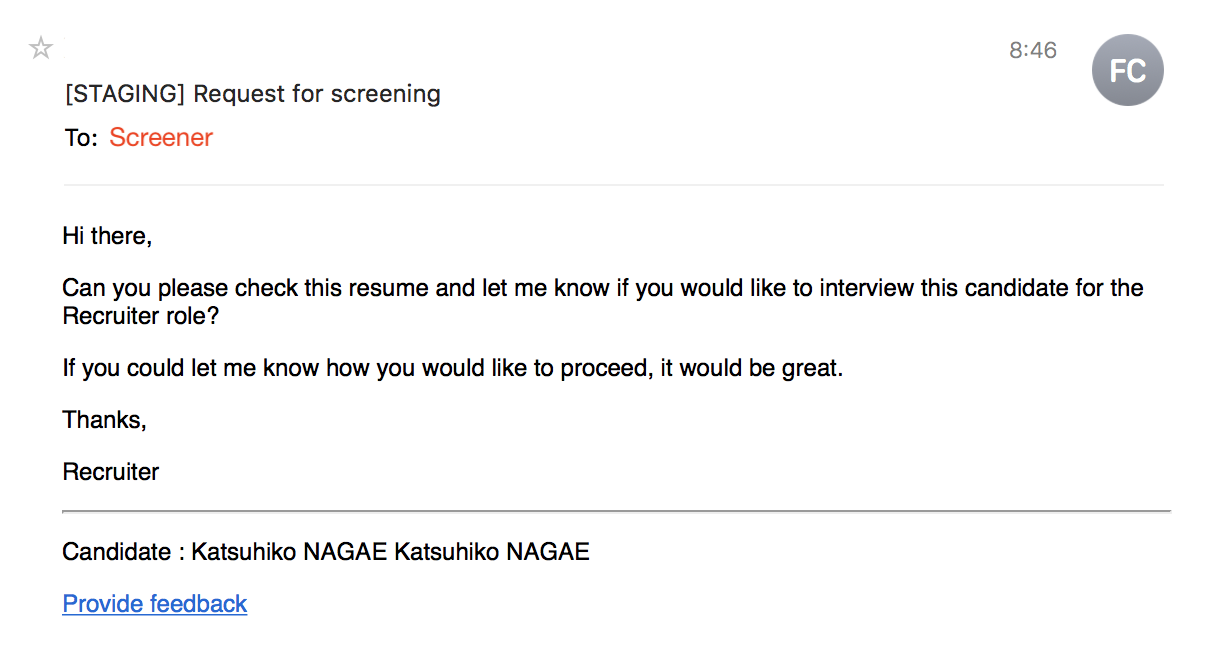
STEP 7: The screener you have selected will then receive an email notification with a copy of your message and a link for them to submit their screening feedback (see example attached below). Both the recruiter and the supporting recruiter in charge of the requisition will receive a copy of the screening request.
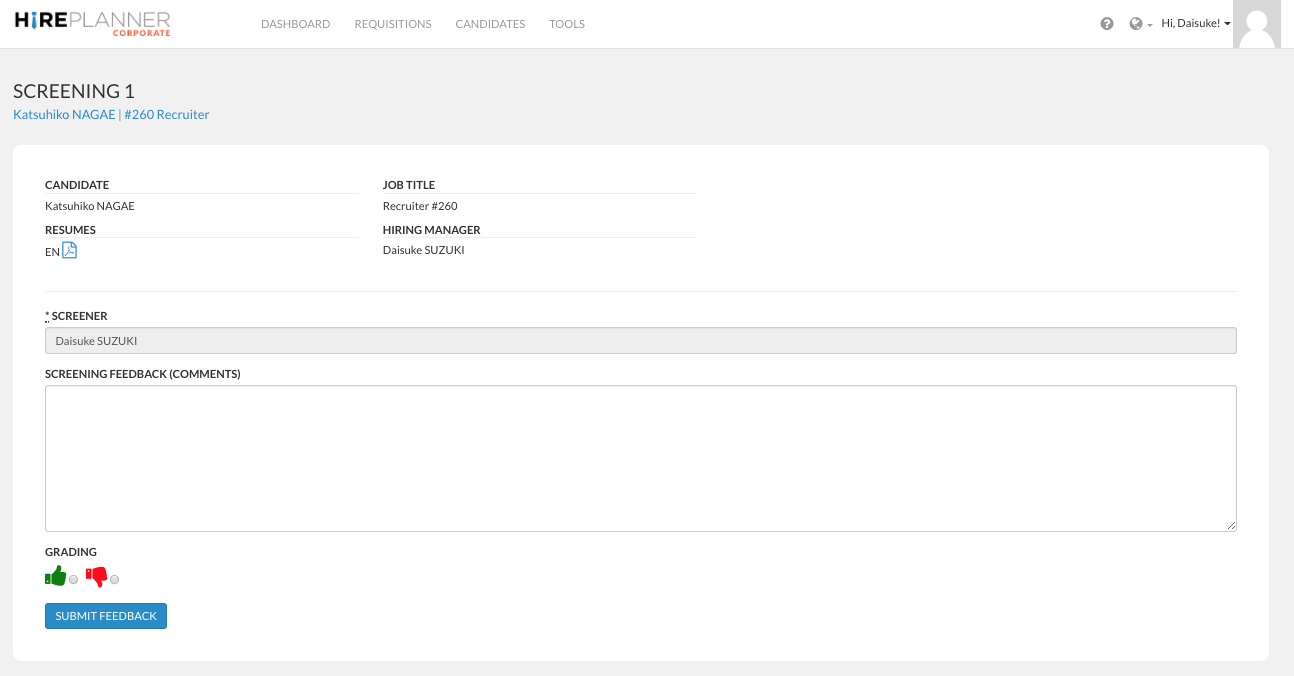
STEP 8: When the screener clicks on the "Provide Feedback" link, they will have access to the following form (see screenshot attached below). Both the recruiter and the supporting recruiter in charge of the requisition will receive an email notification when the screener submits his/her feedback online.
Comments
0 comments
Please sign in to leave a comment.