
As an HR recruiter or supporting recruiter, you can submit or edit your screening feedback from either the email screening invitation you received via the HirePlanner system or from the candidate application page (see screenshots attached below).
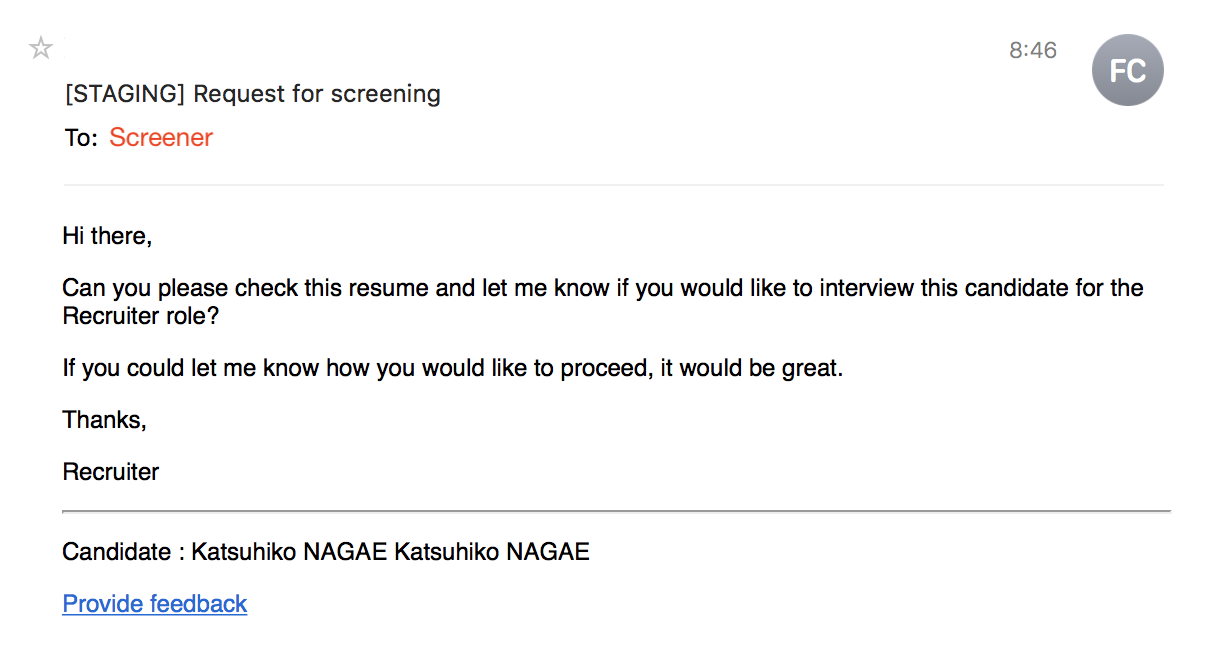
FROM THE EMAIL NOTIFICATION:
STEP 1: Click on the "Provide feedback" link
STEP 2: Login your HirePlanner.com
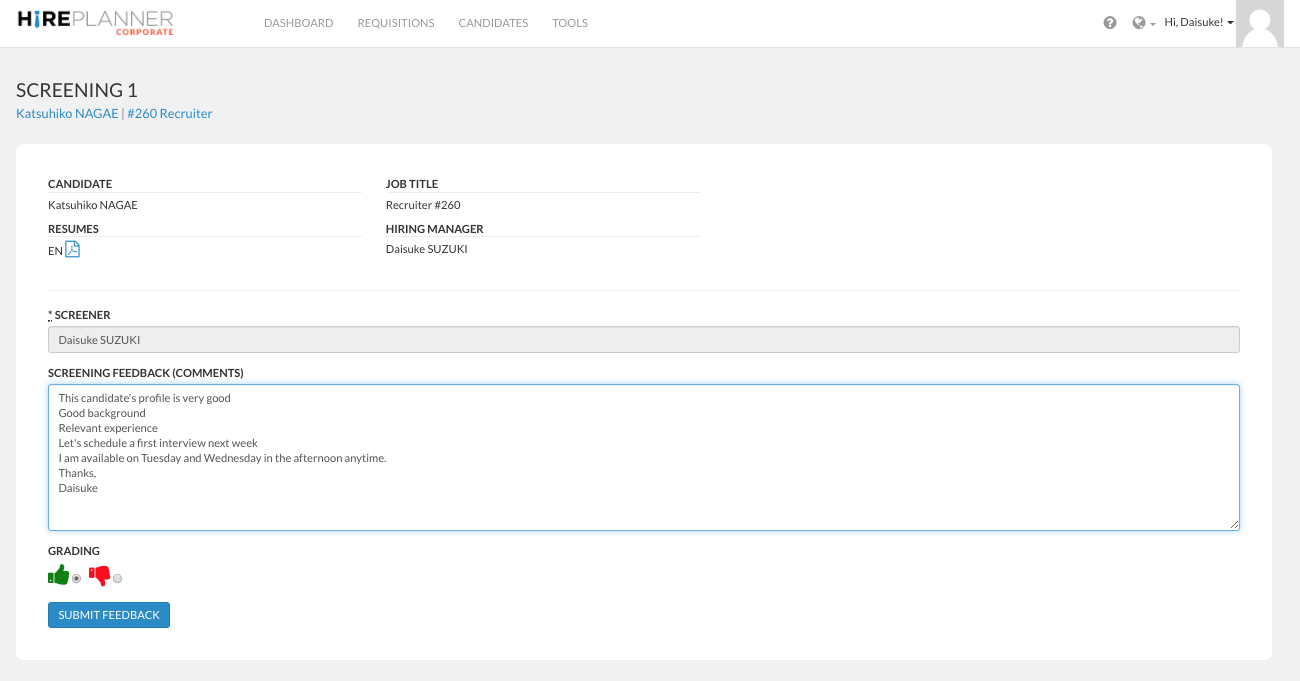
STEP 3: Fill out your screening feedback form and click on the "SUBMIT FEEDBACK" blue button to save your feedback into the system.
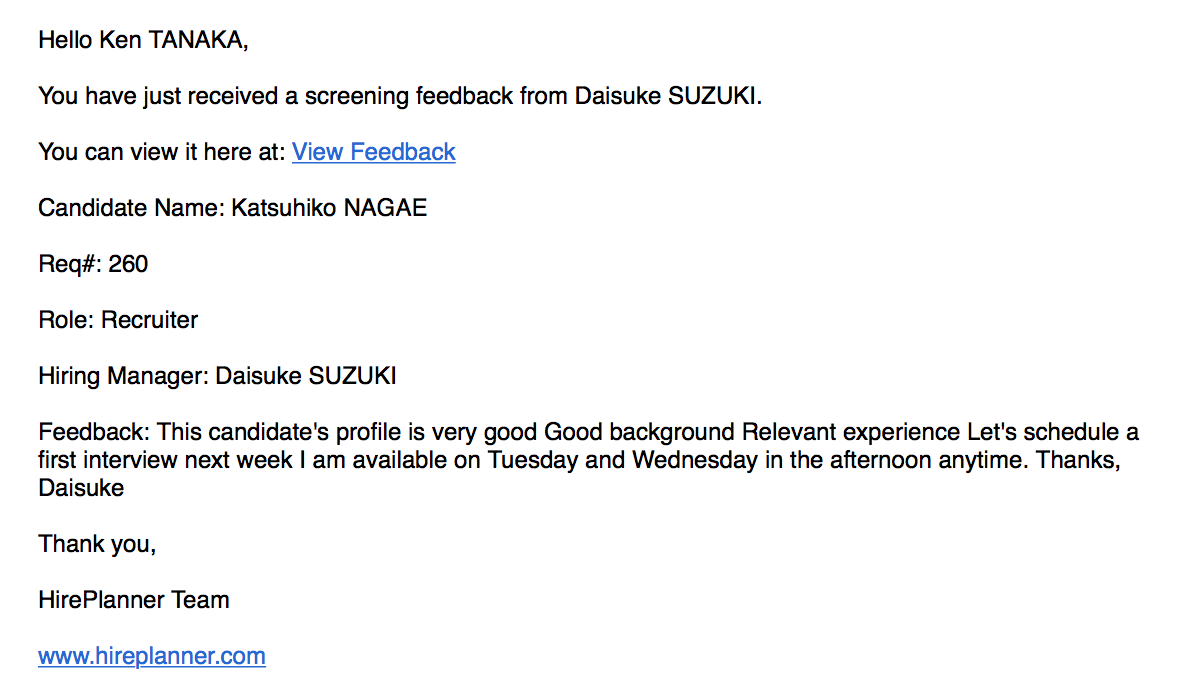
STEP 4: After you click on the "SUBMIT FEEDBACK" button, the recruiter and supporting recruiter of the requisition will be notified each time you submit or update your feedback. The notification email they will receive will look like the template attached below.
STEP 5: Once submitted, the feedback of the screener will be saved into the system and attached to the application of the candidate. The Recruiter, supporting recruiter and hiring manager in charge of the Requisition will be the only people able to access the candidate feedback.
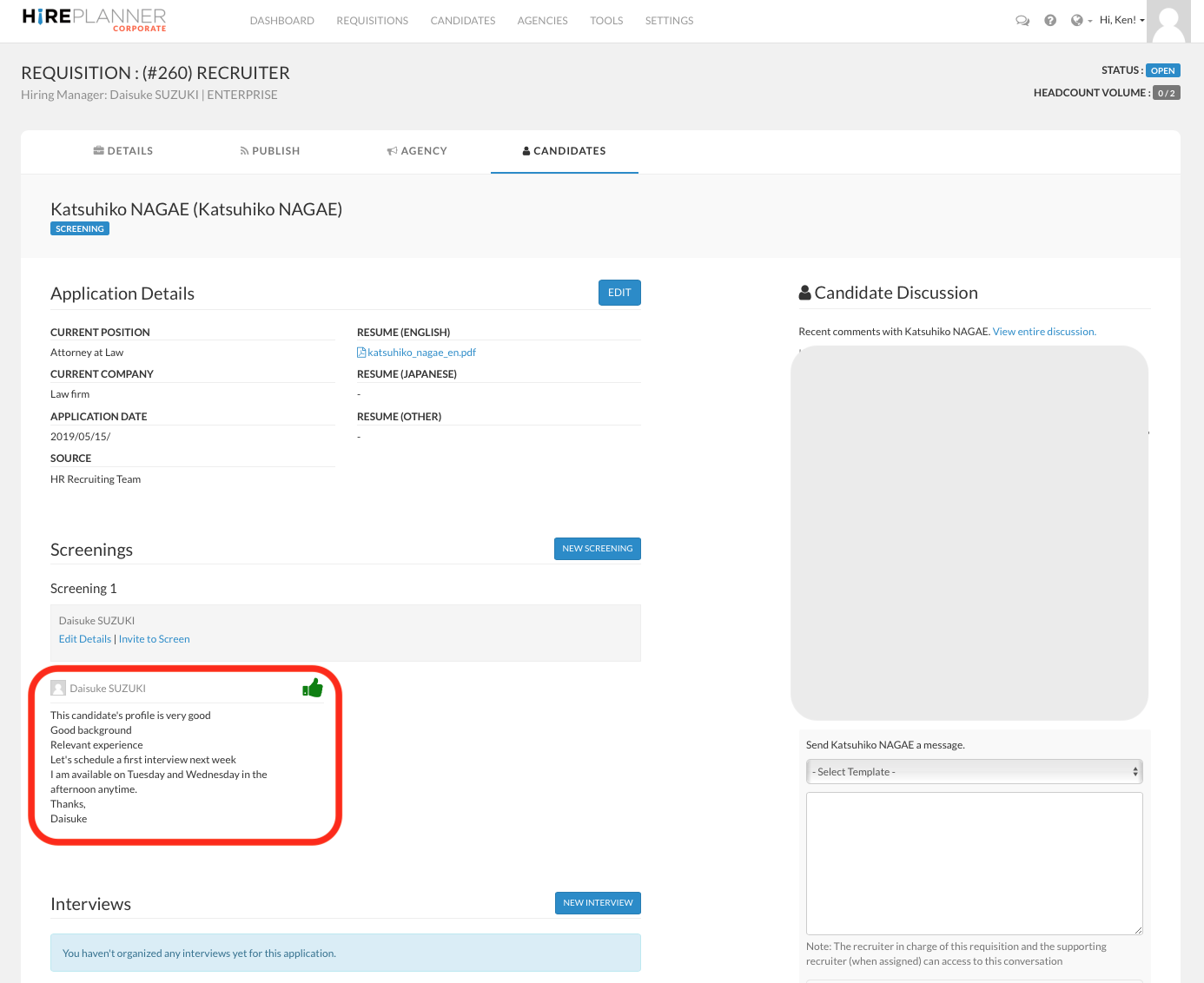
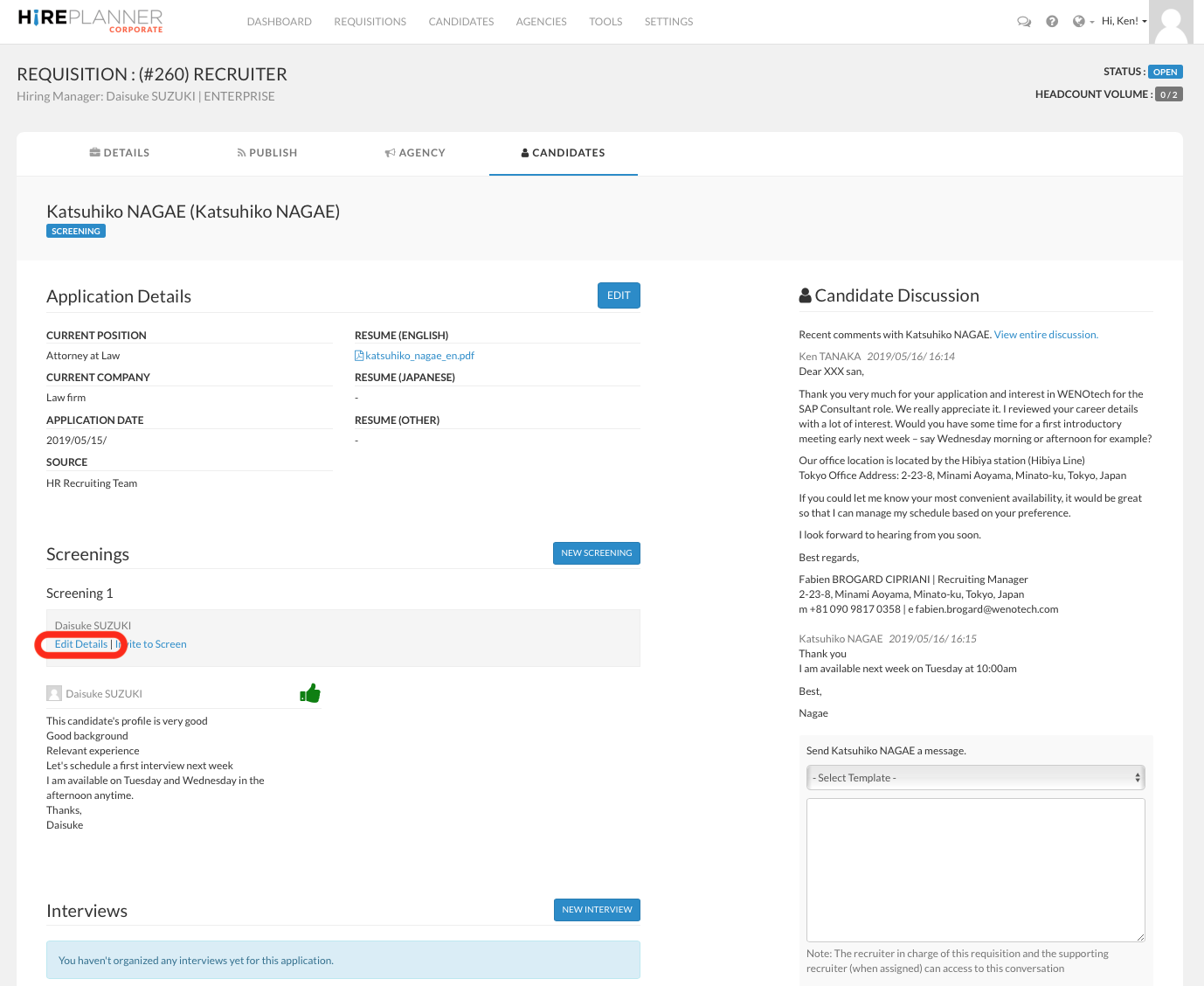
STEP 6: If you need to edit a screening feedback, you can do so from the candidate application page by clicking on the "Edit Details" located under the screening records section (see screenshot attached below).
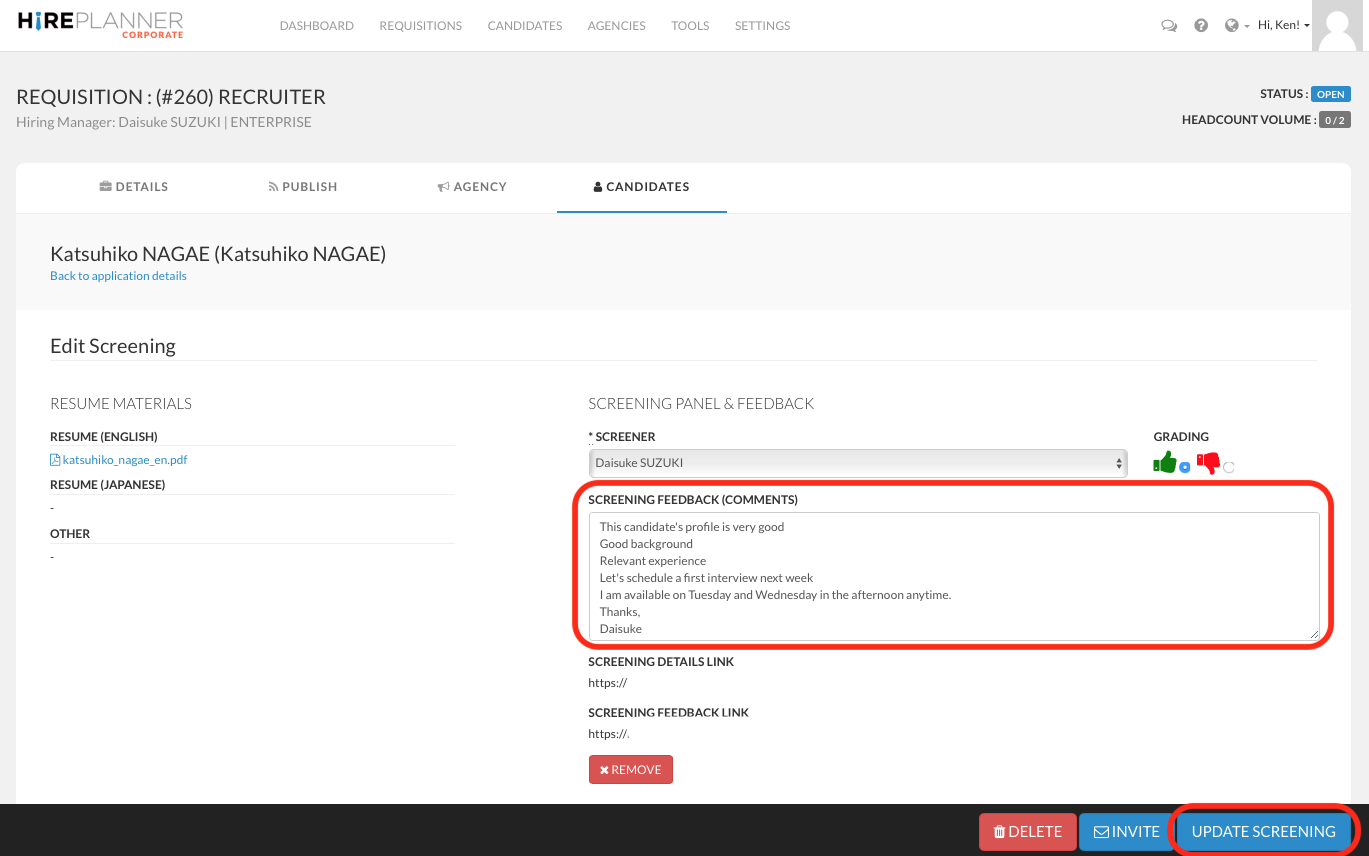
STEP 7: Update the feedback and make sure to save it by clicking on the "Update Screening" button.
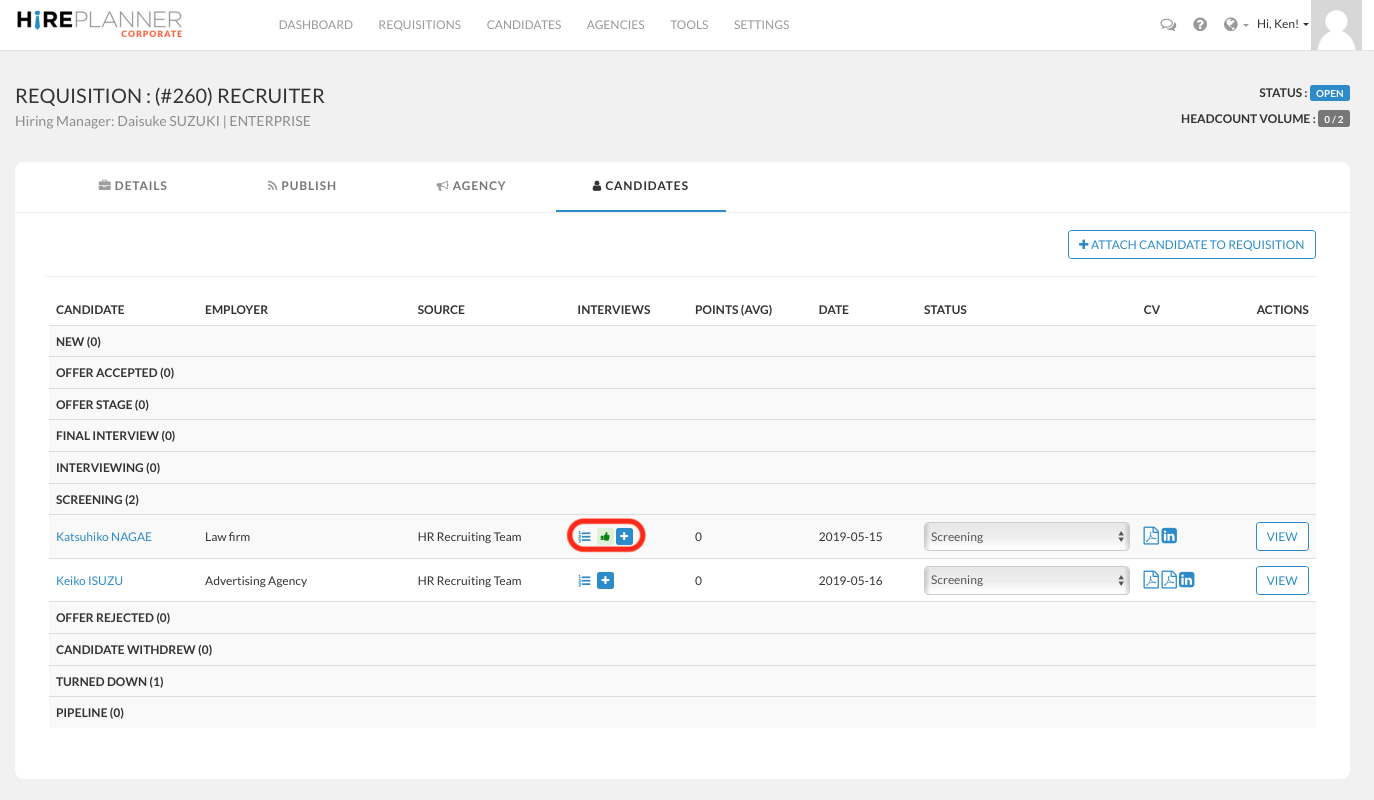
STEP 8: The candidate screening feedback is now updated
Comments
0 comments
Please sign in to leave a comment.