
When logged in as a consultant, please follow the following steps to activate your HR clients. Once your HR clients are activated, they will be able to send you new jobs (search projects) for you to work on:
- STEP 1: Please log into your agency account at: https://www.hireplanner.com/en/ap_users/sign_in
- STEP 2: Please click on the “Clients” tab (top navigation) and select the “Inactive Clients” section. You should find there a list of clients from HirePlanner who wish to have you on their preferred vendors list and have invited you to collaborate.
- STEP 3: Please “Add” the clients you have a contract with and which you would like receive recruiting projects from.
NOTE: Please remember to check with your supervisor to make sure you have a contract in place and if you are allowed to represent this client.
If you do not have a contract or do not receive your manager’s “Okay”, please refrain from clicking “Add”.
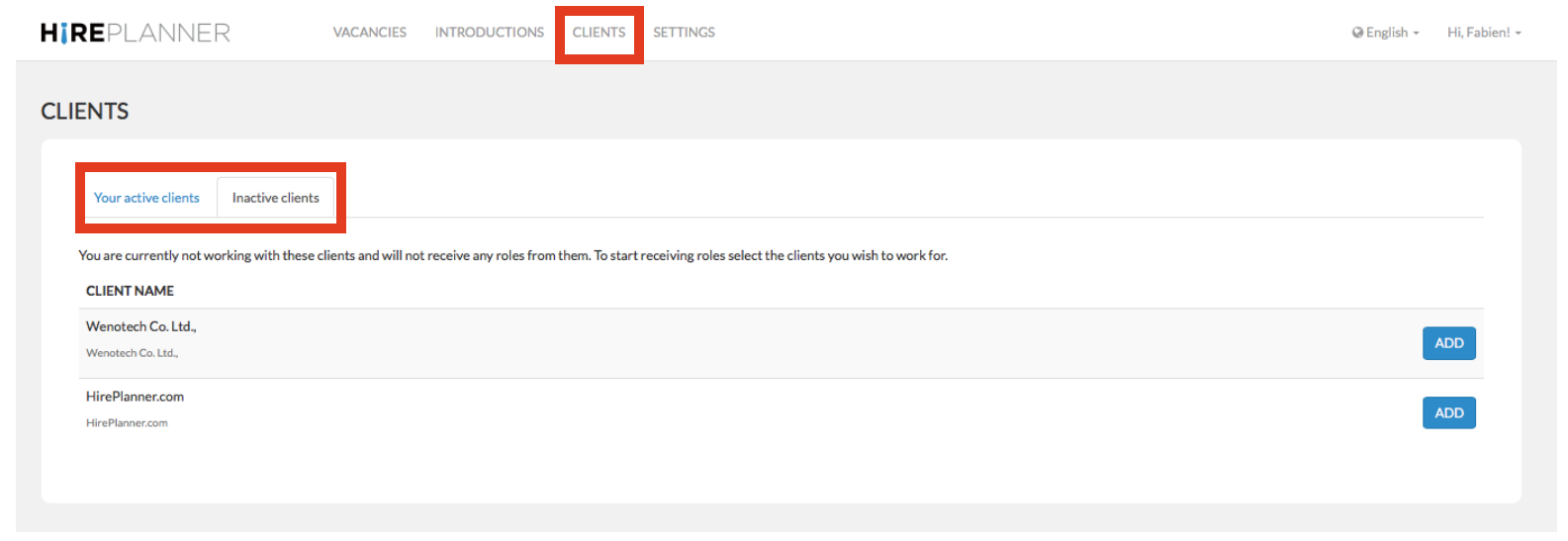
- STEP 4: After you click on the “Add” button, the client will become your "active client”. Your contact details and area of expertise (speciality) will be shared with your HR client.
From that point on, your HR client can start sending you new recruiting projects for you to work on.
If you need to update your profile and specialty, please click HERE for more info.
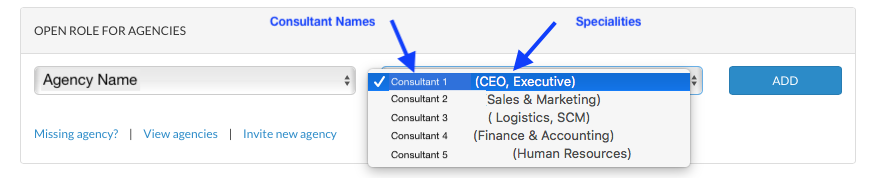
NOTES:
- The above screenshot is ONLY accessible to your HR Clients. The screenshot above is only for your reference to give you a better idea of how it looks from your clients' interface.
- If you would like other members of your team to support the same client, please invite them to login and repeat the process described above.
- If you need to add new consultant user accounts, please contact your Account Owner and send them a request to create a new user account. If you do not know who is the Account Owner for your agency, please contact us at: support@hireplanner.com
Comments
0 comments
Please sign in to leave a comment.