
When reviewing your candidate applications, you can create interview records and send interview invites to your colleagues (for them to add easily to their calendar).
You can add an interview record from either the requisition candidate pipeline area or from the actual candidate application page (see below).
STEP 1: From the "Requisition Candidate Pipeline" page:
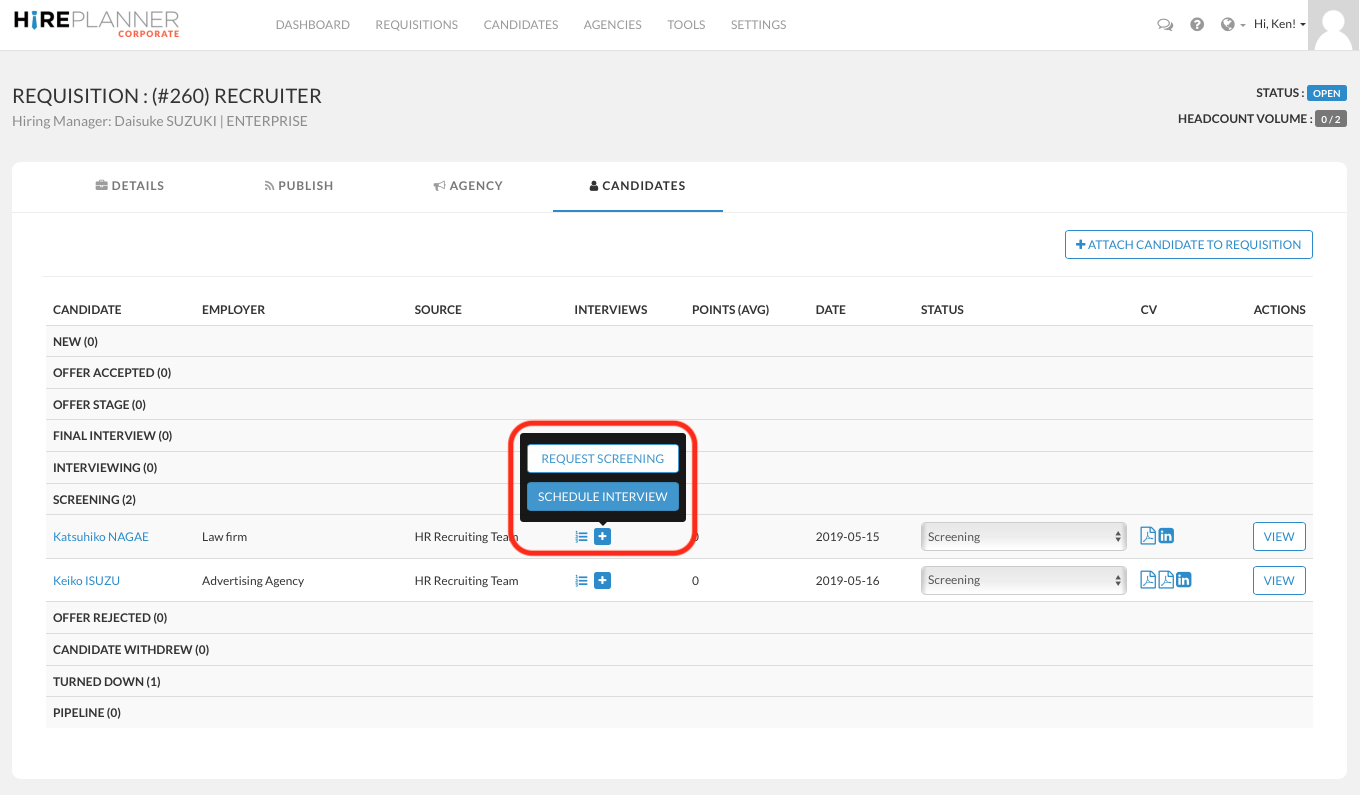
1) Click on the "+" blue button under the row of the candidate you would like to create an interview record for
2) Select the "SCHEDULE INTERVIEW" link that's located just below "Request Screening"
or
STEP 1: From the "Candidate Application" page:
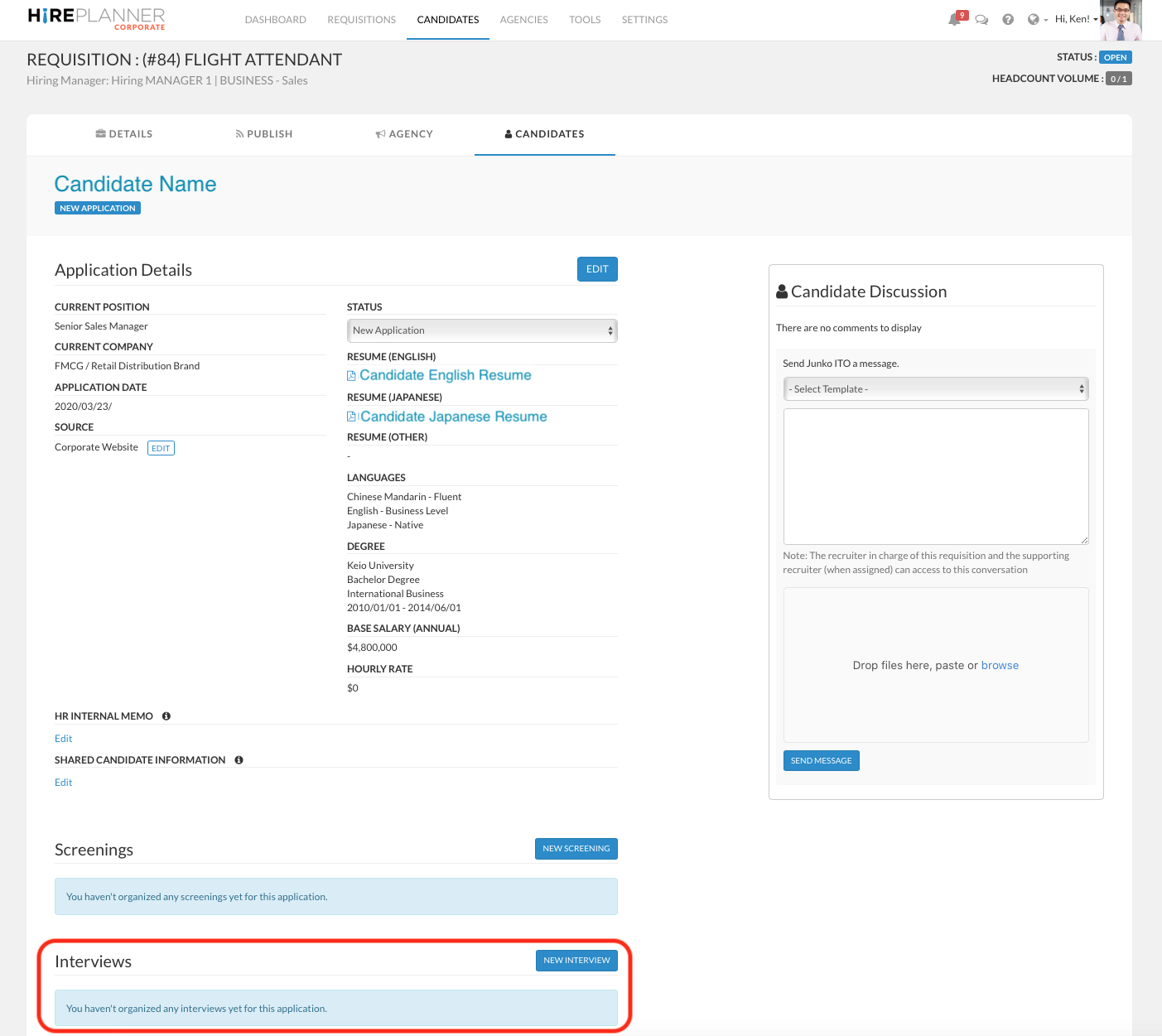
1) Click on the "NEW INTERVIEW" blue button located under the "Interviews" area within the candidate application you are reviewing.
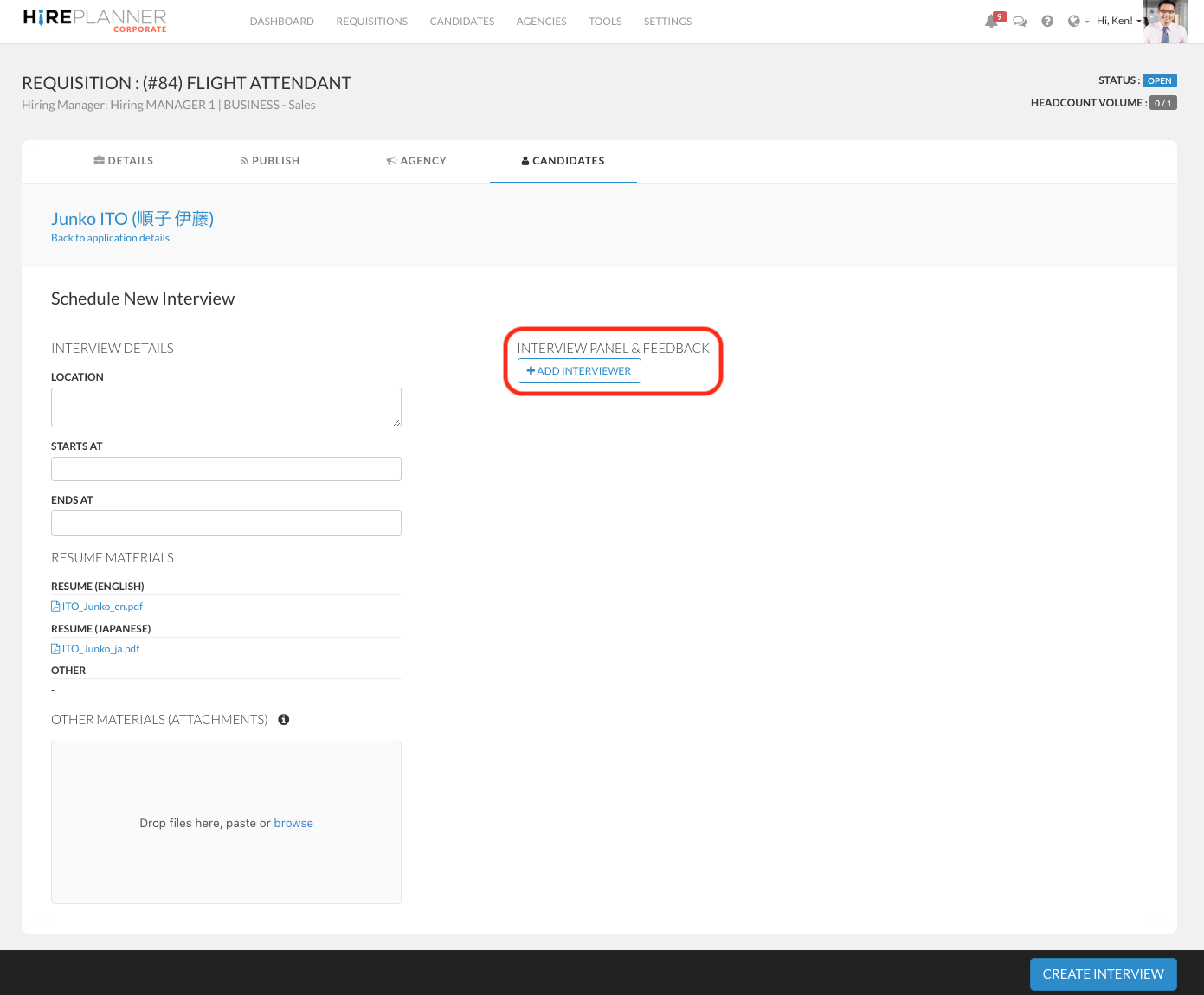
STEP 2: Click on the "+ ADD INTERVIEWER" button
STEP 3: Select the name of the person who you would like to invite to screen a candidate application.
STEP 4: If you need to share any particular instructions to the interviewer (selection criteria etc.), please include your comments in the HR Instructions field below.
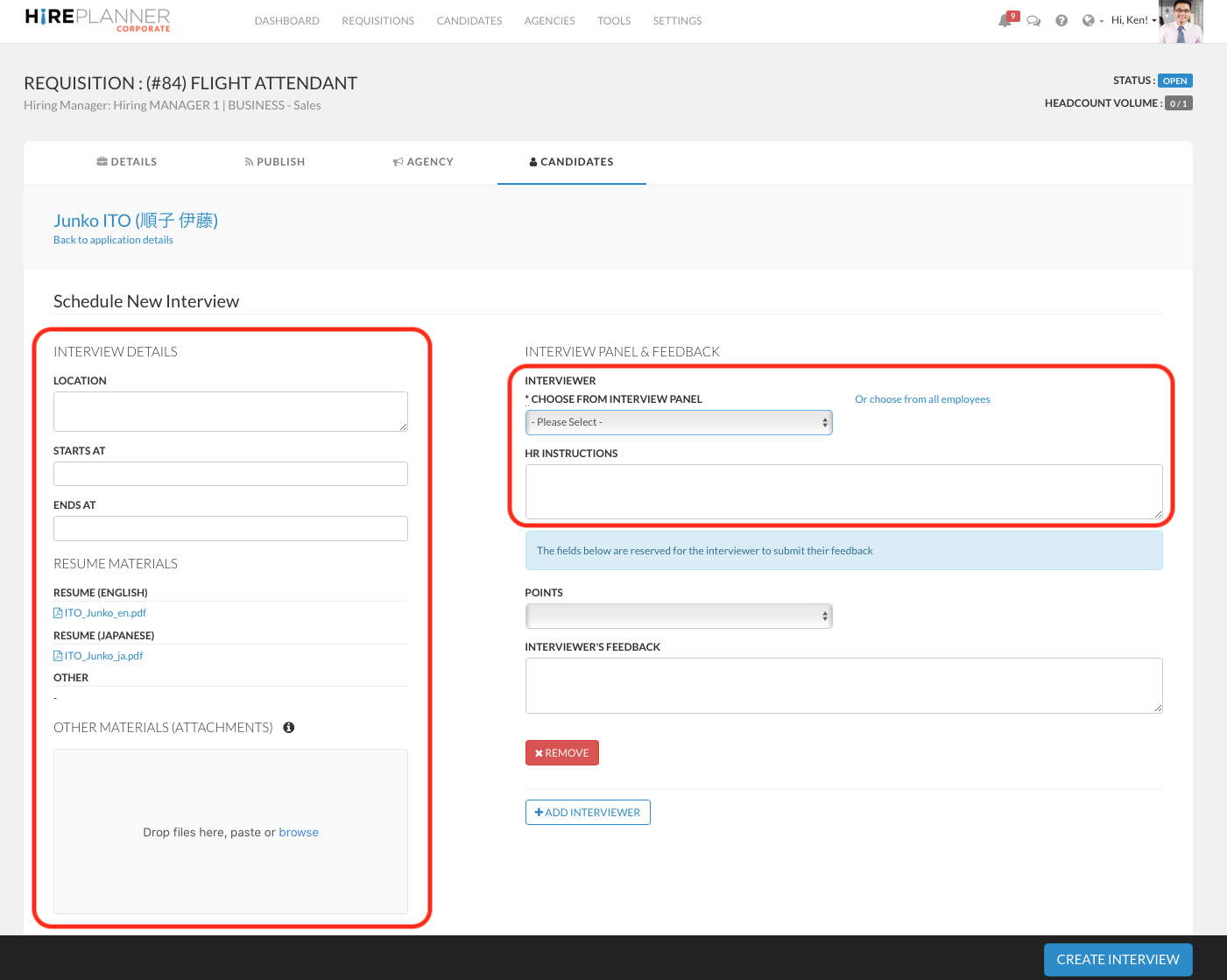
STEP 5: Select the location of the interview along with both the start and end date & time of the meeting.
STEP 6: Make sure the resumes that are attached to the application of the candidate are correct and updated.
STEP 7: If you wish to share any additional document with the selected interviewer, please drag and drop the file into the attachment area and the interviewer will be able to access it when he/she logs in.
STEP 8: Click on the blue button "CREATE INTERVIEW" located at the bottom of the page.
NOTE: After you create an interview record in the system, an "interview feedback request" will be automatically added onto the Task Management area of the interviewer you selected. Next time the interviewer sign-in Hireplanner, they will be able to see how many requests for feedback they have received.

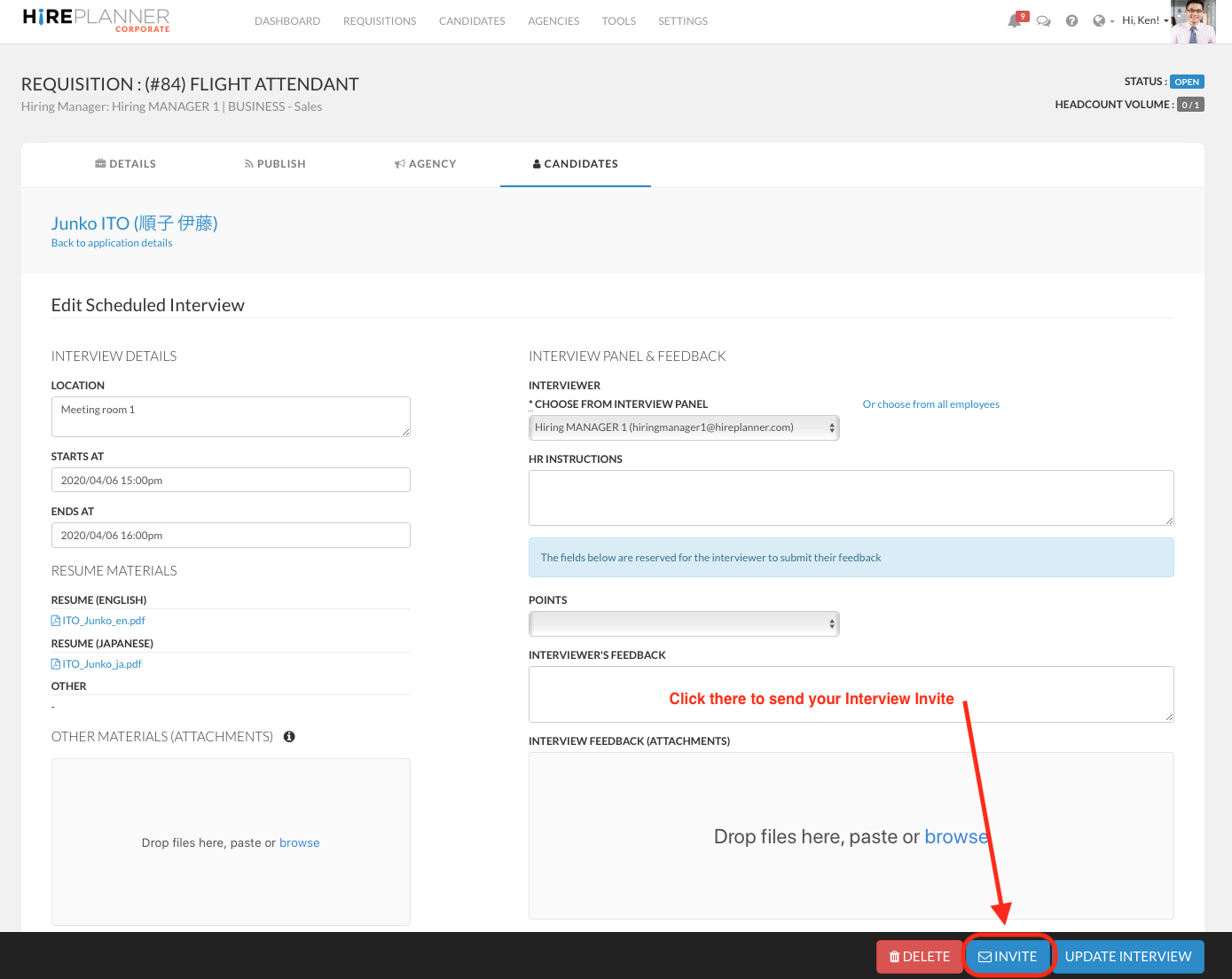
STEP 9: SEND AN EMAIL INVITE
If you wish to send an email notification to the interviewer(s) along with all the interview details (Job description, Schedule, Location, Candidate Resume etc.) so that the interviewer can add them to their own calendar, please click on the "INVITE" blue button at the bottom of the page.
NEXT STEP:
>>> HOW TO SEND AN INTERVIEW INVITE?
Comments
0 comments
Article is closed for comments.