
To connect your calendar to your hireplanner account, please follow the steps described below:
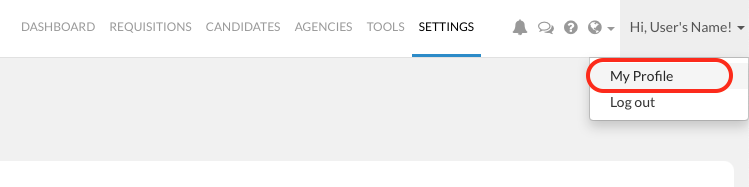
1) Click on your "First Name" on the top right hand side of the navigation bar
2) Click on "My Profile"
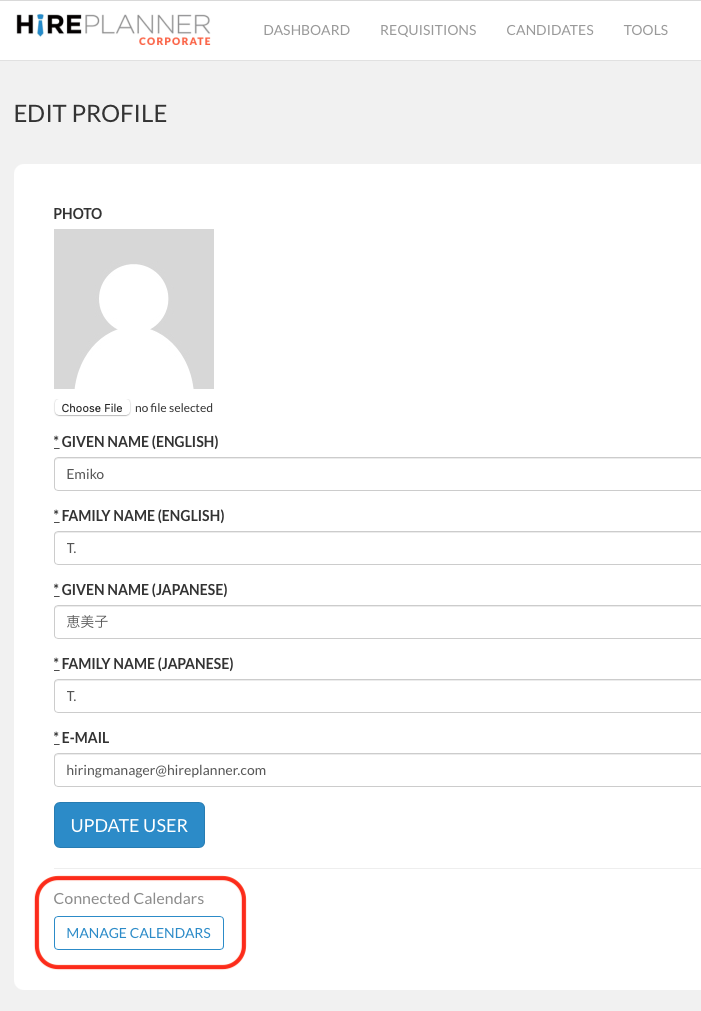
3) Scroll down to the bottom of your user profile and click on "MANAGE CALENDARS" under the section called "Connected Calendars".
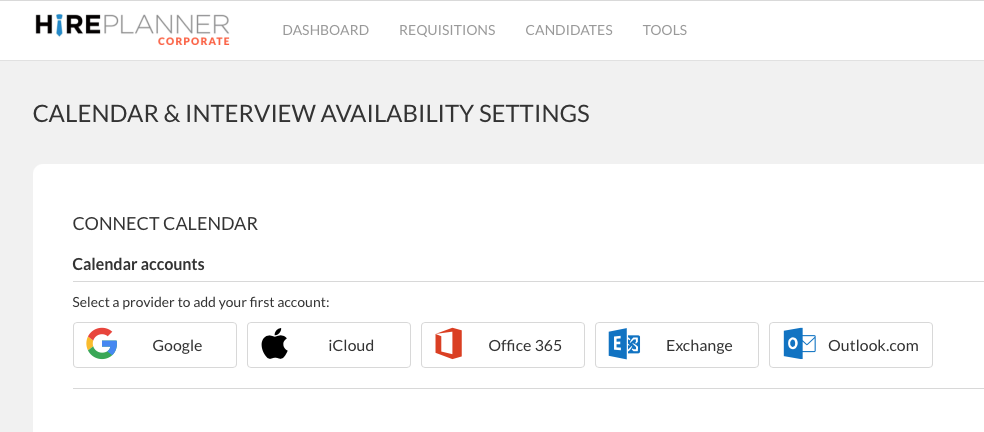
4) Select the calendar provider you would like to use to add your calendar:
- iCloud
- Office 365
- Exchange
- Outlook.com
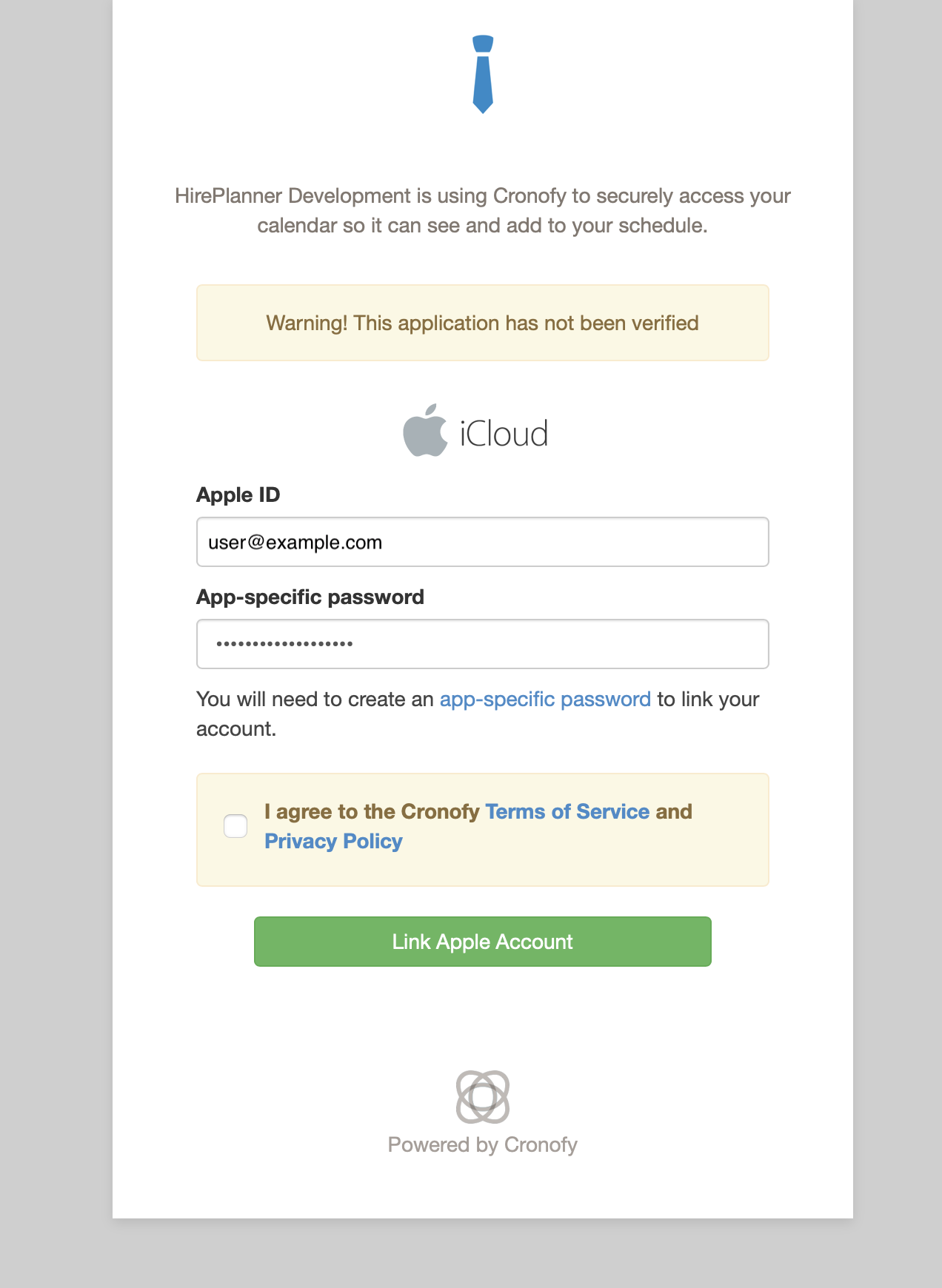
5) Proceed with connecting your calendar to HirePlanner via Cronofy* (our secure scheduling partner).
* Cronofy is the leader of scheduling tools and calendar synching. Cronofy has achieved the ISO/IEC 27001:2013 certification. We are also SOC2 attested, HIPAA, GDPR and CCPA compliant.
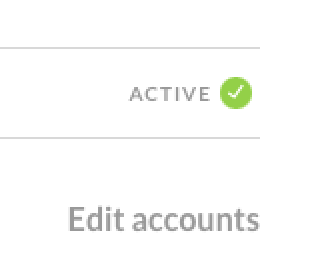
Once you complete the process, you should see the status marked as "ACTIVE"
6) Select and save your primary calendar. Your primary calendar is the calendar where you would like to see your candidate interviews appear in.
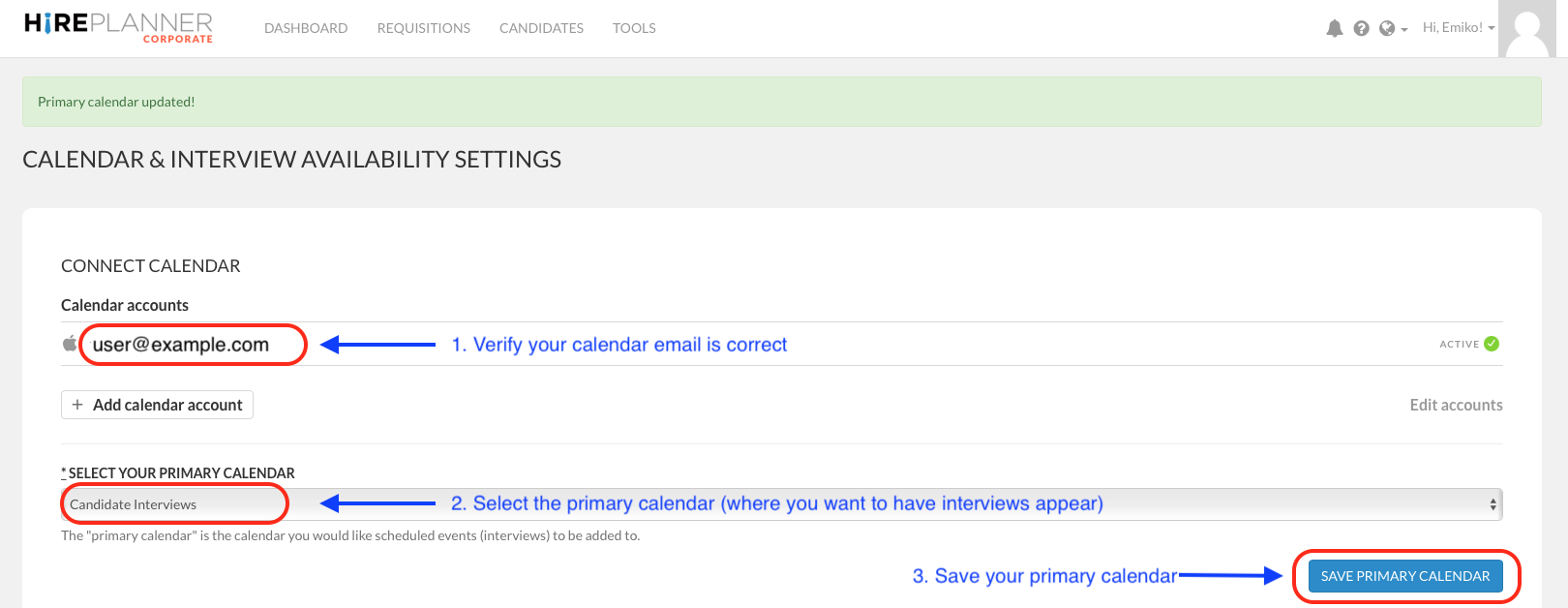
7) Edit your weekly interview availability:
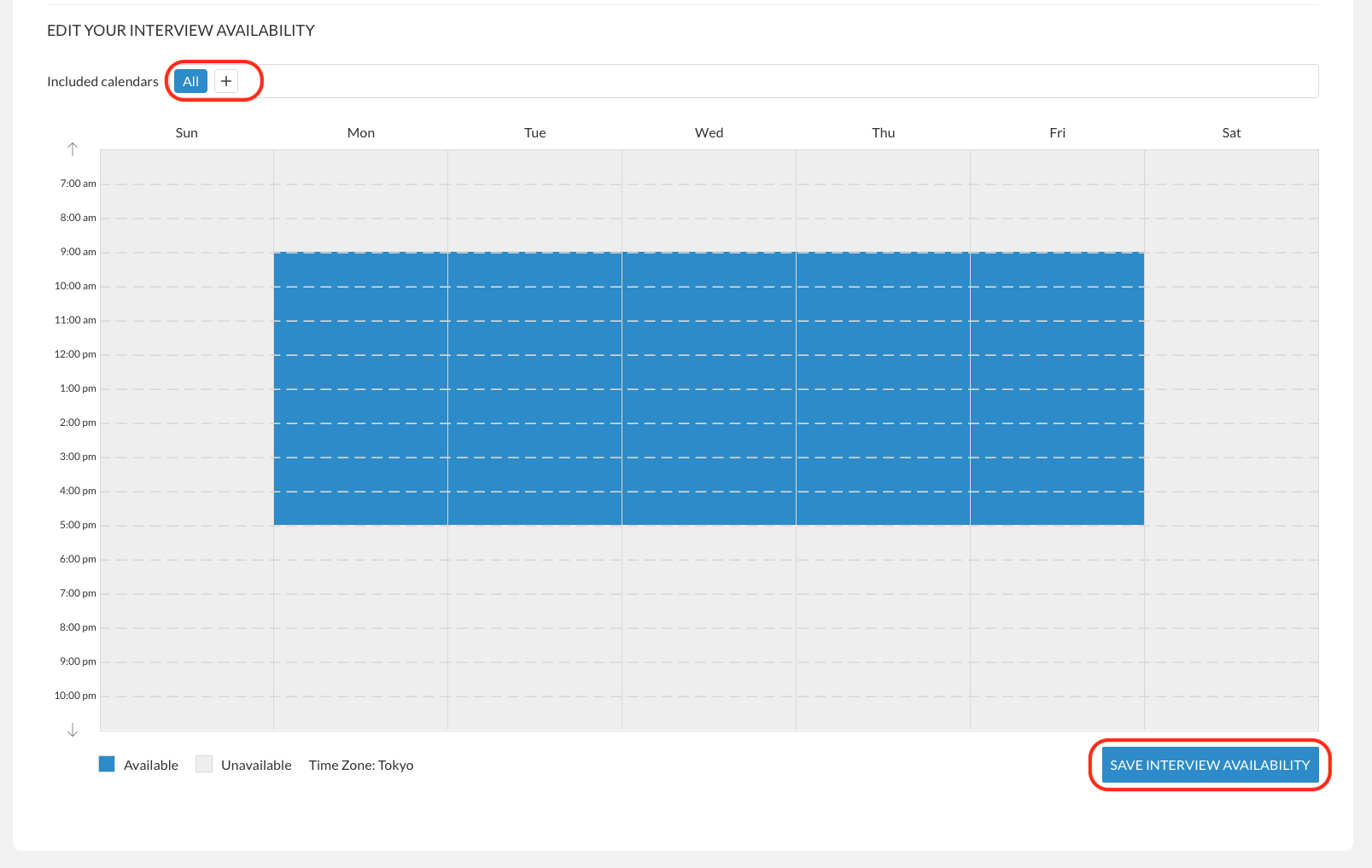
- Select the calendars ("Included Calendars") you would like HirePlanner to find available time slots from. To never miss available time slots, we recommend you to show "ALL".
- Click on "SAVE INTERVIEW AVAILABILITY" to save the time slots you usually would like to offer candidates during the week.
- If you don't mind meeting candidates any day or any time of the week, we recommend you to keep your interview availability as attached below.
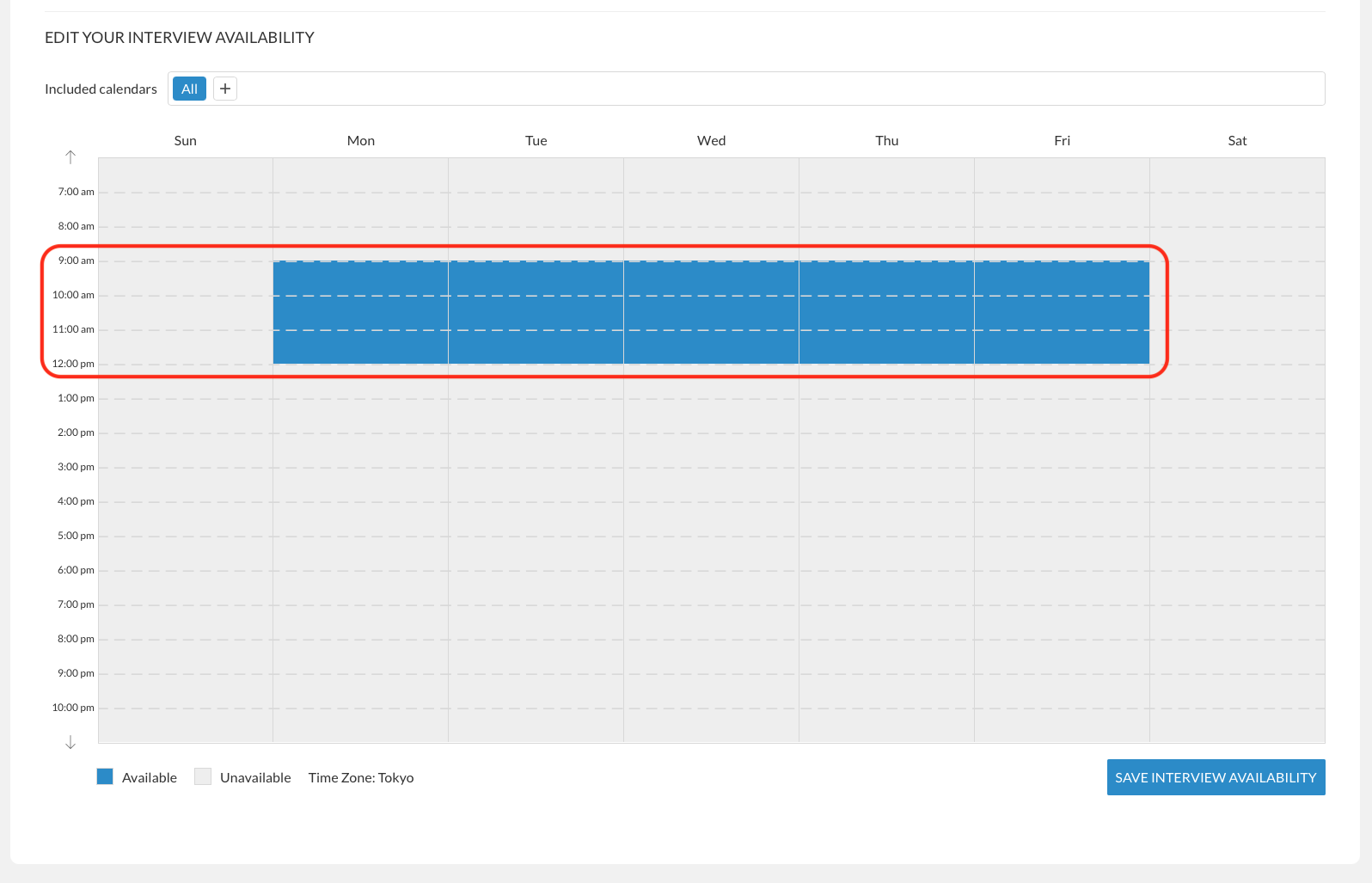
- On the other hand, if you prefer to only meet candidates during the morning of each day of the week, we recommend you to keep your interview availability as described below:
- If you prefer to keep your interviews only in the afternoon and early evening, your availability preference should look as below:
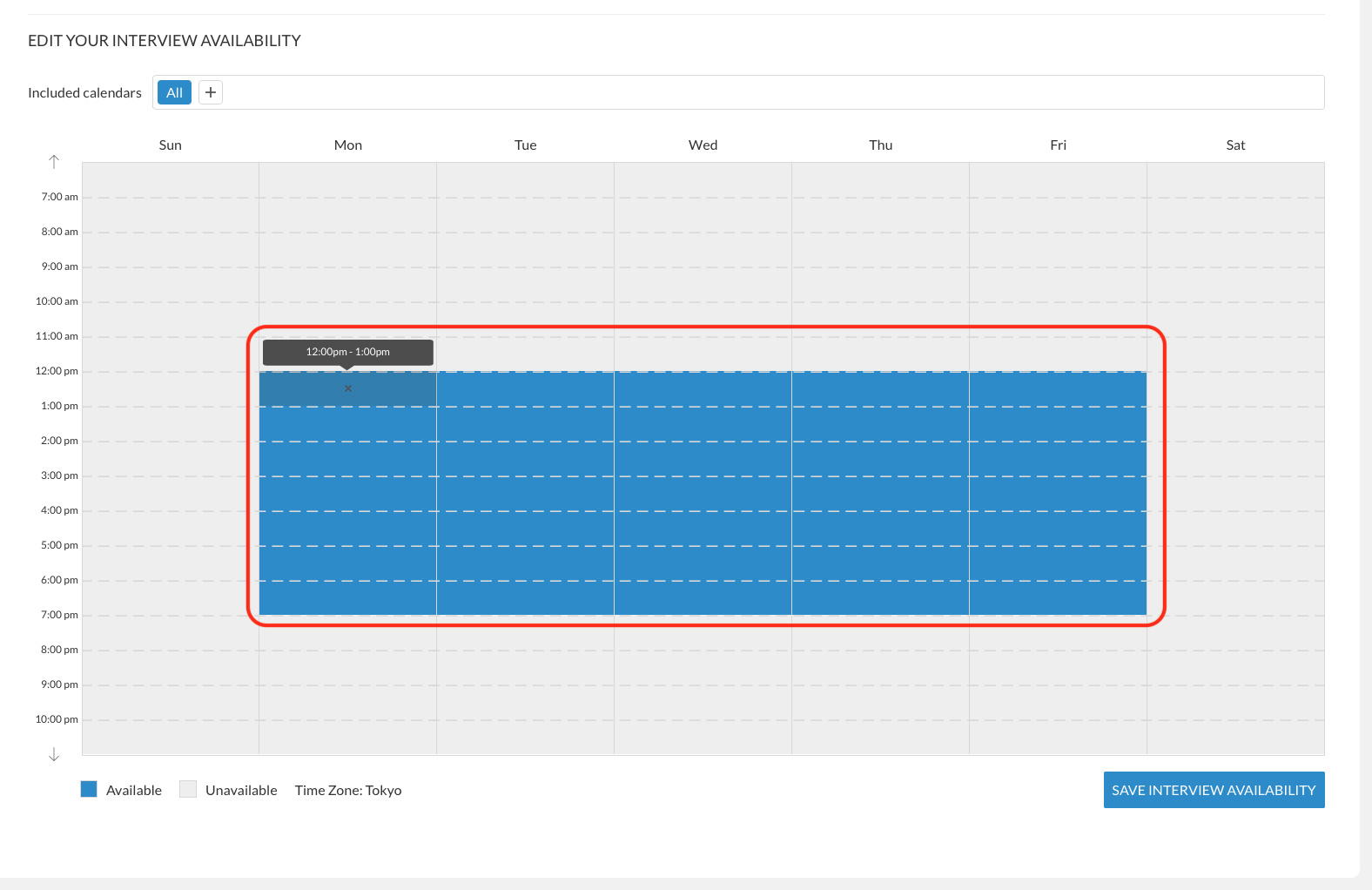
8) Click on SAVE INTERVIEW AVAILABILITY
You are now all set!
REMINDER:
- If you (as an interviewer) does not have your calendar connected with your HirePlanner account, your HR recruiter (responsible for your role) will not be able to use the Automatic Schedule Tool to coordinate interviews automatically for you.
- Once your calendar is connected to your HirePlanner account, your HR contact will only be able to view the available time slots of that user (no other meeting details will be visible - only the actual available times)
Comments
0 comments
Please sign in to leave a comment.