
- STEP 1: Please log into your agency account at https://www.hireplanner.com/en/ap_users/sign_in
- STEP 2: Please select the role you would like to introduce a candidate for
- STEP 3: Review the Job Description and the requirements from your client
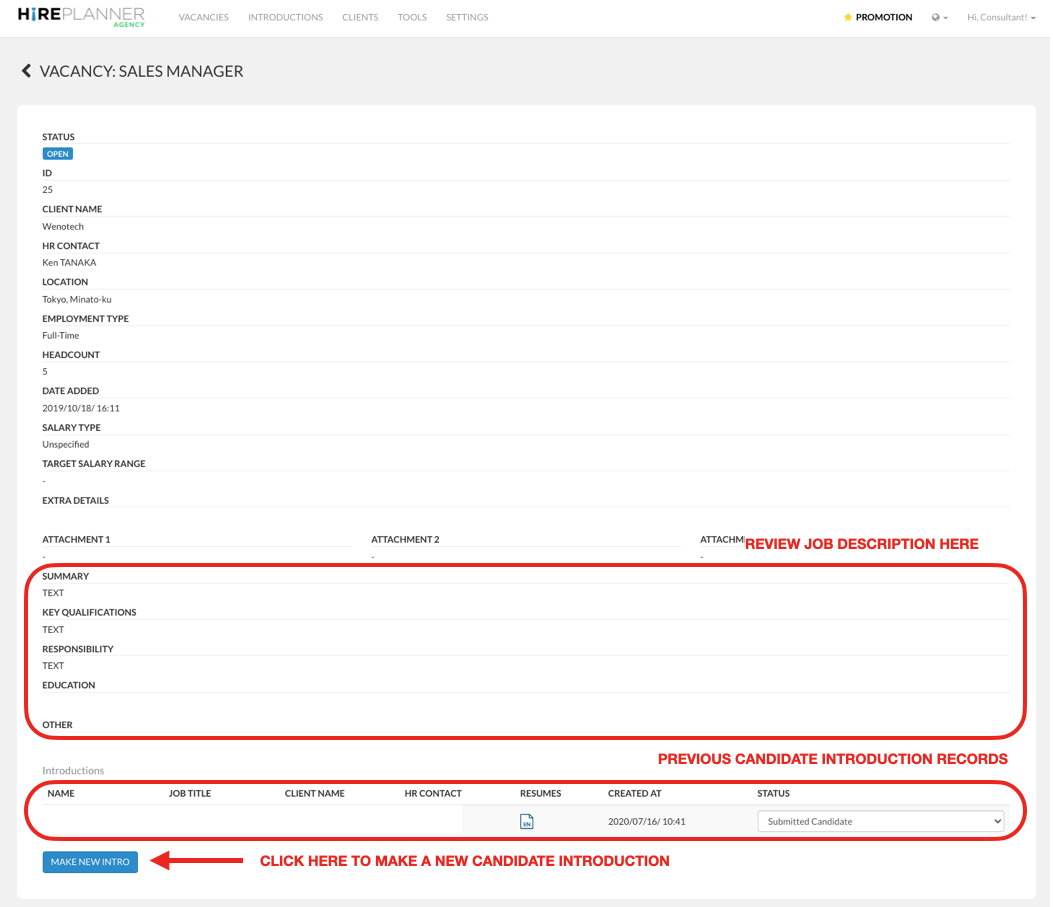
- STEP 4: Click on the “MAKE NEW INTRO” button
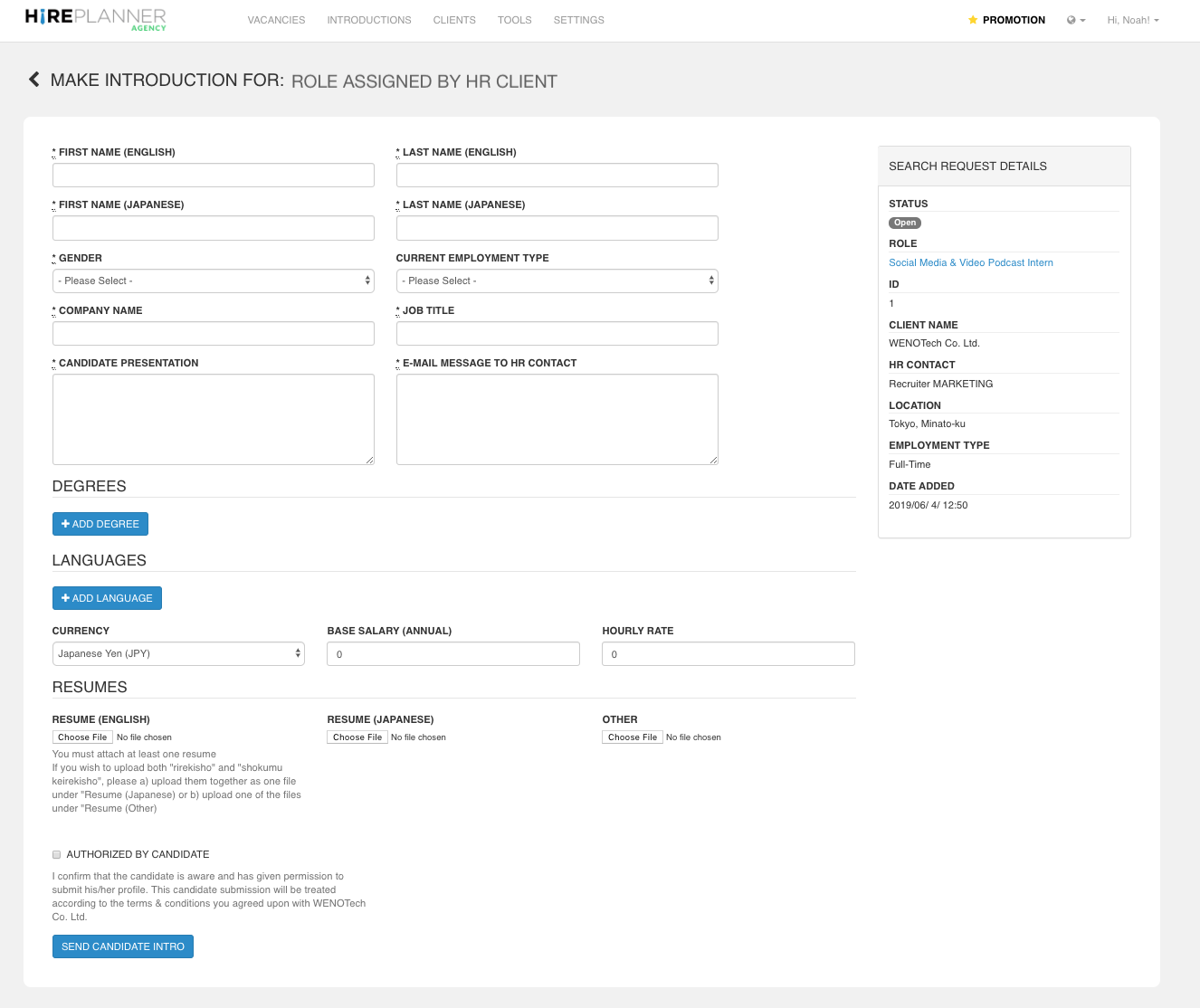
- STEP 5: Fill out the Candidate Introduction Form and provide as many details as possible for your HR Clients.
- STEP 5: Remember to click on the “Authorized By Candidate” check box
- STEP 6: Click on “SEND CANDIDATE INTRO”
NOTES:
- Note 1: The fields which include the asterisk mark are mandatory (*)
- Note 2: To process your candidate introduction, you must at least attach one resume in English or Japanese
- Note 3: Please keep the size of your files under 3MB per file.
- Note 4: Please keep your resume file names below 30 characters
!!! IMPORTANT NOTICE !!!
To optimize your user experience, we recommend you to use the HirePlanner Agency Portal on Google Chrome Browser. If you experience any errors on other web browsers, please make sure to download the latest version of the Google Chrome and try again.
Comments
0 comments
Please sign in to leave a comment.