
- STEP 1: Each time an HR client assigns a new project (vacancy) to an agency consultant, the selected consultant will receive an email notification with a link to access details about the position from the client.
- STEP 2: Please log into your agency account at https://www.hireplanner.com/en/ap_users/sign_in
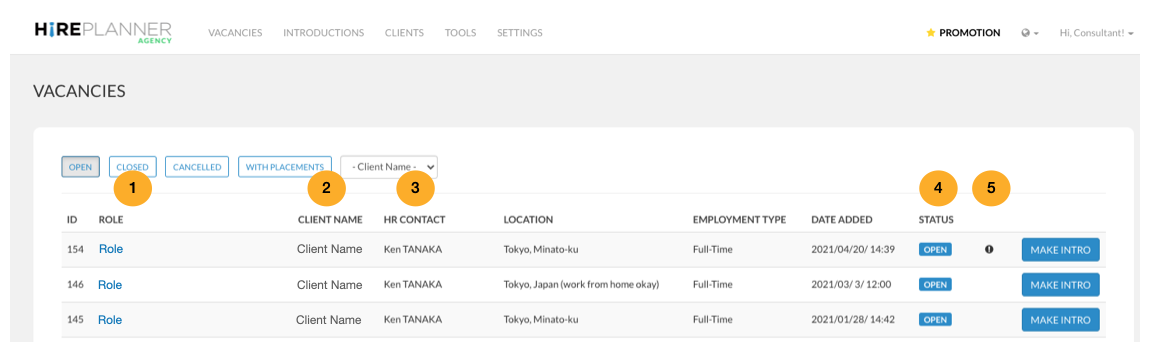
- STEP 3: Please click on "Vacancies" (on the top navigation bar) and select the job assignment you wish to review from your client:
1) The role (job title)
2) The client name which issued the vacancy
3) The name of your HR contact for this role
4) The project status
5) If the role is confidential or not
6) If the consultant can make an introduction or not. If the role has been closed or filled, the "MAKE INTRO" button will not be available since the client does not accept new candidate introductions.
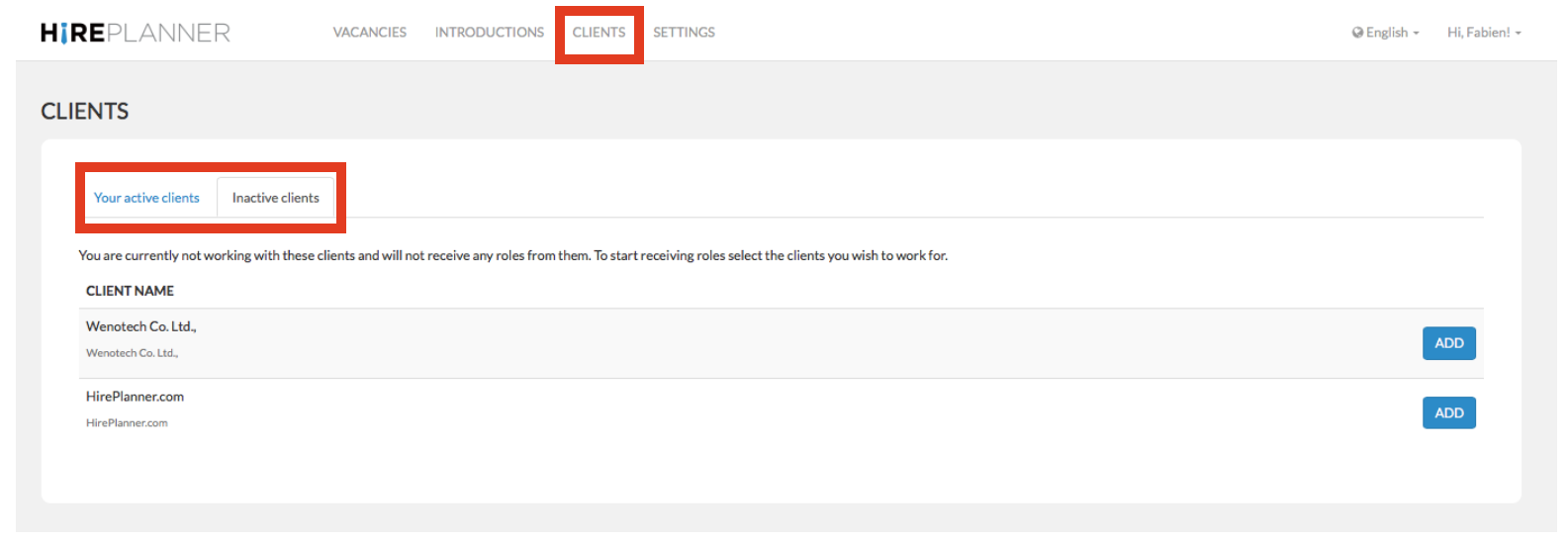
IMPORTANT: For a client to assign some jobs to an agency consultant, the agency consultant MUST remember to ADD the client on his/her list of "Active Clients".
1) Click "CLIENTS" on the top menu
2) Click on the "Inactive Clients" tab
3) Click on the "ADD" blue button to activate a client (so that they can send you jobs).
If a client is listed under the "Inactive clients", the client will not be able to assign a new role to the agency consultant.
If a client is listed under the "Active clients", the client will be able to assign a new role to the agency consultant.
For more information, please click <How to activate your HR Clients>
Comments
0 comments
Please sign in to leave a comment.