
Please note that this section is accessible and can be modified ONLY by the "Account Owner" or the "Administrator" user of your company. If you are a recruiter user without "Admin" access rights, you will not be able to access this part of the website.
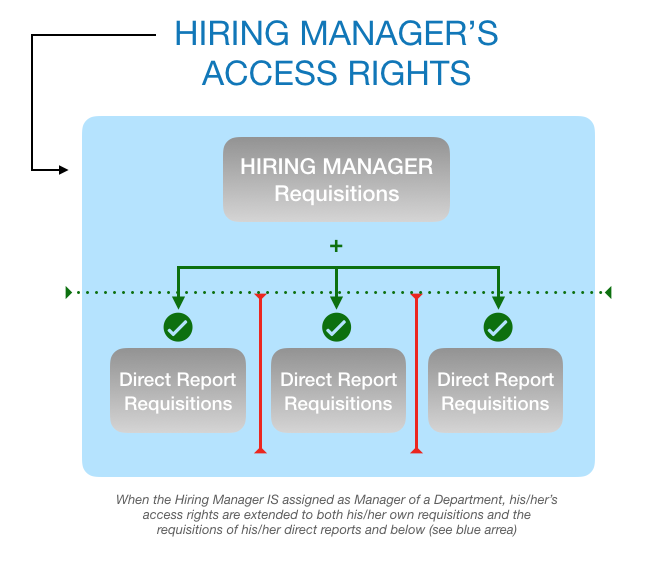
If you would like to systematically give access to your hiring managers to both their own requisitions and the ones from other people inside their own organization (direct reports and below); you will need to make sure the selected hiring manager is assigned as a "manager" of that department.
To assign a user as the manager of a department, please follow the below instructions:
1. Click on SETTINGS located on the top menu bar
2. Select DEPARTMENTS in the dropdown

3. Click on the "+ CREATE NEW DEPARTMENT" button
or
3. Click on the department name you would like to assign a manager to
4. Select then the name of the manager you would like to assign to the selected department (see screenshot below).
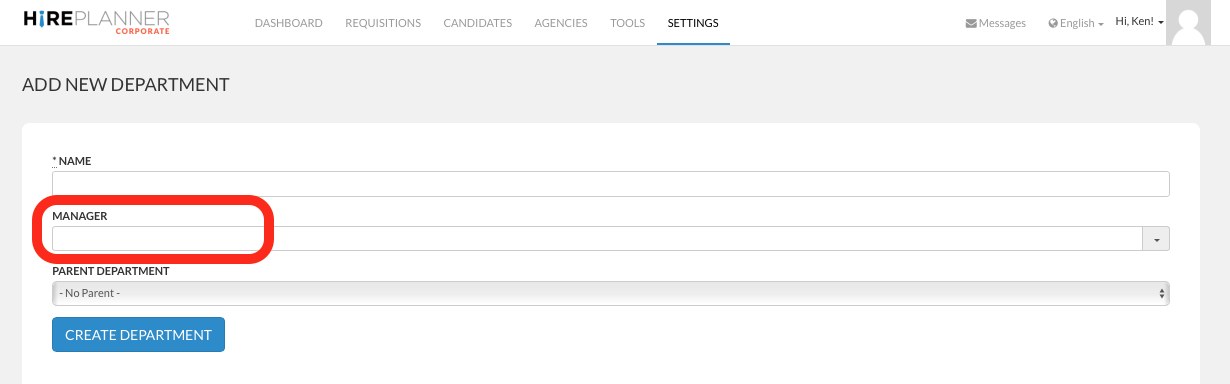
5. Click on the "CREATE DEPARTMENT" button (if you are creating a new department)
or
5. Click on the "UPDATE DEPARTMENT" button (if you are updating an already existing department)
RECAP:
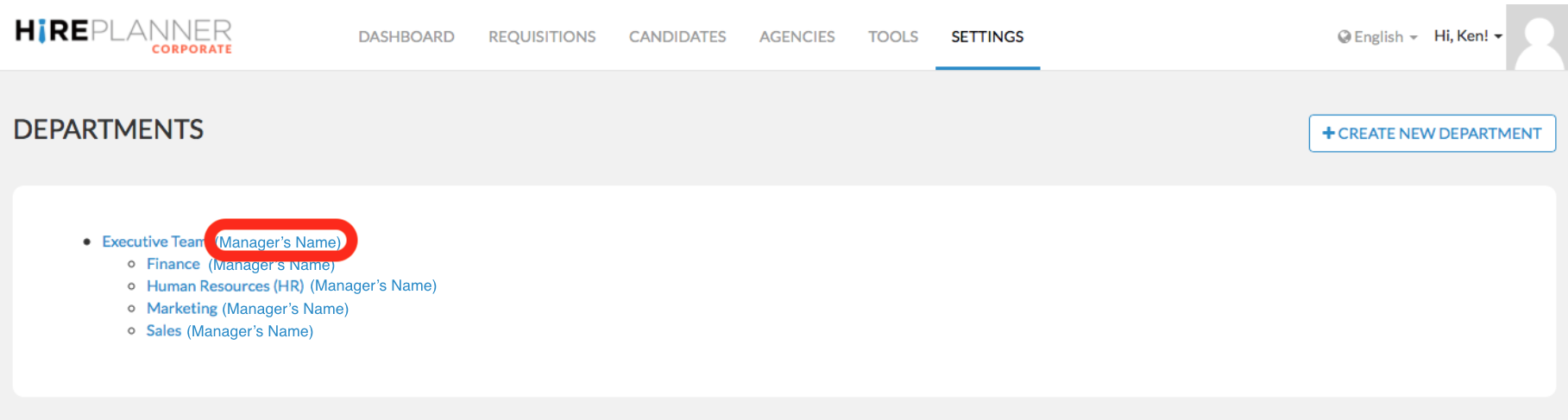
Once you choose to assign a user as manager of a department, the departments page (under settings) will display the name of the manager on the right side of the departments' name (see screenshot below).
When a Hiring Manager is assigned as manager of a department, he/she will be able to have ACCESS TO ALL REQUISITIONS THAT BELONG TO HIS/HER TEAM (INCLUDING HIS/HER OWN REQUISITIONS AND THE ONES FROM HIS DIRECT REPORTS AND OTHER SUBORDINATES FURTHER DOWN THE ORGANIZATION).
The Hiring Manager will only have a "read only" access right which means they will not be able to make any edits. The access right granted to the hiring manager is purely to help them get more visibility on the status of their projects and keep track of the progress of requisitions within their team.
If you have any questions or need any clarifications on how to set your department access rights, please contact us anytime at: support(at)hireplanner.com.
Comments
0 comments
Article is closed for comments.