
With HirePlanner, you can create offer records for the candidates you decide to hire.
TO CREATE AN OFFER, PLEASE PROCEED AS FOLLOWS:
1) Access the requisition of your choice (the one the candidate applied for)
2) Click on the "CANDIDATES" tab to access your candidate pipeline
3) Change the recruiting status of the candidate you wish to create an offer for and select "OFFER STAGE" on the drop down (in the STATUS column)
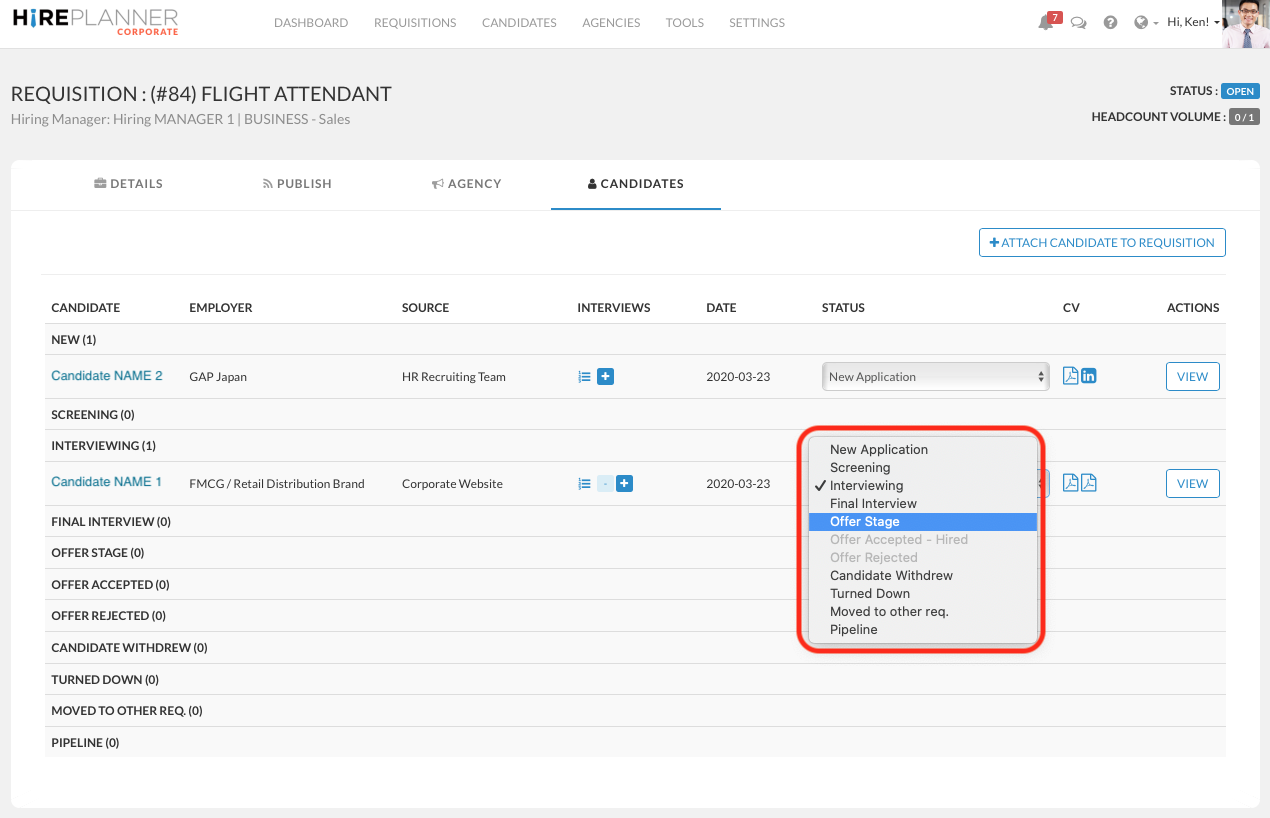
4) Click on "CREATE OFFER"
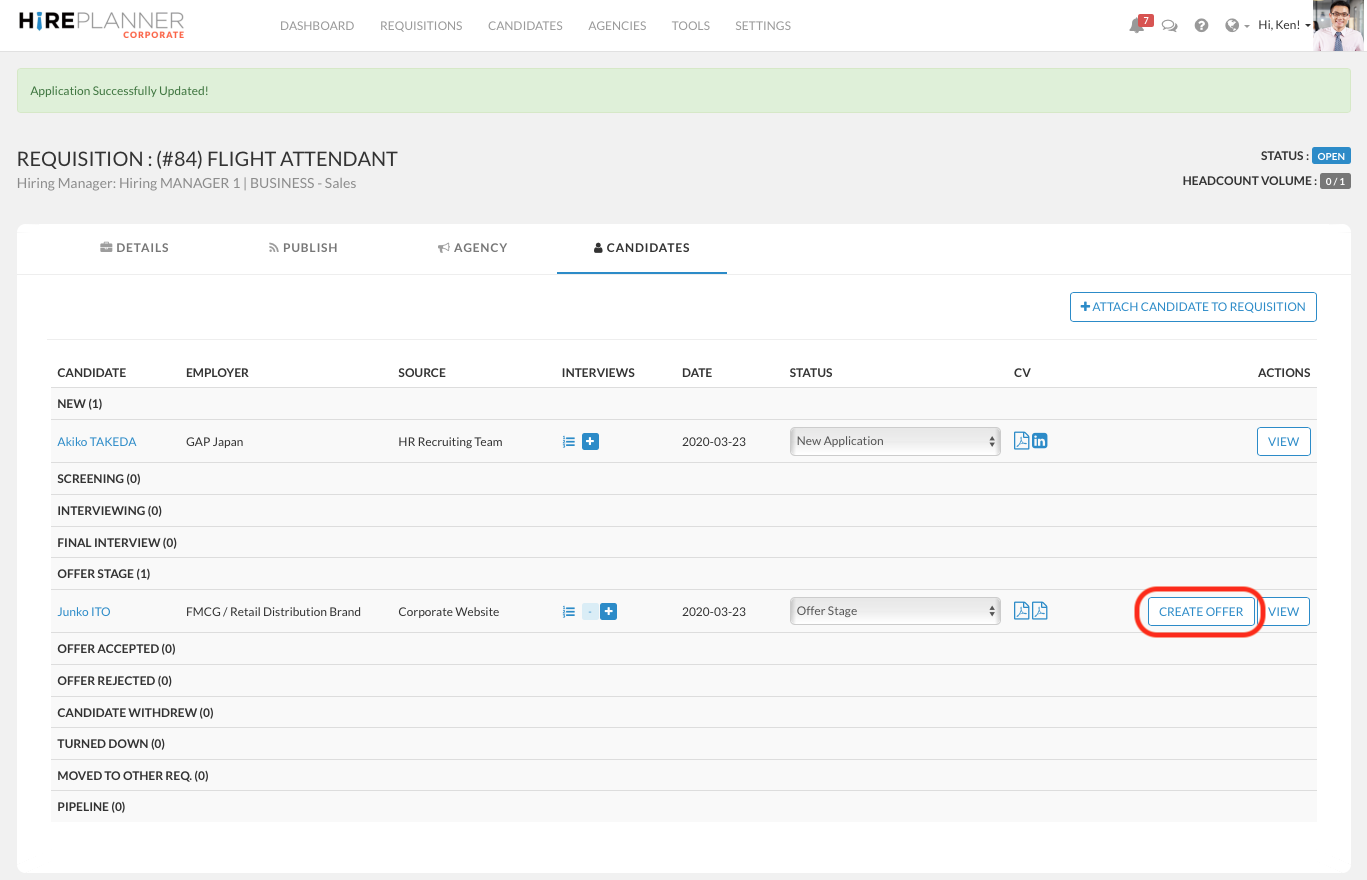
5) CREATE OFFER:
Fill out the offer form and include all the relevant details you need to take records of.
6) SAVE OFFER:
At the bottom of the form, click on the "ADD APPROVER" button and select the person(s) you would like to involve to approve the offer. You can either approve it yourself or involve multiple people from within your organization (as long as they have an activated account on Hireplanner.com).
Once you added at least one approver to your offer form, you can click on the "CREATE OFFER" green button.
At this point, no email notifications will be mailed to any of the approvers you have selected on the offer form.
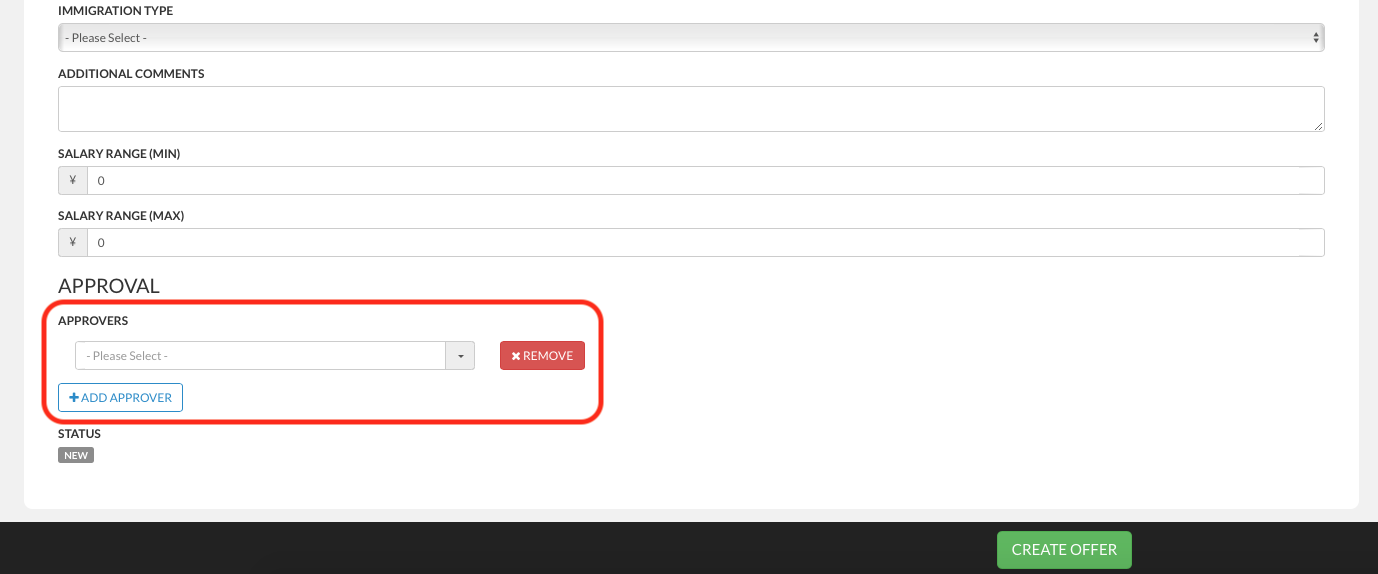
7) RAISE OFFER FOR APPROVAL:
Once your offer has been saved, you should see an orange button called "RAISE OFFER"  appear at the bottom of the page.
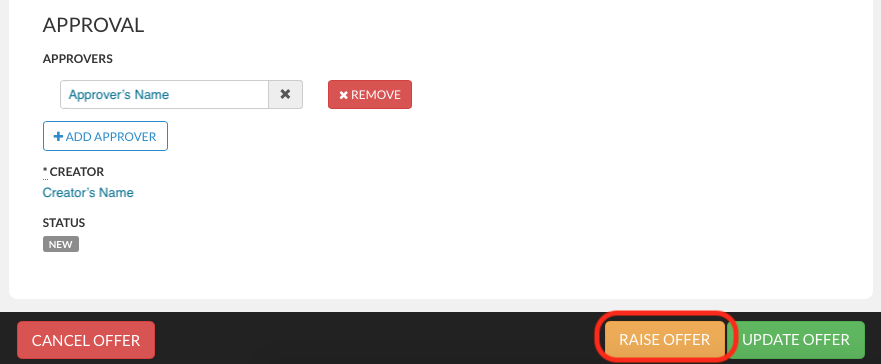
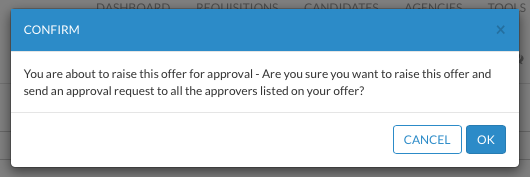
Click on "RAISE OFFER" to initiate the approval of the offer.
If you choose several approvers, an email notification (approval request) will be sent to each approver in the same order as the list of approvers you have created.
After the first approver approves the offer, the second approver will receive an email notification with the same approval request, and so on..., until the offer is fully approved by everyone on the approval route.
If you are okay with all members of the approval route to be notified, please click "OK"
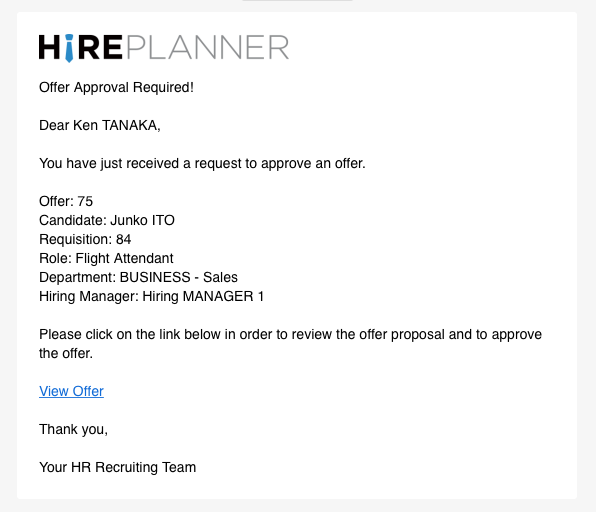
8) EMAIL NOTIFICATION (APPROVAL REQUEST)
The email notification for approving an offer will look as follows:
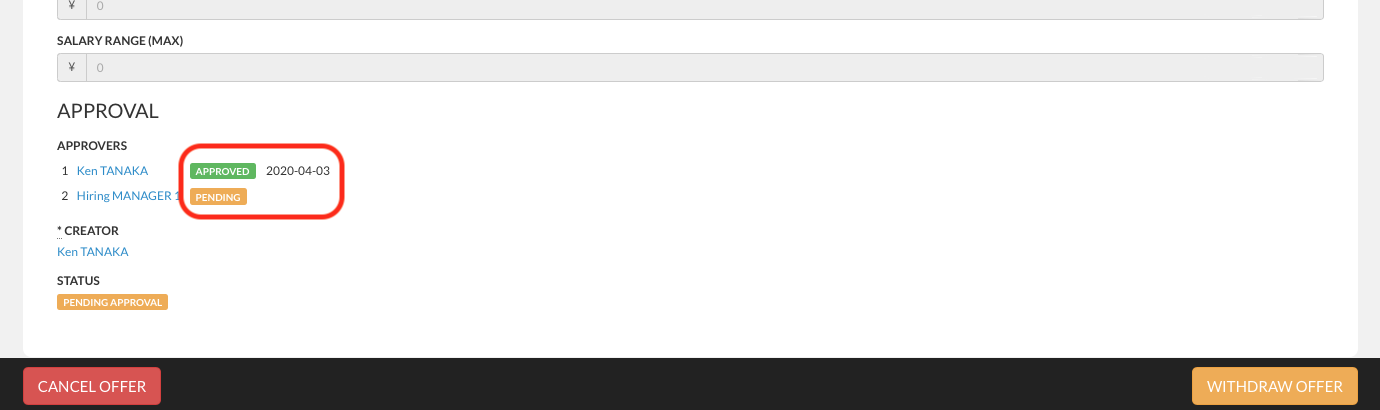
9) OFFER PENDING APPROVAL
If you are waiting for an offer to be approved, you can view who the offer is pending at and since when by accessing the offer details.
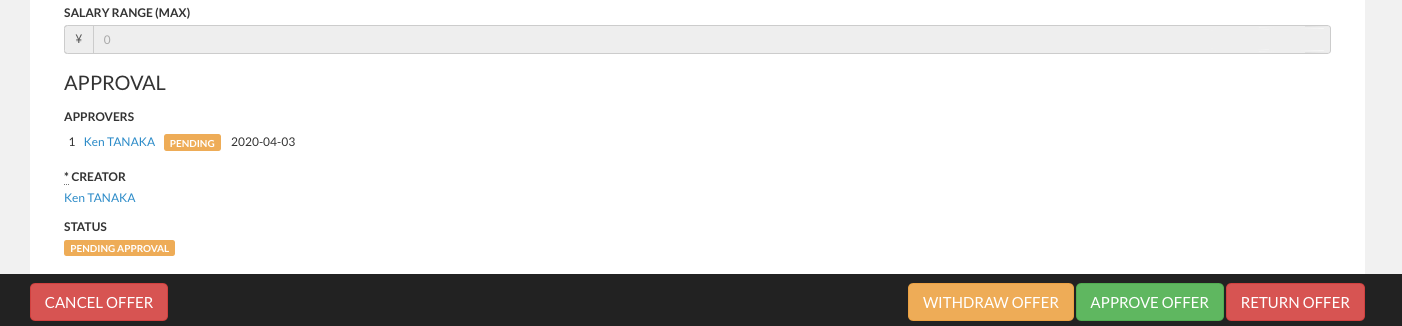
10) APPROVING AN OFFER
If you are the approver who needs to validate an offer, please review the offer details and click on the following buttons at the bottom of the page:
APPROVE OFFER: When you are okay to proceed with the offer as it is and wish to approve it.
RETURN OFFER: when you don't accept the offer. A pop-up window will appear and you will need to provide a reason for not approving the offer.
WITHDRAW OFFER: when you wish to make an adjustment to the offer proposal. Withdrawing it will stop the approval process so that you can make modification to the offer and re-raise it for approval.
CANCEL OFFER: Cancel the offer completely
11) OFFER ACCEPTED OR NOT
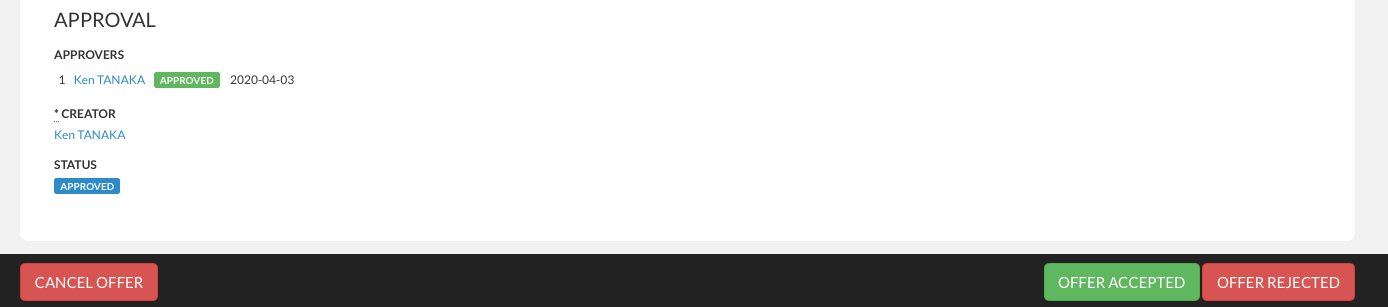
Once your offer has been approved, you will be able to inform your selected candidate.
Once you receive his/her confirmation, you will be able to mark the offer as "OFFER ACCEPTED" (if the candidate signed the offer) or "OFFER REJECTED (if the candidates turned down the offer).
Comments
0 comments
Article is closed for comments.