
To send a mass mail to multiple candidates from one of your requisition (Job Posting), please follow the steps described below:
1) Select the REQUISITION (role) you wish to access.
2) Click on the "CANDIDATES" tab to access the candidate pipeline from the role you selected.
IMPORTANT NOTES:
- The Mass Mailing feature is ONLY available (at the moment) to communicate with direct applicants (candidates who applied online themselves).
- If a candidate has been introduced by an agency, the mass mailing feature will NOT be available since you must comunicate with the agent who made the candidate introduction. We plan to release at a later date a similar mass email tool for you to email several agency consultants at the same time.
3) Click on the check box(es) to select the candidates you want to email at the same time.
As you can see from the screenshot below, you can only select direct applicants and candidates that were introduced by agencies are not clickable.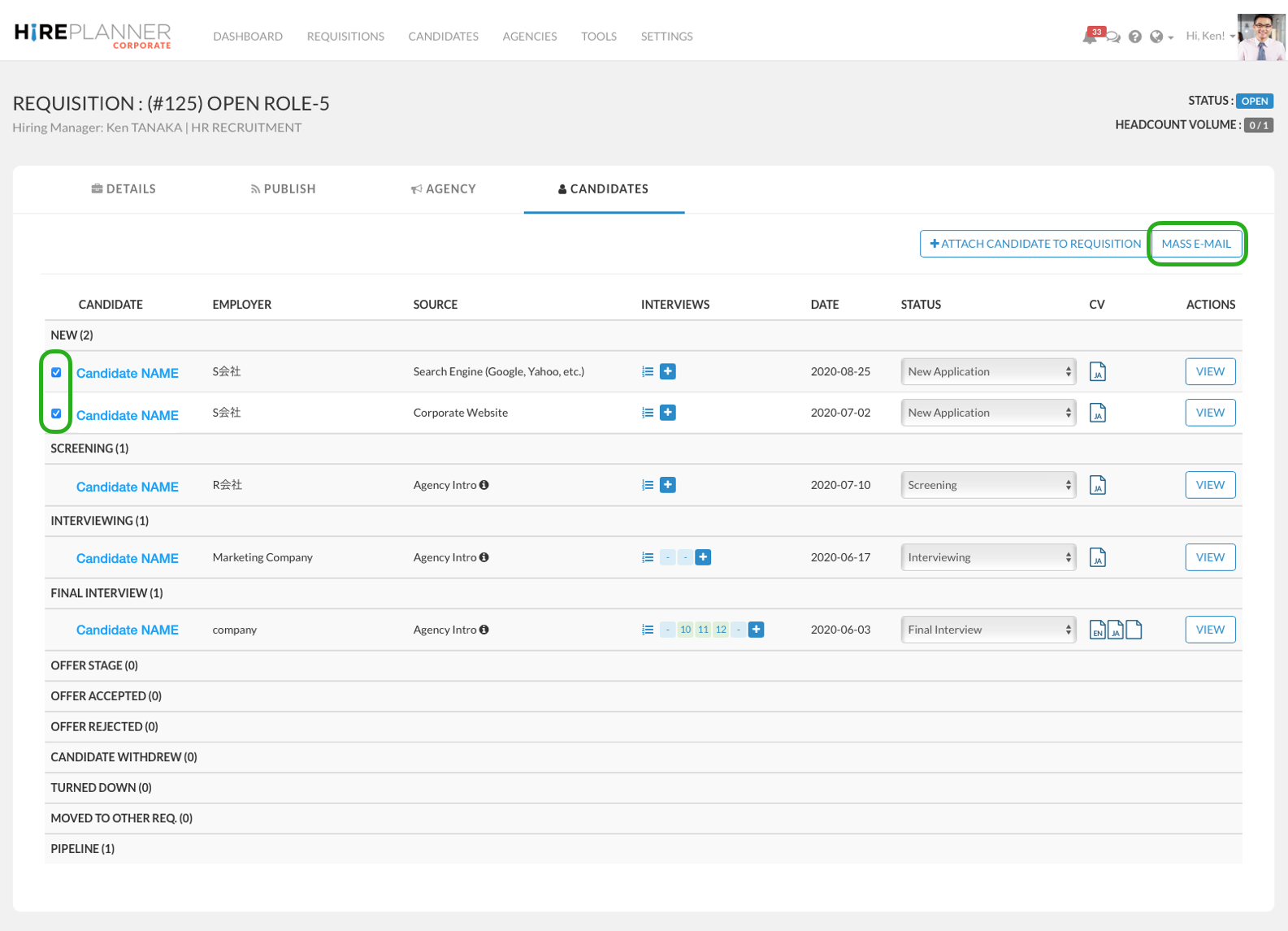
4) Click on the "MASS E-MAIL" button located above the candidate pipeline on the right hand side and verify that the list of candidates you wish to email is correct.
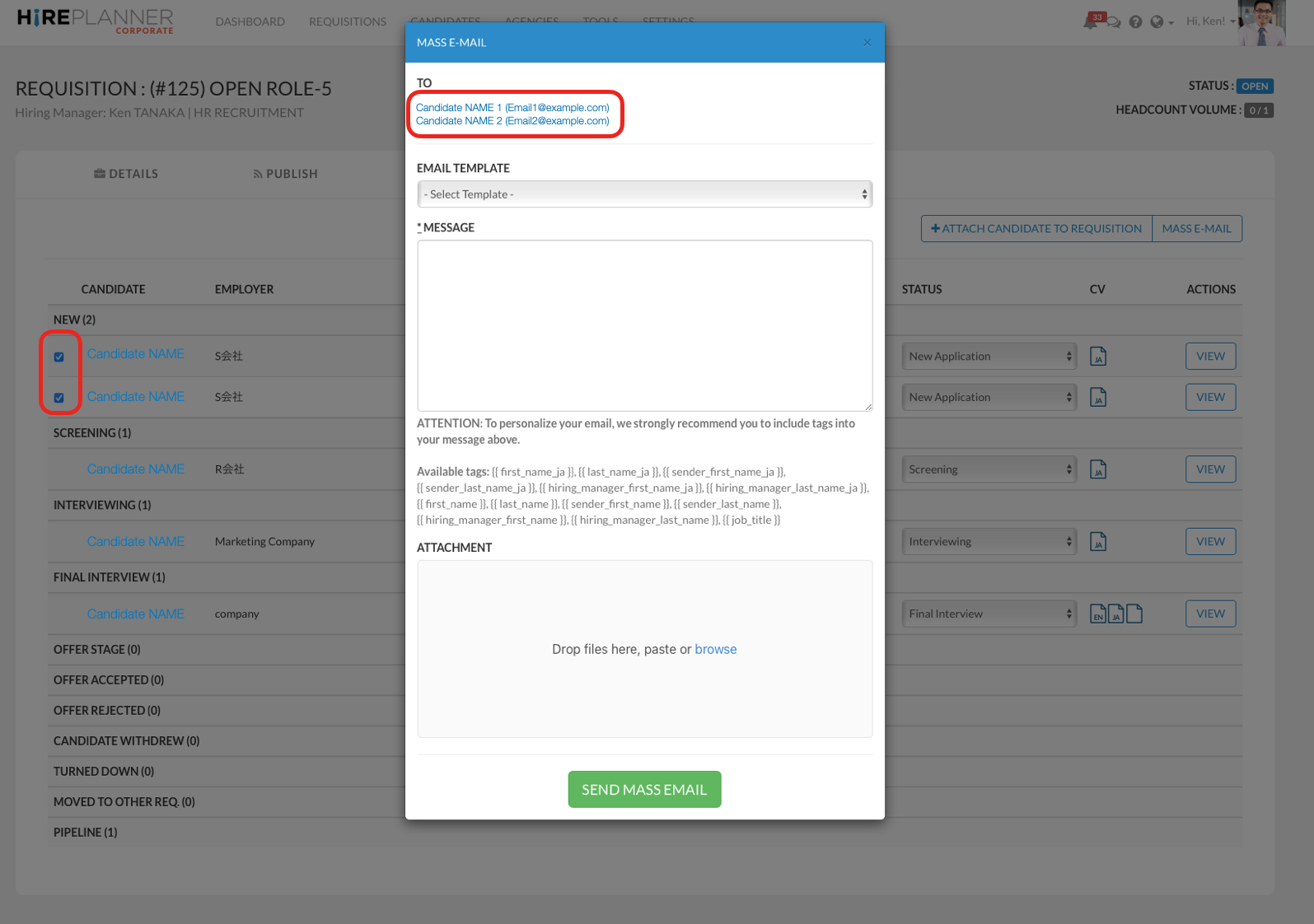
5) !! - IMPORTANT - !! =>> Select one of your email templates and MAKE SURE IT INCLUDES ALL THE NECESSARY TAGS TO PERSONALIZE YOUR MESSAGE TO CANDIDATES.
We strongly advise you to run some tests ahead of time to make sure that your template appear well when emails are delivered on the candidate side.
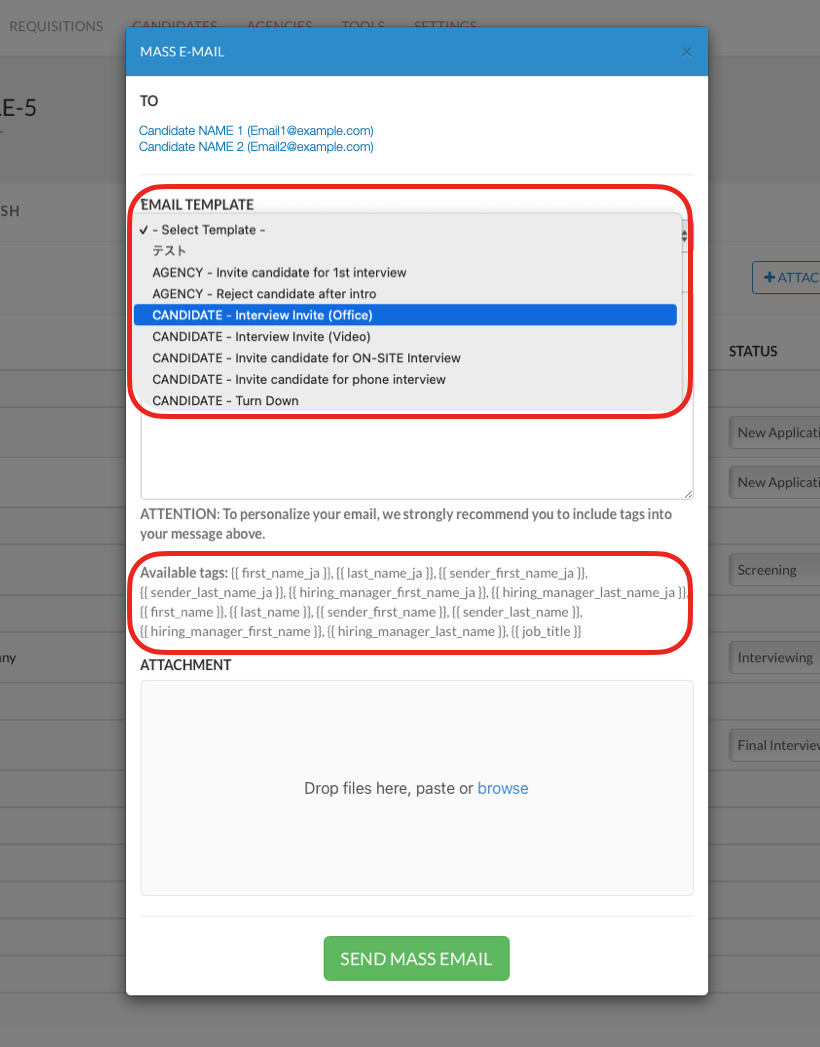
6) The following tags can be included to customize and personalize your candidate messages:
{{ first_name_ja }}
{{ last_name_ja }}
{{ sender_first_name_ja }}
{{ sender_last_name_ja }}
{{ hiring_manager_first_name_ja }}
{{ hiring_manager_last_name_ja }}
{{ first_name }}
{{ last_name }}
{{ sender_first_name }}
{{ sender_last_name }}
{{ hiring_manager_first_name }}
{{ hiring_manager_last_name }}
{{ job_title }}
* For more information on how to create an email template with tags to personalize your message, please click here =>> ADD TAGS TO EMAIL TEMPLATE(S)
7) Click on SEND MASS EMAIL (green button) to email every candidates.
After your click on the button, you will see a confirmation message appear on top of the candidate pipeline page.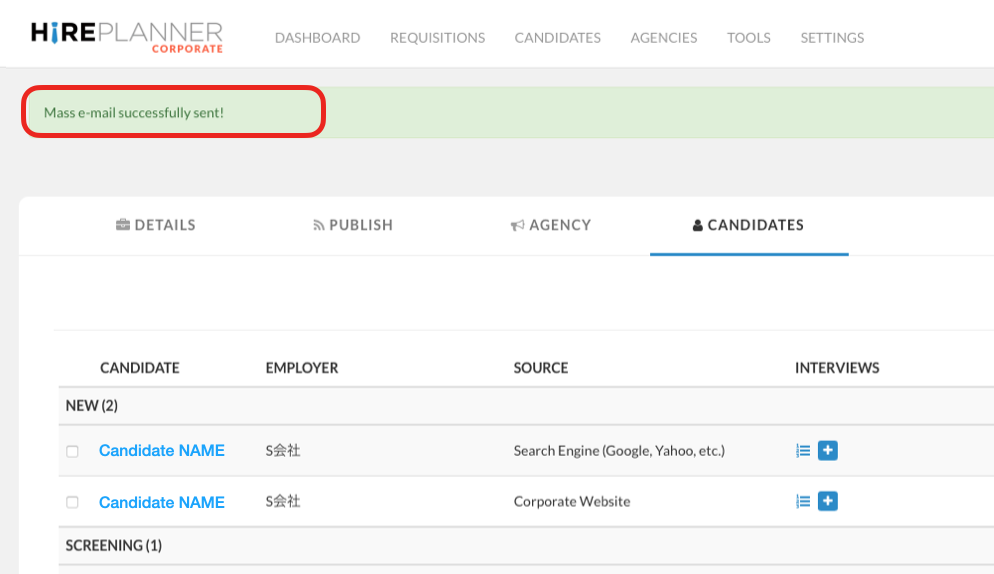
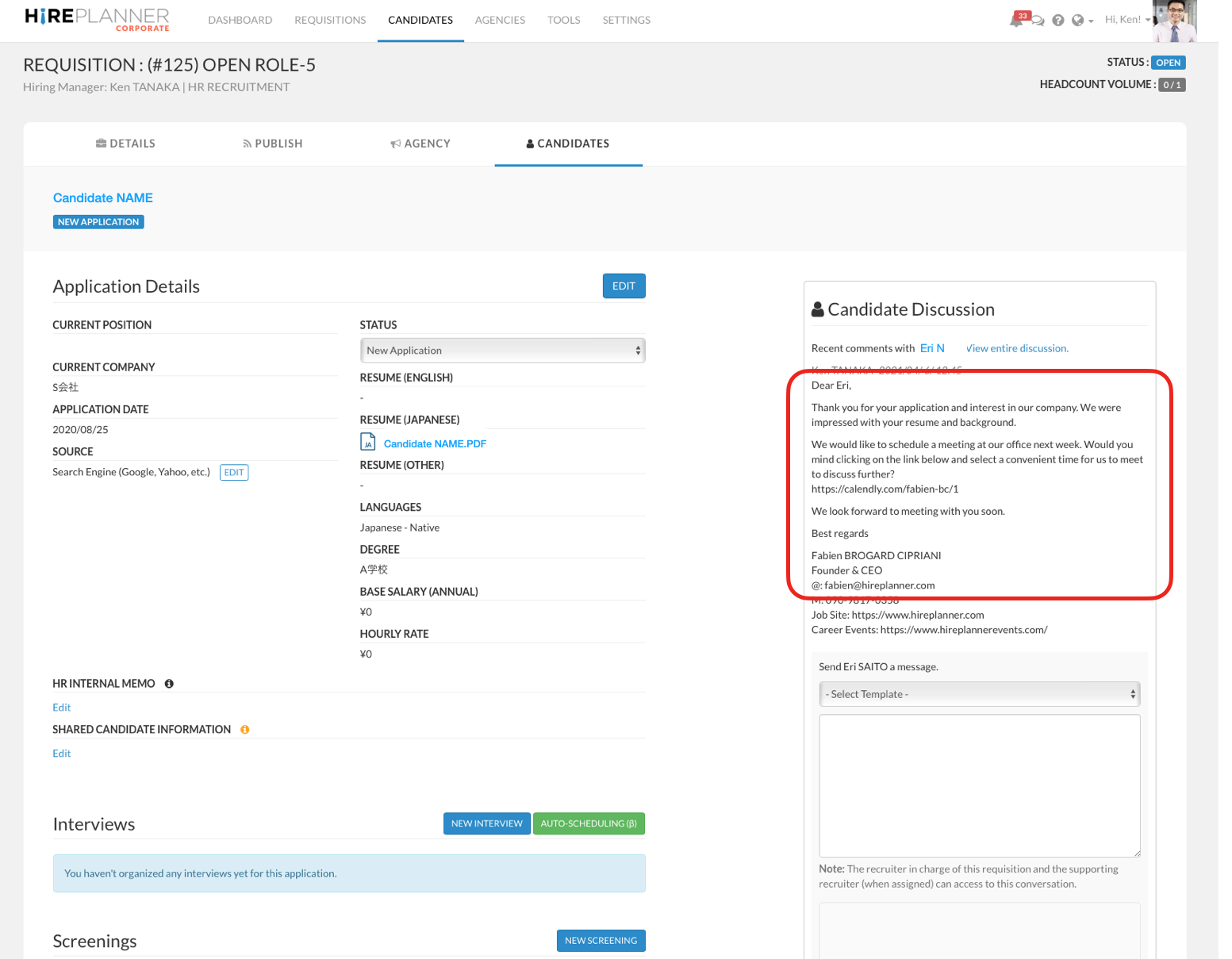
8) A copy of your messages will be automatically added in the Candidate Discussion area which is located in the candidates' application page.
To view your candidate discussion:
- Select the requisition
- Click on the "CANDIDATES" tab
- Click on the "VIEW" button to access the candidate application
- You will be able to access your communication history under the CANDIDATE DISCUSSION area (see visuals below)
Comments
0 comments
Please sign in to leave a comment.