
PLEASE NOTE THAT ONLY THE ACCOUNT OWNER (MASTER USER) CAN ACTIVATE CLIENTS FOR ANOTHER CONSULTANT
IF YOU ARE LOGGEDIN AS A REGULAR USER (CONSULTANT), YOU WILL ONLY BE ABLE TO ACTIVATE YOUR OWN CLIENTS. YOU WILL NOT BE ABLE TO ACCESS THE "SETTINGS" AREA AND ACTIVATE CLIENTS FOR OTHER CONSULTANTS.
THE BELOW INFORMATION IS ONLY APPLICABLE TO AGENCY "ACCOUNT OWNER"
- STEP 1: Please log into your agency account
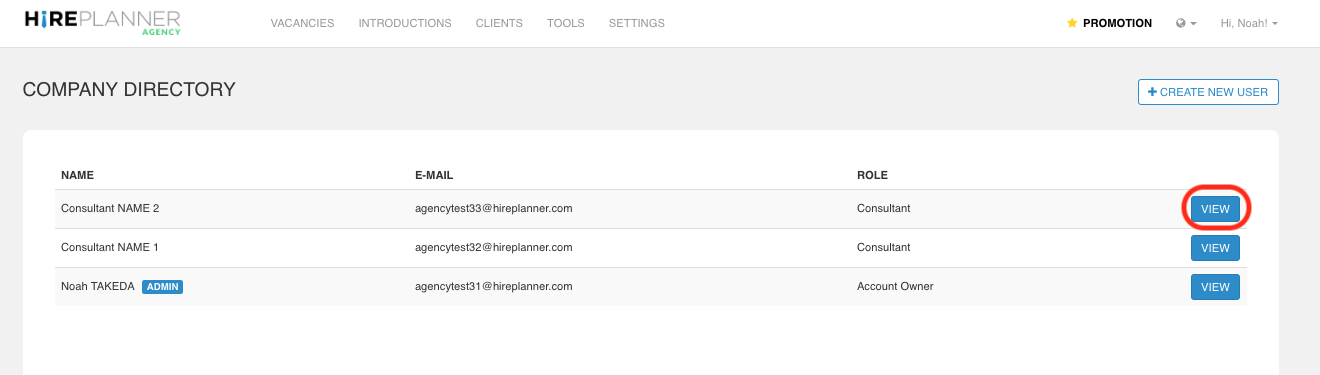
- STEP 2: Please click on “Settings” and select the “Company Directory” category.

- STEP 3: Select the consultant profile you would like to assign a client to by clicking on the “VIEW" button.
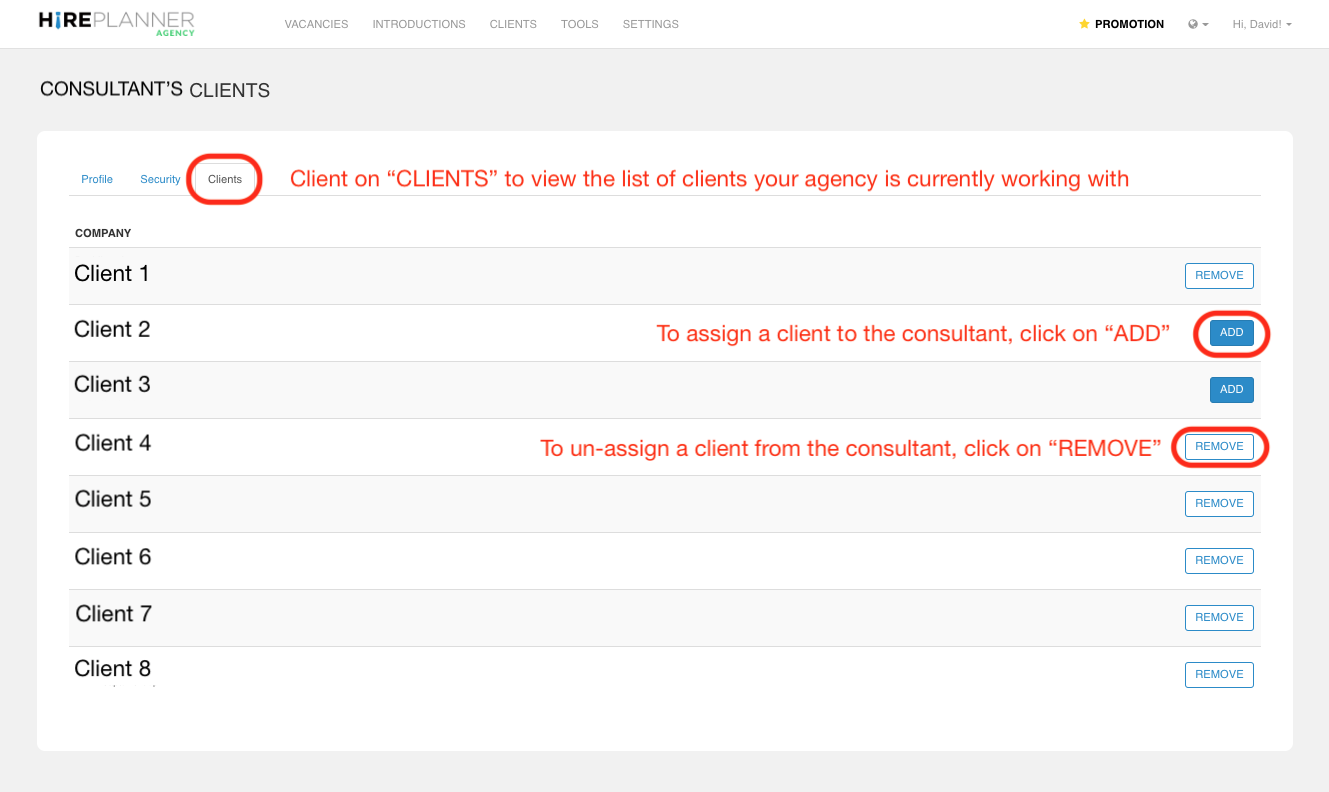
- STEP 4: Click on the "CLIENTS" tab to view the list of clients your agency is currently working with.
1) To assign a client to the consultant, please select the client name and click on the "ADD" button (see example attached below).
2) To un-assign a client from the consultant, please select the client name and click on the "REMOVE" button (see example attached below).
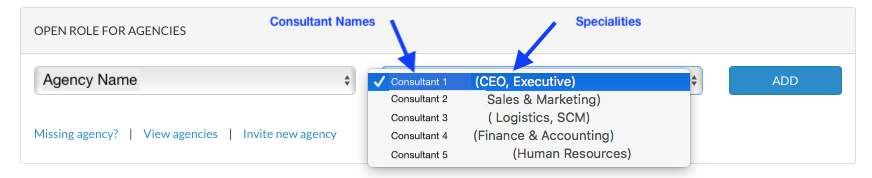
NOTE: If a client is assigned to a consultant, the name and speciality of the consultant will appear as an official representative of your agency on the HR client side. This information will be used by your HR client to assign new projects and roles matching with the speciality of your consultants (see example attached below).
Comments
0 comments
Please sign in to leave a comment.