
PLEASE NOTE THAT ONLY THE ACCOUNT OWNER (MASTER USER) CAN DISABLE A CONSULTANT'S ACCOUNT
IF YOU ARE LOGGEDIN AS A REGULAR USER (CONSULTANT), YOU WILL NOT BE ABLE TO ACCESS THE "SETTINGS" AREA AND DISABLE OTHER CONSULTANTS' ACCOUNTS.
THE BELOW INFORMATION IS THEREFORE ONLY APPLICABLE TO AGENCY "ACCOUNT OWNER".
- STEP 1: Please log into your agency account
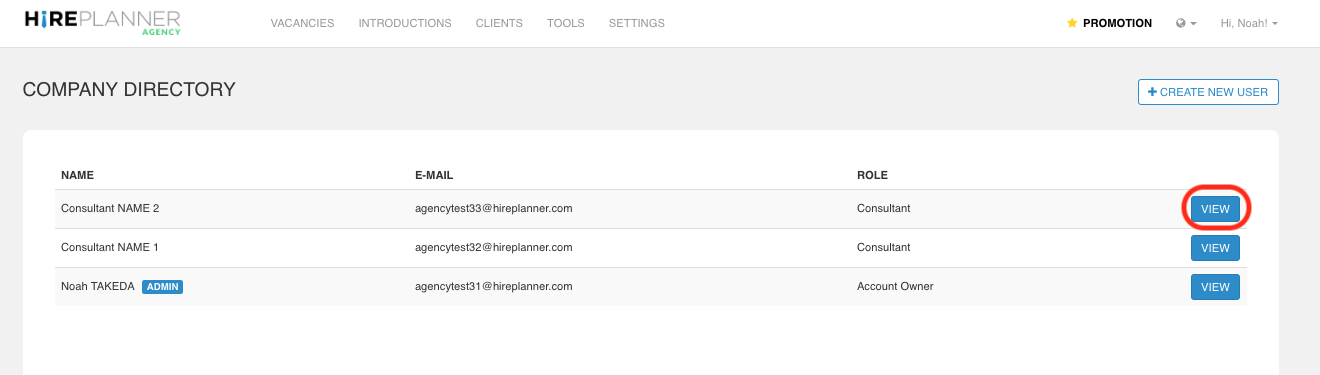
- STEP 2: Please click on “Settings” and select the “Company Directory” category.

- STEP 3: Select the consultant profile you would like to disable by clicking on the “VIEW" button.
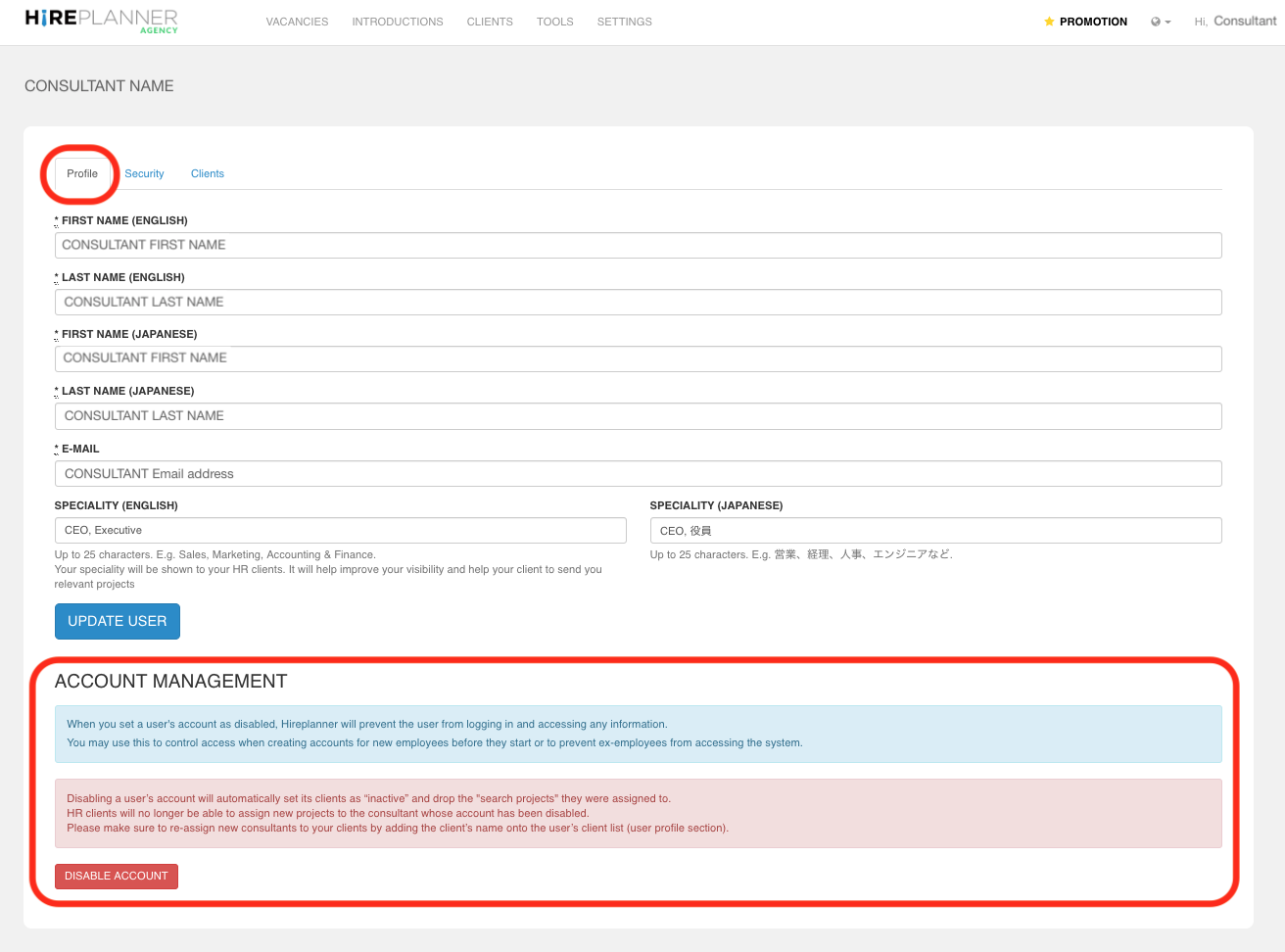
- STEP 4: From the consultant "profile" area, please click on the "DISABLE ACCOUNT" red button.
IMPORTANT NOTE
- When you set a user's account as disabled, Hireplanner will prevent the user from logging in and accessing any information.
- You may use this to control access when creating accounts for new employees before they start or to prevent ex-employees from accessing the system.
- Disabling a user’s account will automatically set its clients as “inactive” and drop the "search projects" they were assigned to.
- HR clients will no longer be able to assign new projects to the consultant whose account has been disabled.
Please make sure to re-assign new consultants to your clients by adding the client’s name onto the user’s client list (user profile section).
Comments
0 comments
Please sign in to leave a comment.