
PLEASE NOTE THAT ONLY THE ACCOUNT OWNER (MASTER USER) CAN UPDATE OTHER CONSULTANTS'S PROFILE AND SPECIALITY DETAILS
IF YOU ARE LOGGEDIN AS A REGULAR USER (CONSULTANT), YOU WILL NOT BE ABLE TO ACCESS THE "SETTINGS" AREA AND UPDATE OTHER USERS.
THE BELOW INFORMATION IS ONLY APPLICABLE TO AGENCY "ACCOUNT OWNER"
- STEP 1: Please log into your agency account
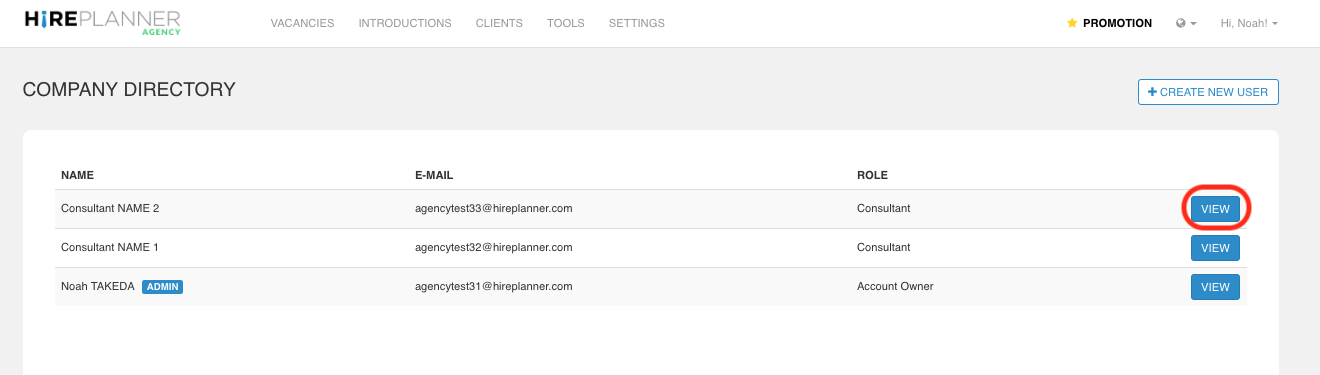
- STEP 2: Please click on “Settings” and select the “Company Directory” category.

- STEP 3: Select the consultant profile you would like to update by clicking on the “VIEW" button.
- STEP 4:
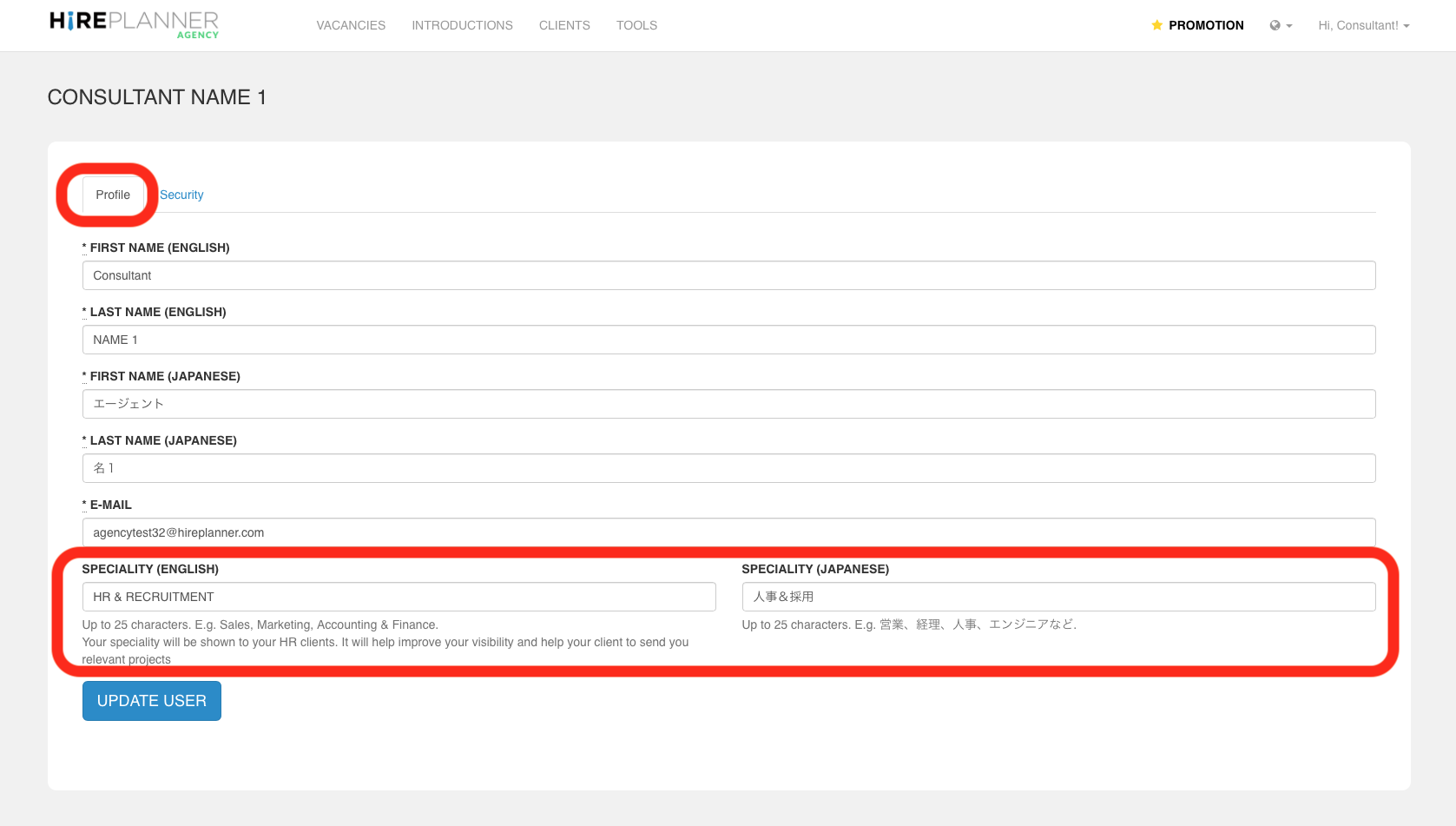
1) Fill out ALL THE FIELDS from the profile and indicate your SPECIALITIES.
Keep in mind that if you do not indicate the speciality of the consultant, your HR clients may not assign any roles to them. If the consultant does not focus on any specific sector and would like to receive any type of roles, please type in something like “All” or “All specialities” so that your HR clients understand it is the case.
2) Fill out all your information in both ENGLISH & JAPANESE
Most of our HR clients use HirePlanner in Japanese so we advise you to take the time to input your details in both English and Japanese. This will help your clients to more easily assign you the right search projects.
It all comes down to making things easier for your clients right?! :-)
HOW WILL IT LOOK ON THE HR CLIENT SIDE?
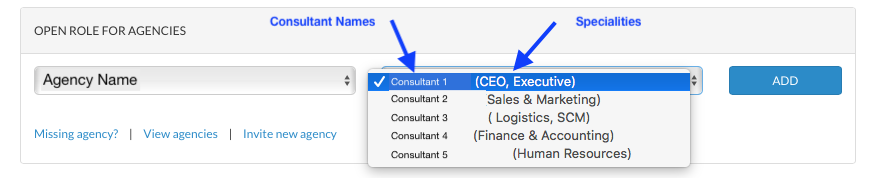
Once your consultant profile is up to date, your HR clients will be able to view your details as seen on the screenshot below.
When HR clients assign a new role to an agency consultant, they will:
1) select the agency,
2) select the consultant they wish to assign the role to
If you do not indicate a speciality, the space will appear as blank (making it difficult for your clients to know which job to assign you).
Comments
0 comments
Please sign in to leave a comment.