
Please note that this section is accessible and can be modified ONLY by the "Account Owner" or the "Administrator" user of your company. If you are a recruiter user without "Admin" access rights, you will not be able to access this part of the website.
Once your company profile and your departments are ready, you can start creating new user accounts for your HR recruiting team, Hiring Managers, Interviewers and other team members you may want to include in your recruiting process (Example: Headcount or Offer approvers...). Keep in mind that you do not need to create a user for every single employee inside your organization - especially if they are not involved in your recruiting process.
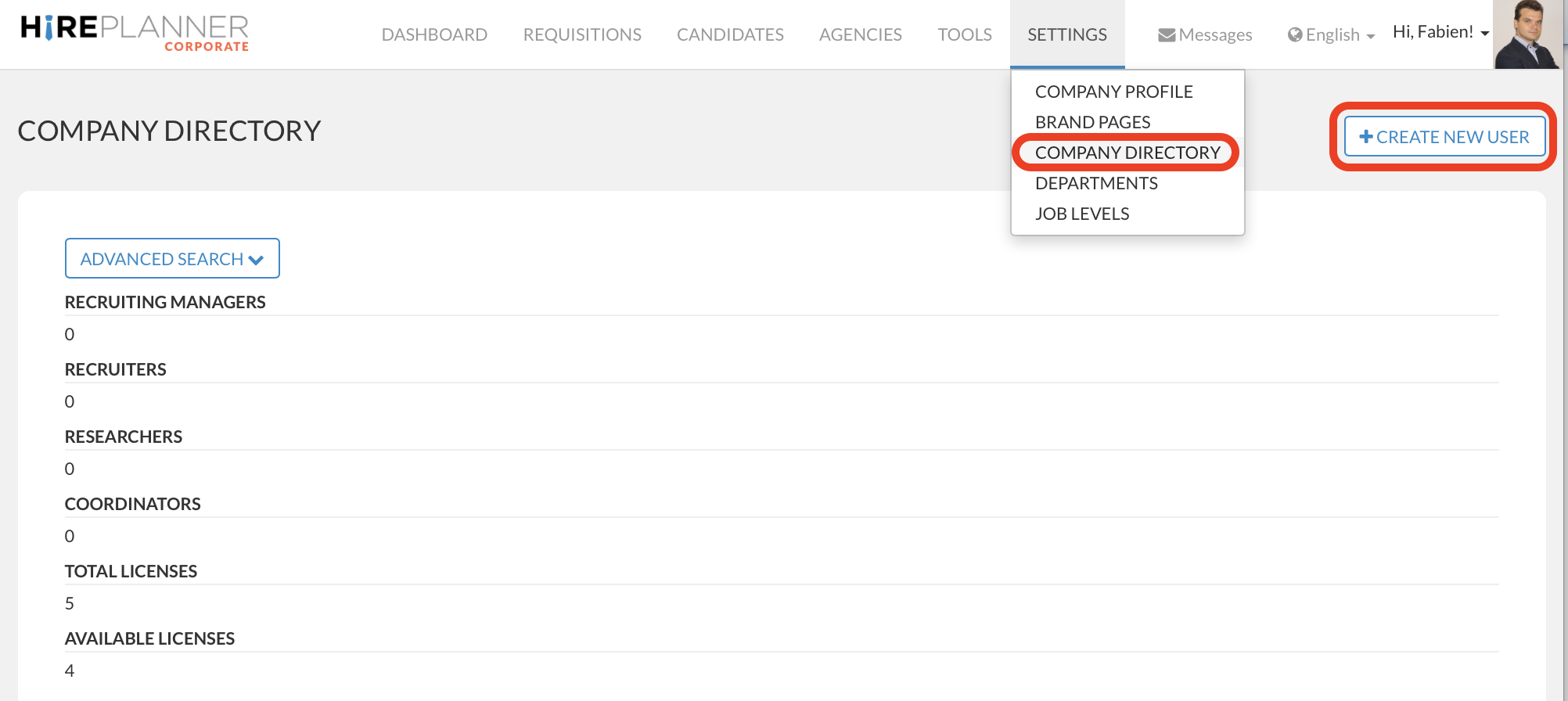
1. Please click on "COMPANY DIRECTORY" under "SETTINGS" on the top navigation menu.
2. On the right side of the page, please click on "+ CREATE NEW USER" to create a new user profile.
3. Fill out the necessary information about the new user.
Items that are marked with the (*) mark are mandatory.
- FIRST NAME and LAST NAME in English
- FIRST NAME and LAST NAME in Japan;
Please take the time to provide both the user's name in English and Japanese to help provide a better user experience to other members of your team.
- EMAIL: Please enter the user's email address
- PASSWORD: Please enter a random secure password with minimum 8 digits including:
- minimum of 1 lower case letter [a-z] and
- a minimum of 1 upper case letter [A-Z] and
- a minimum of 1 numeric character [0-9] and
- a minimum of 1 special character: ~`!@#$%^&*()-_+={}[]|\;:"<>,./?
IMPORTANT: If/when you plan to grant access to HirePlanner to this user, we advise you to NOT share this password with the user. Instead, please advise them to visit this URL (HERE) and have them reset their password by themselves. For more information on how users can reset securely their password, please check our Reset Password section
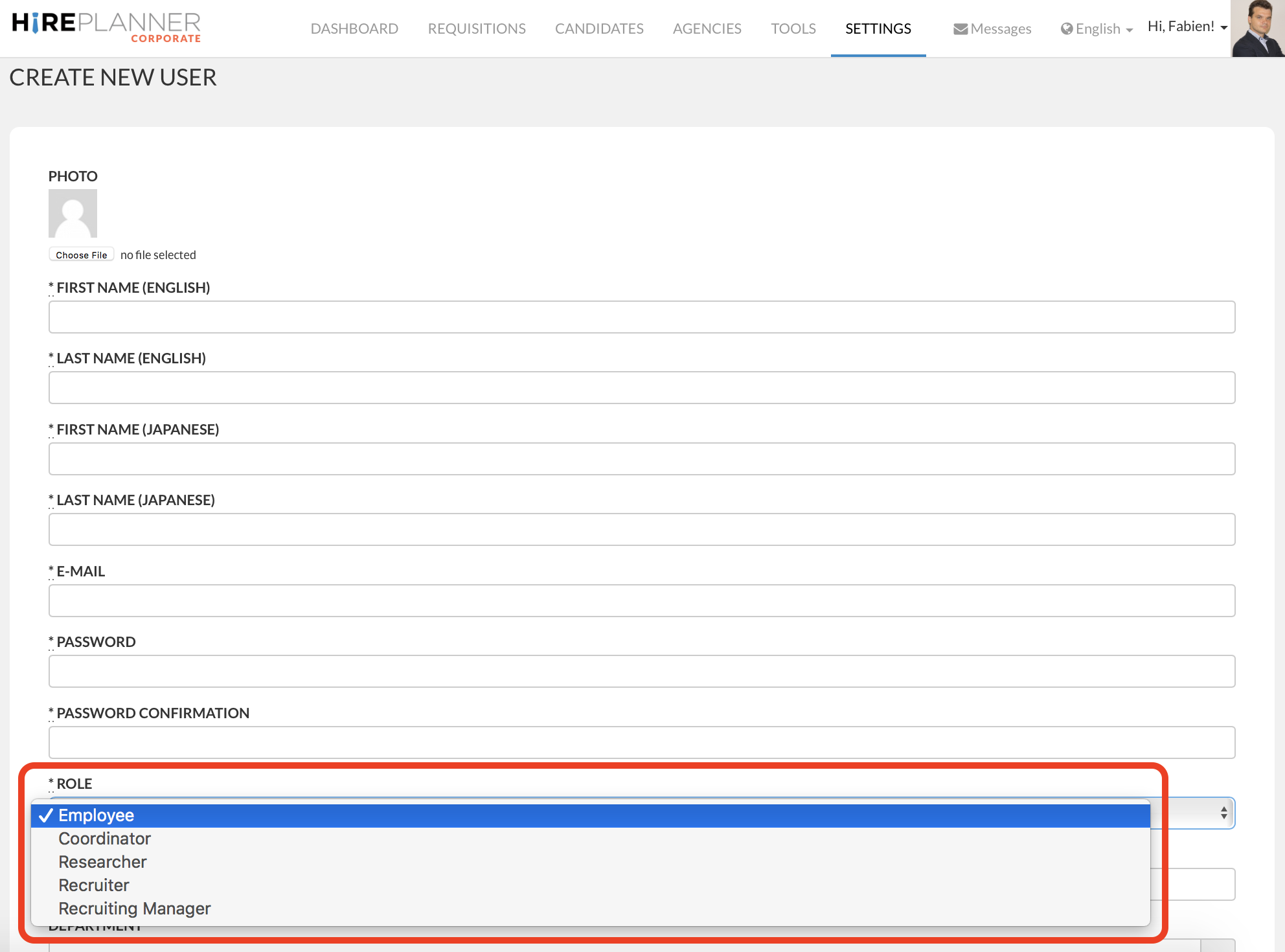
- ROLE: Please select the adequate role for your user.
IMPORTANT: The role you choose will determine the level of access of the user. Please choose carefully based on the information listed below.
A) EMPLOYEE: PLEASE MAKE SURE THAT EVERY USER IS SET AS "EMPLOYEE" EXCEPT IF THEY BELONG TO THE HR RECRUITING DEPARTMENT AND IF THEY HAVE THE RIGHT TO HAVE EXTRA LEVEL OF ACCESS TO RECRUITING PROJECTS.
Hiring Managers, Interviewers and other non-other HR staff should always be set as « Employee » in order to protect (and not grant access by mistake to) any confidential information from the HR hiring department.
"Employee" can only view (read only) recruitment information if it has been directly assigned to the user.
"Coordinator", "Researcher", "Recruiter" and "Recruiting Managers" are all roles to be assigned to ONLY members of the HR recruiting team since they offer extended level of access.
B) COORDINATOR: Please select this role if the user is part of the HR Recruitment team and is involved in the coordination of recruitment projects. Coordinator can browse through the candidate database and edit recruiting projects that have been assigned to them.
C) RESEARCHER: Please select this role if the user is part of the HR Recruitment team and is involved in sourcing and researching candidates for your recruitment projects. "Researcher" has similar access rights as "Coordinator" which can also browse through the candidate database and edit recruiting projects that have been assigned to them.
D) RECRUITER: Please select this role if the user is part of the HR Recruitment team and is involved in all aspects of recruitment projects. "Recruiter" has similar access rights as "Coordinator" and "Researcher": they can access the candidate database and edit all recruiting projects that are assigned to them.
E) RECRUITING MANAGER: Please select this role if the user is part of the HR Recruitment team and is managing a team of recruiters. "Recruiting Manager" has similar access rights as "Recruiter" except that they can access all the recruiting projects that are assigned to them and which are assigned to recruiters reporting to them.
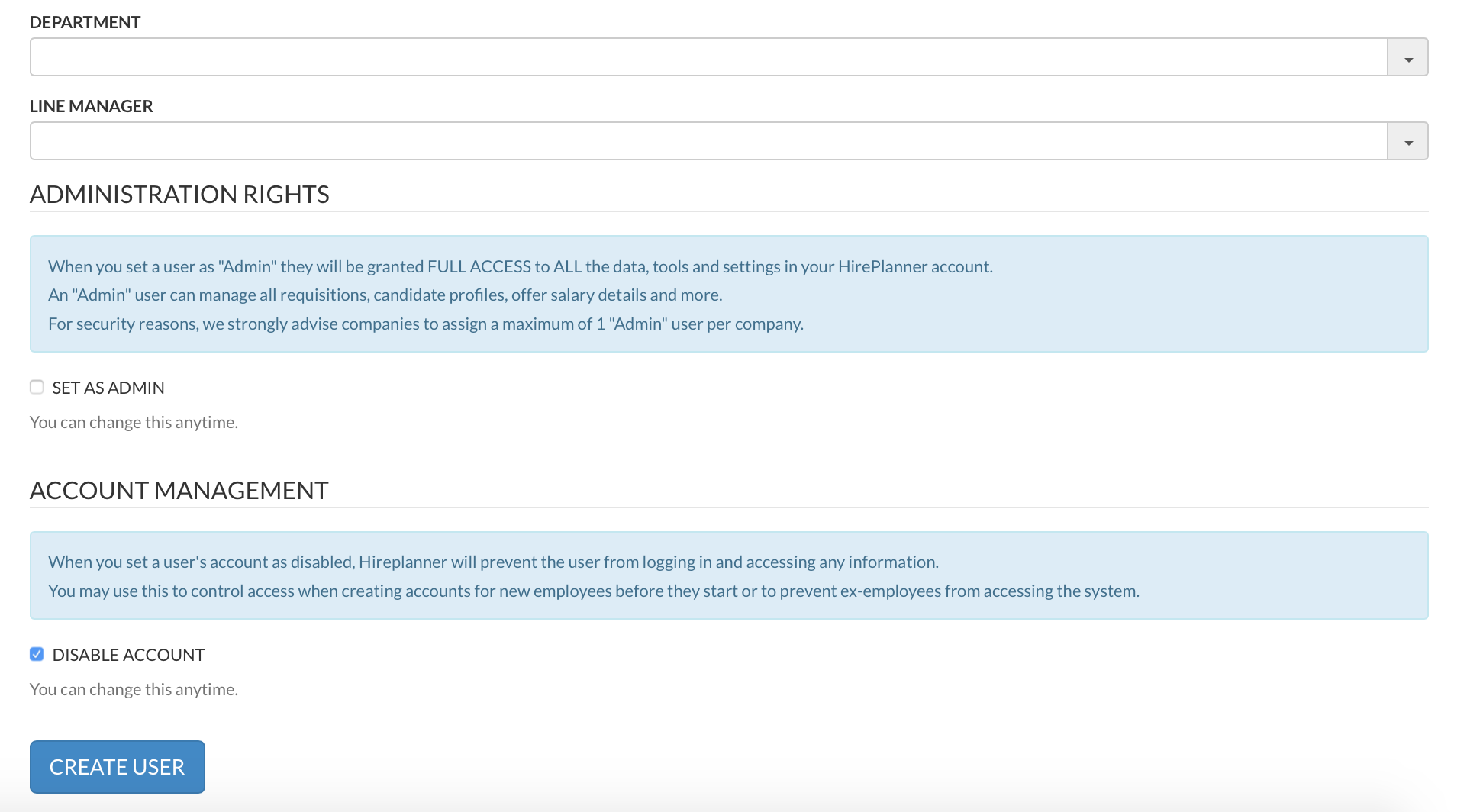
- DEPARTMENT: Please select the department the user belongs to. Please choose carefully as it may impact the data the user has visibility to.
- LINE MANAGER: Please select the name of the user's line manager (person who is managing the user you are creating). Please choose carefully as it may impact the data the line manager has visibility to.
IMPORTANT!!
- SET AS ADMIN: If you would like a user to have the same access rights as the "account owner" and grant them full access to every part of the HirePlanner system, please check the check box called "SET AS ADMIN".
Please be careful with this function. Checking this box will give full access to the user and they will be able to view and edit any recruiting projects on the HirePlanner system (including access to the company profile, department settings, user profiles etc.).
- DISABLE ACCOUNT: You can restrict the access of your users at any time.
If you wish to NOT grant your new users access right away, please leave the "DISABLE ACCOUNT" check box checked. This will keep their account de-activated.
When you are ready to grant access to your users, please remember to uncheck the "DISABLE ACCOUNT" check box so that the users can log in the HirePlanner system and access to their recruiting projects. No automatic email notification will be sent to the users so you will need to inform them yourself.
When an employee leaves your organization and you would like to de-activate their access, please remember to re-check the "DISABLE ACCOUNT" check box from their user profile to make sure they can no longer access to their account and any corporate HR recruiting confidential data.
Comments
0 comments
Please sign in to leave a comment.