
With HirePlanner, you can create and customize your HR users, Hiring Managers, Interviewers along with their DEPARTMENTS.
Please note that this section is accessible and can be modified ONLY by the "Account Owner" or the "Administrator" user of your company. If you are a recruiter user without "Admin" access rights, you will not be able to access this part of the website.
1. ACCESS THE "DEPARTMENTS" SECTION
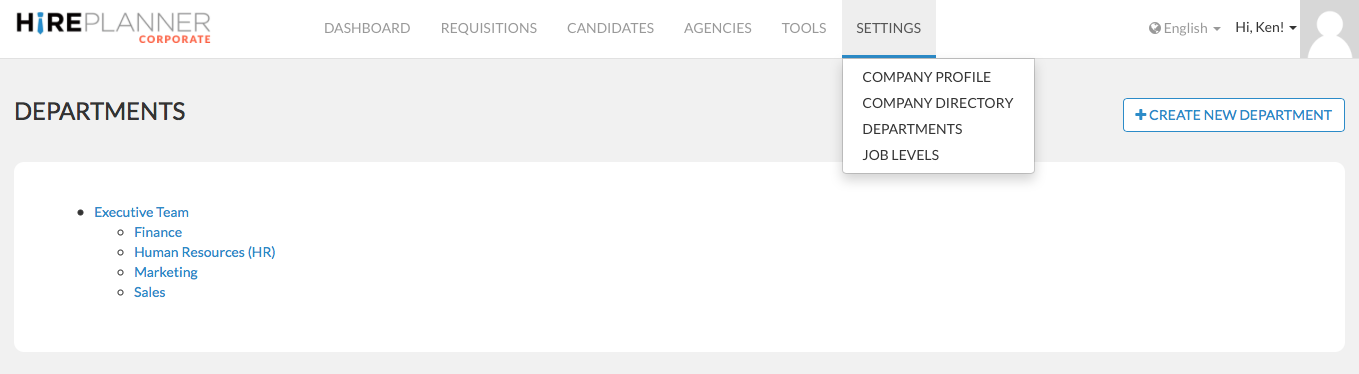
To create the DEPARTMENTS of your hiring managers, please click on "SETTINGS" (on the top menu of your navigation bar) and select "DEPARTMENTS".

2. CREATE "DEPARTMENTS"
Please click on the "+ CREATE NEW DEPARTMENT" button located on the top right hand side of the screen to create a new department.

3. "ADD NEW DEPARTMENT" FORM
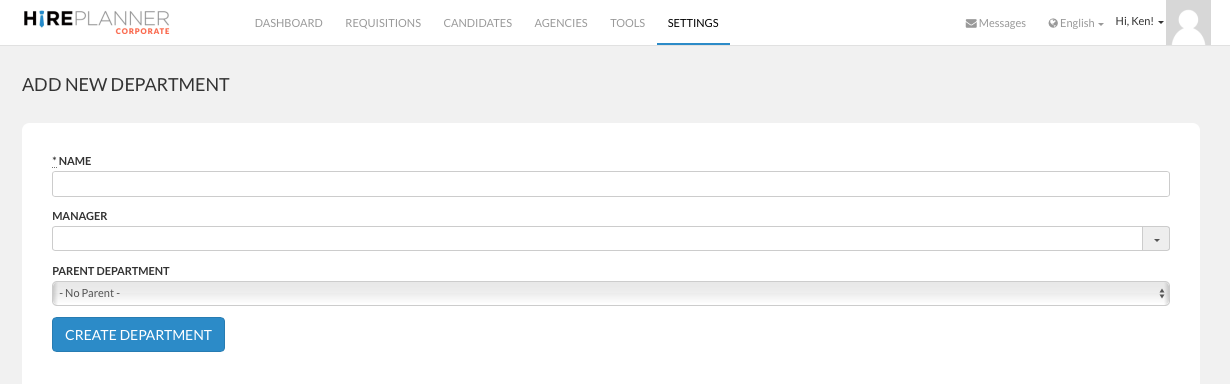
- NAME: Please type the name of the department you wish to create
- MANAGER: This field is here to indicate the name of the person in charge of the department you are creating.
IMPORTANT: PLEASE DO NOT ASSIGN A MANAGER JUST YET UNTIL YOU FINISHED READING ALL THE INFORMATION BELOW ALONG WITH THE PAGES RELATED TO ACCESS RIGHTS AND PERMISSIONS. WE WILL GO BACK TO IT A BIT LATER (AFTER YOUR USERS ARE CREATED) SO LET'S FIRST FOCUS ON JUST CREATING THE DEPARTMENT NAMES.
- PARENT DEPARTMENT: In the drop down, please select the department that is managing (above) the department you are creating.
In the example listed below, the user has created 4 departments called: « HR, Finance, Marketing and Sales » and assigned them to report to the « Executive Team » (The Parent Department) which the CEO or Country Manager would belong to.
IMPORTANT ACCESS RIGHTS INFORMATION:
THE WAY DEPARTMENTS ARE SET WILL DIRECTLY CONTROL AND IMPACT YOUR TEAM'S ACCESS RIGHTS AND USER'S PERMISSIONS SO IT IS IMPORTANT YOU TAKE YOUR TIME TO GET THIS PART OF THE SETTINGS SET PROPERLY.
BEFORE YOU START GRANTING ACCESS TO YOUR USERS (RECRUITERS, HIRING MANAGERS, INTERVIEWERS etc., PLEASE MAKE SURE TO READ CAREFULLY OUR GUIDE ON ACCESS RIGHTS TO MAKE SURE YOUR DEPARTMENTS ARE SET PROPERLY.
TO LEARN MORE ON ACCESS RIGHTS, PLEASE CLICK HERE
Comments
0 comments
Please sign in to leave a comment.