
Because HirePlanner is more than just a traditional job site, it is necessary to get your requisitions (job vacancies) approved by one or more users before you can advertise them online.
WHO TO INCLUDE IN YOUR LIST OF APPROVERS?
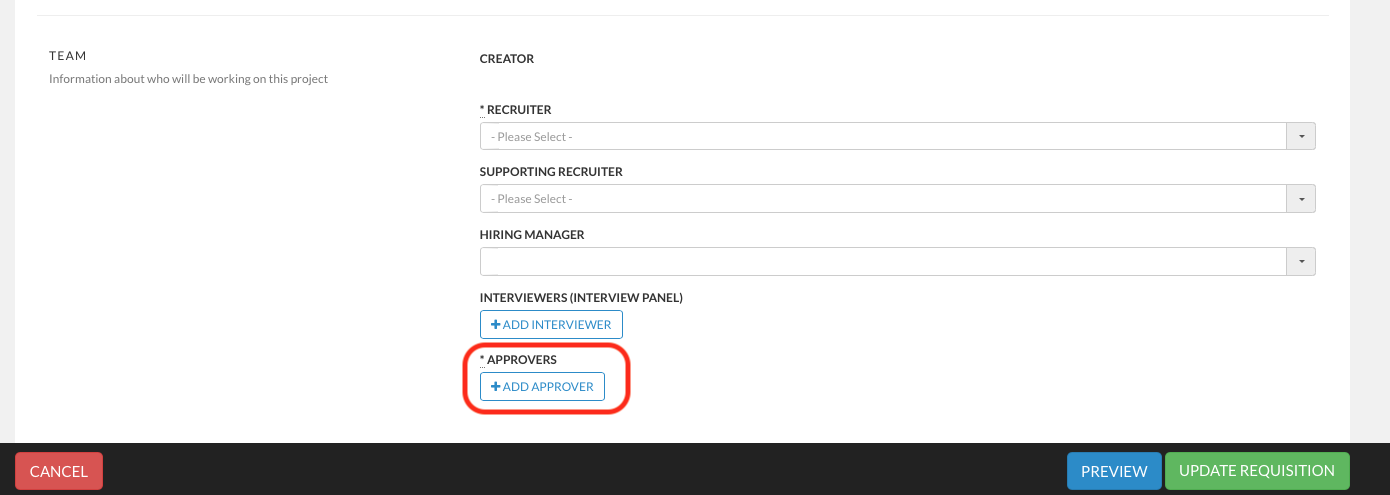
From the requisition form, the “+ Add Approver” button will allow you to assign an official list of “Approvers” to validate the headcount. “Approvers” can vary depending on your organization but would usually include the following group of people:
- Recruiter in charge (who is raising the requisition)
- Hiring Manager,
- His/her Line Manager,
- CFO and,
- Head of HR
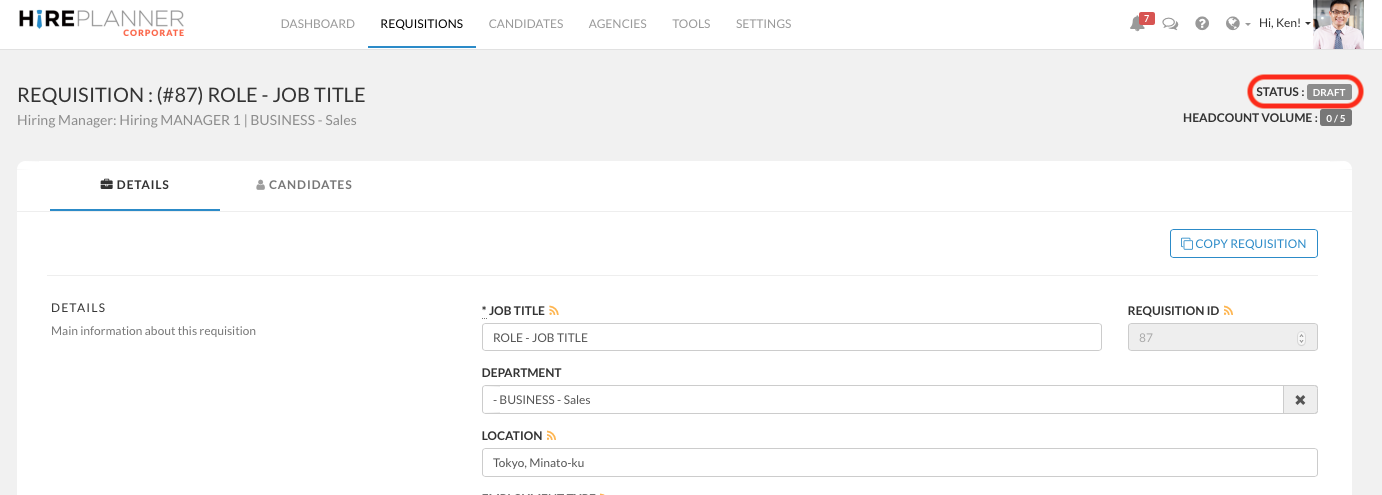
DRAFT REQUISITION: Please keep in mind that if you do not assign anyone as “Approver”, you will not be able to “Raise” your requisition and therefore, its status will remain listed as “Draft”. “Draft” Requisitions are not considered as valid and Recruiters will not be able to attach candidates to them nor advertise them online. To advertise your jobs online and start building your candidate pipeline, you will need to raise and approve your Requisitions.
WHEN ASSIGNING HR APPROVERS ONLY
(When assigning multiple approvers, please scroll down)
If you plan to use HirePlanner exclusively within HR without granting access to your business partners (outside of HR), you can simply assign yourself as the sole approver in order to approve the Requisition.
- Select the requisition you wish to raise for approval
- Fill out the requisition form and add your name onto the list of APPROVERS
- Click on UPDATE REQUISITION (green button located at the bottom of the requisition form).
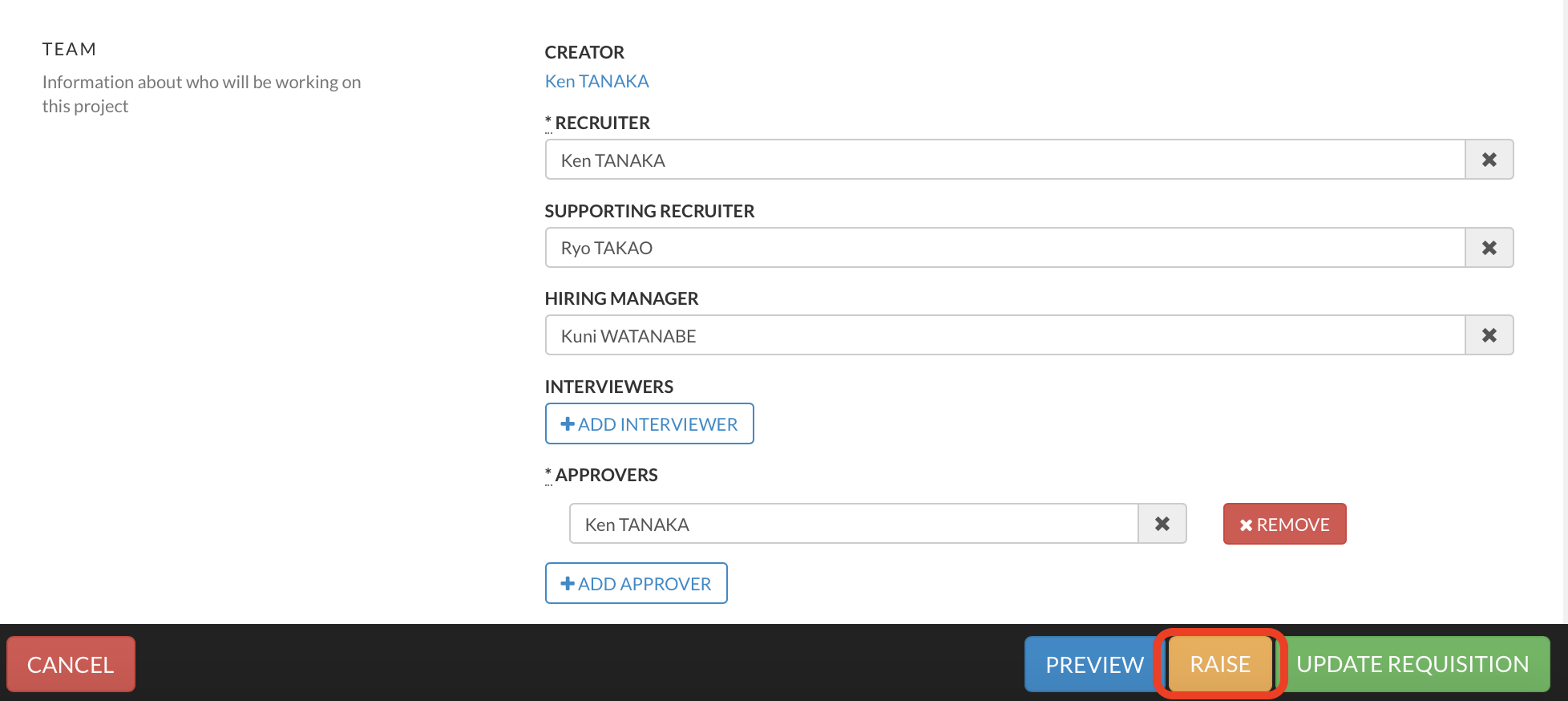
If you wish to make any changes to the requisition form before submitting it for approval, please remember to click on "UPDATE REQUISITION" once you completed all your changes. - Click on RAISE (orange button located at the bottom of the requisition form) to submit your request for approval.
- An EMAIL NOTIFICATION will be sent to the person listed on the approval route to notify them about the requisition waiting for their approval.
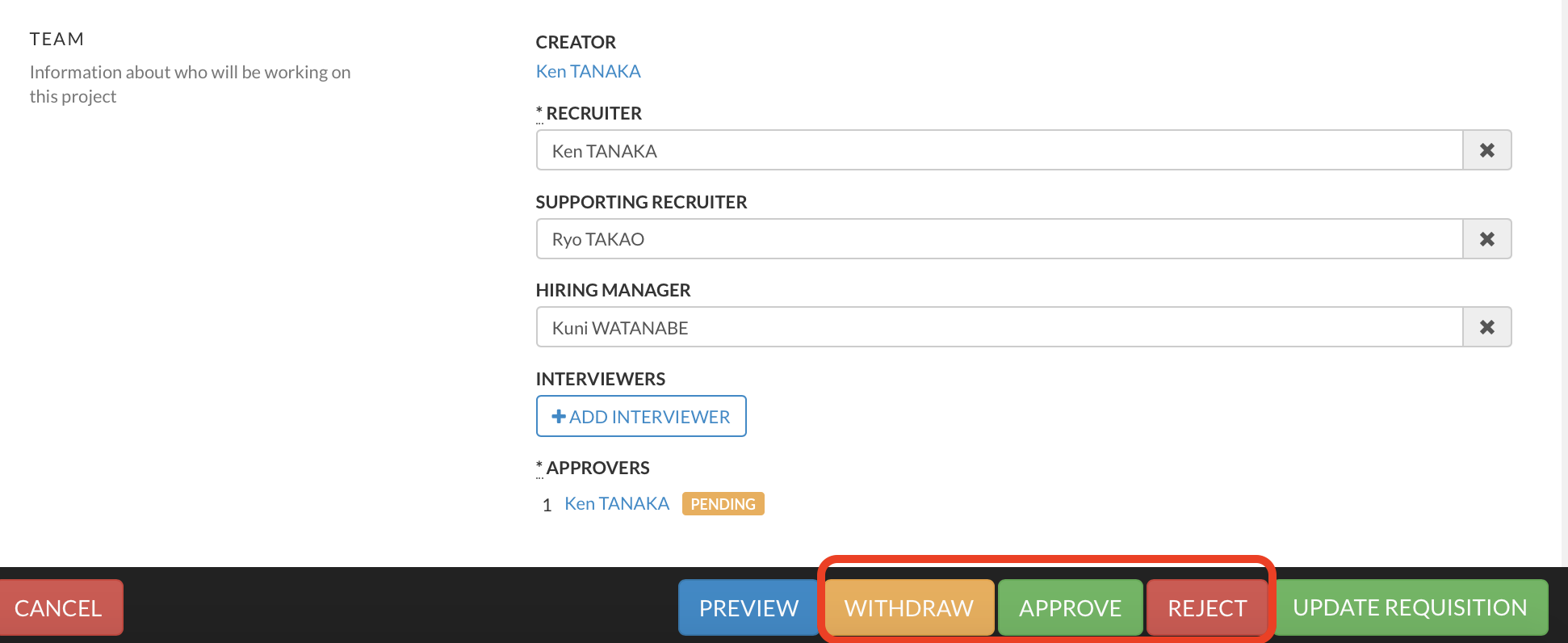
- Click on one of the 3 buttons listed at the bottom of the requisition form:
- WITHDRAW: If you realized your requisition approval request is incorrect and requires some changes, you can withdraw it anytime and re-raise it after you have modified it. Even after your requisition is approved, you will be able to make changes.
- APPROVE: This button is displayed only if you are listed on the approval route and when the requisition is pending at you. Click on the "APPROVE" button to validate the req.
If you are the last person on the list of approver, an email notification will be sent to the recruiter in charge and the hiring manager to inform them that the requisition has been approved.
If other approvers are listed after you on the approval route, an email notification will be sent to the next approver to request their approval (until the requisition is fully approved).
- REJECT: This button is displayed only if you are listed on the approval route and when the requisition is pending at you. Click on the "REJECT" button to reject the req. approval.
An email notification will be sent to the recruiter in charge to inform them the req, has been rejected and that their attention is required. The recruiter will be able to re-raise it once you make the necessary adjustments requested by your approvers.
WHEN ASSIGNING MULTIPLE APPROVERS
If you choose to grant some level of access to the business stakeholders outside of your HR team (Hiring Manager, Department head, CFO etc.), please follow the instructions below:
- Fill out the requisition form and add the names of people you wish to include on the list of APPROVERS. Please remember to list the approvers in the order you wish them to receive the approval request. The 1st approver on the list will receive the request for approval first. Then the second, and so on...
- Once you are done updating your requisition form, please click on UPDATE REQUISITION (green button located at the bottom of the requisition form).
If you wish to make any changes to the requisition form before submitting for approval, please remember to click on "UPDATE REQUISITION" once you completed all your changes.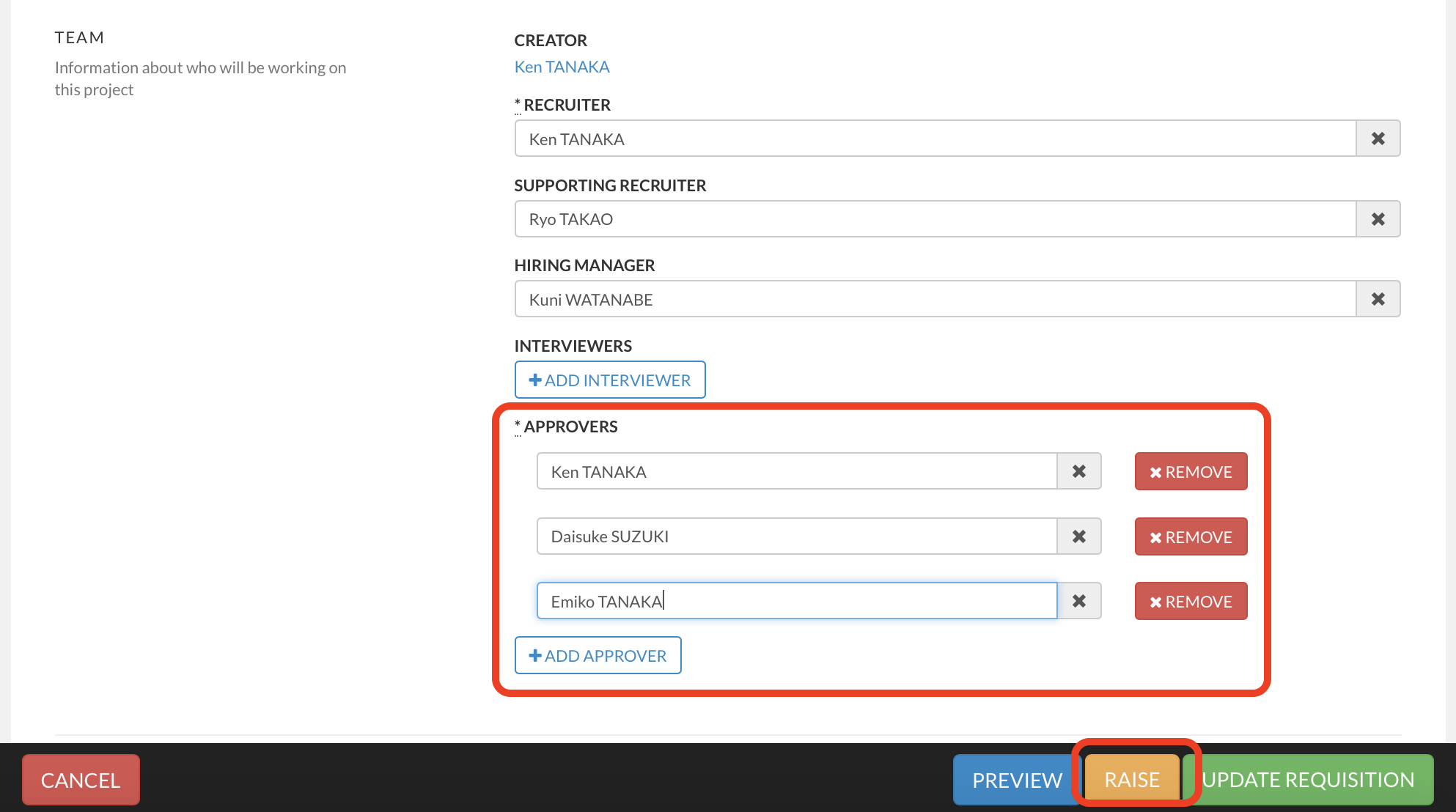
- Click on RAISE (orange button located at the bottom of the requisition form). This will trigger the approval process and send an email notification to the first approver from the list and invite them to log into HirePlanner to approve the headcount. Each emails will be sent one person at a time in the order you have selected.
Please find below an example of email notification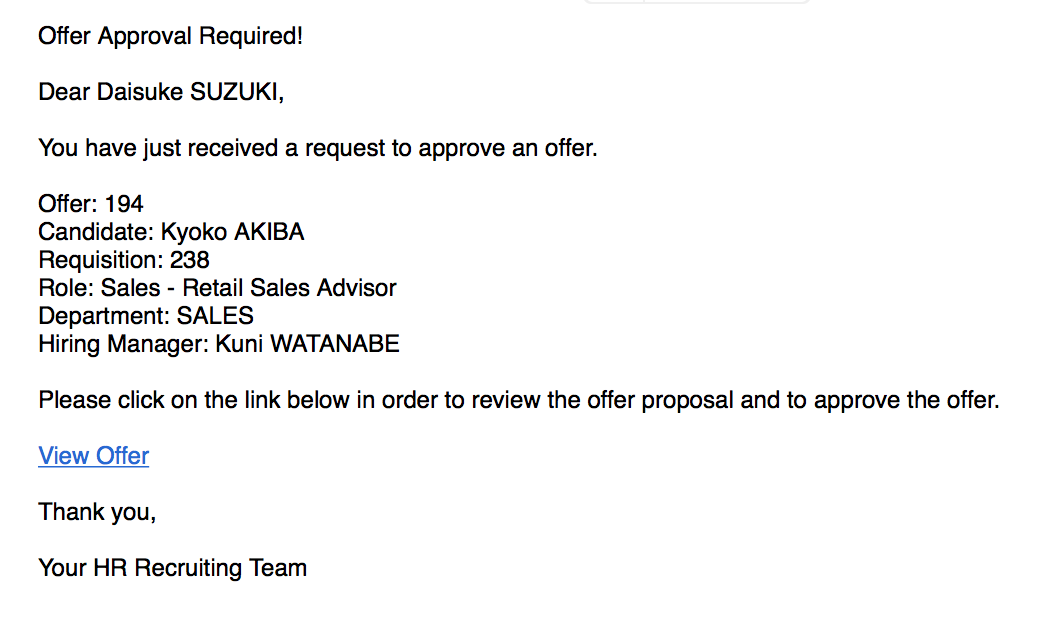
- Once each approver is done reviewing the requisition approval request, each approver can click on one of the 2 buttons listed at the bottom of the requisition form:
- REJECT: This button is displayed only to employees listed on the approval route and when the requisition is pending at them. If the approver clicks on the "REJECT" button, an email notification will be sent to the recruiter in charge to inform them the req. has been rejected and that their attention is required. The recruiter will be able to re-raise it after they made the necessary adjustments.
- APPROVE: This button is displayed only to employees listed on the approval route and when the requisition is pending at them. To validate the req. they need to click on the "APPROVE" button.
An email notification will be sent to the next approver until the requisition is fully approved.
Once the last person approves, an email notification will be sent to the recruiter in charge and the hiring manager to inform them that the requisition has been fully approved.
Once approved, the requisition will be listed as "OPEN"
Once your requisition is approved, you can publish your job posting online and start collecting candidate applications.
Please click on How to publish a job posting online for more details.
Comments
0 comments
Article is closed for comments.