
Once your requisition is approved and its status set as "OPEN"  , you can assign your open role to any of your agency partners and their respective consultants.
Each agency consultant you choose to assign to one of your open roles will receive an email notification and will be invited to submit candidate introductions within the HirePlanner system.
You can assign as many requisitions to as many consultants as you wish based on their competencies and specialities.
IMPORTANT NOTE: Before you can assign an open role to agency consultant, you need to make sure your requisition (Job Posting) is marked as "OPEN" (approved headcount). If your requisition is marked as "DRAFT"  or "PENDING APPROVAL"
  , you will NOT be able to assign it to any agencies.
If your requisition is pending approval , please wait until all your approvers have approved the headcount. You will be able to assign the open role to agencies as soon as the requisition is fully approved.
For information on how to create and approve a requisition , please click HERE
1. Requisition page
Open the requisition you wish to open to an agency consultant
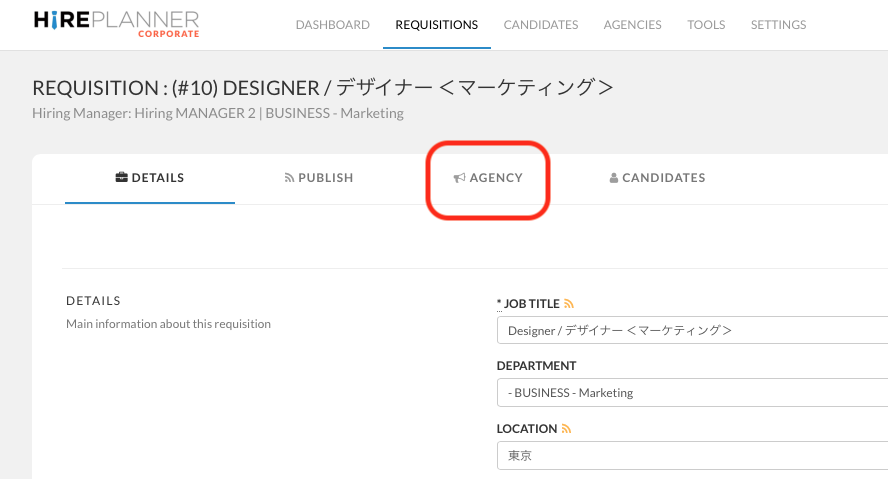
2. Click on the AGENCY Tab
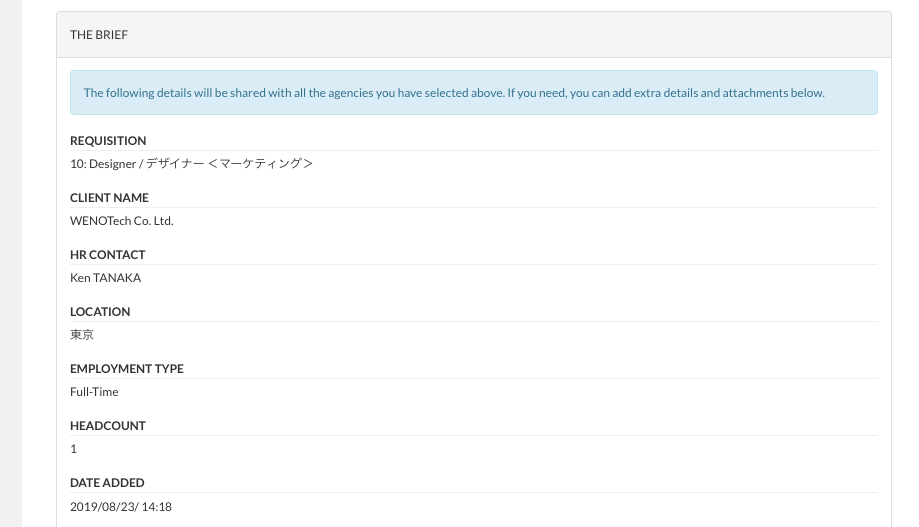
3. Check your requisition content (Job Description) before assigning agencies (make sure you are not sharing any confidential information).
The content located under the "BRIEF" Section will be shared with the agency consultants you assign to work on your requisition.
4. Decide IF you wish to share the job salary range with your agencies
If you wish to share any specific salary range information, click on the "SHARE SALARY DETAILS" button (at the bottom of the page).
If you wish to NOT share any specific salary range information, click on the "HIDE SALARY DETAILS" button (at the bottom of the page).

5. Provide more details and attachments to your agency partners
If you wish to share some additional information or instructions on your hiring process with your agency consultants, you can include them at the bottom of the BRIEF in the "EXTRA DETAILS" section. The text information and file you attach onto this area will be shared automatically with all the agency consultants you have assigned to support you with this open role.
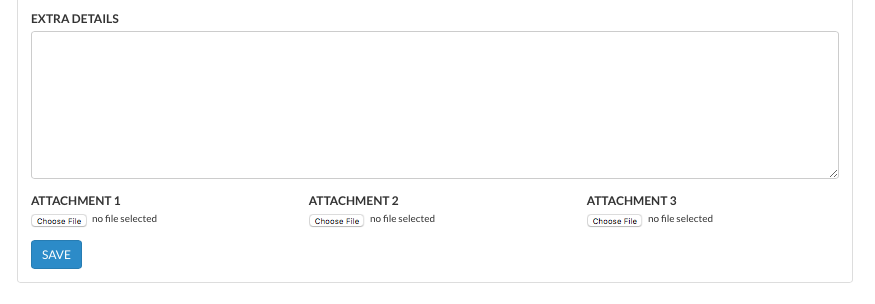
You can edit the information below at any time and the changes will be reflected immediately on the agency side. Unfortunately, agencies will not be notified each time you make a change so we recommend you to inform them directly until we can build an automatic notification system for this part of the site.
6. Select a recruitment agency
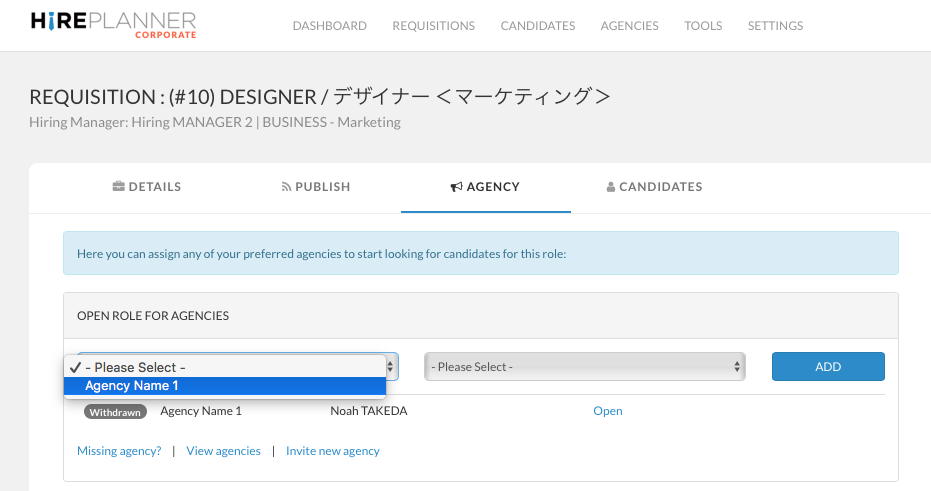
7. Select consultant
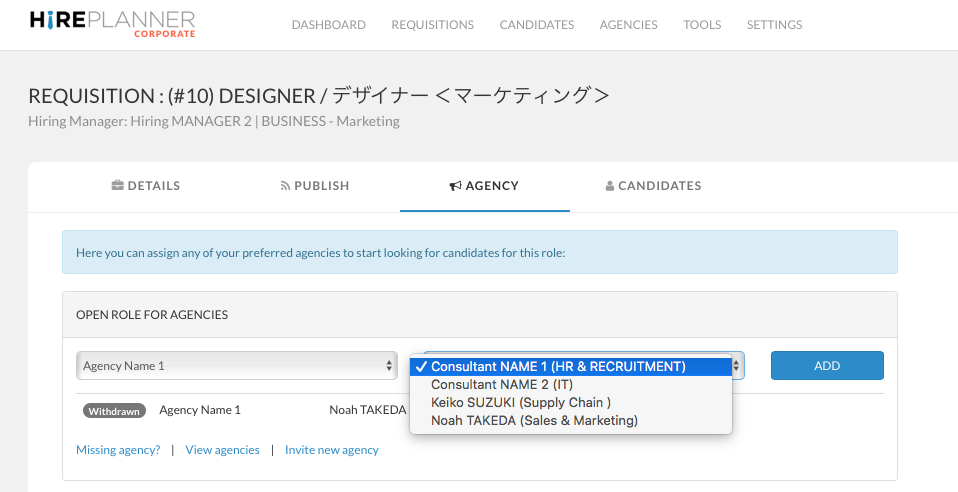
8. Click on the "Add" button
Once you click on the "ADD" button, the agency consultant that you selected will get notified via email that he/she has been invited to work on your requisition. Your list of assigned consultants can be seen just above the BRIEF section.
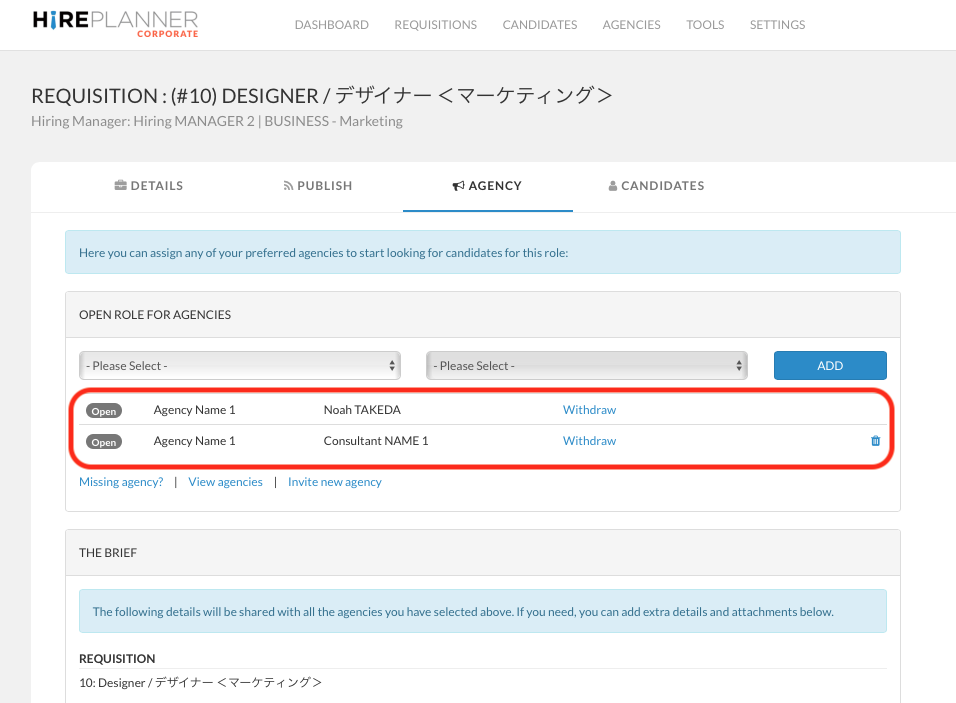
HirePlanner shares the job information with each selected consultant separately, so if you have multiple consultants you wish to assign for a requisition, you will need to select each consultant one at a time. We have plans to add new features soon to help you select multiple agency consultants at the same time so please stay tuned (more information coming soon).
NOTES:
- OPEN: The job information is shared with the consultant
- WITHDRAWN: If you click on the "Withdraw" link, the role will appear as "Closed" on the agency side and the withdrawn consultants will not longer be able to submit candidate introductions. If withdrawn consultants have introduced candidates in the past, the history of introduced candidates will remain in the system.
- TRASK CAN: The trash icon is only visible when the agency consultant has not yet introduced any candidates for your role. If you click on the trash can, the role will be removed from the consultant's projects. Consultants will no longer be able to make candidate introductions for the role since they can no longer access it.
Comments
0 comments
Article is closed for comments.